 OK. Been super-duper busy here at the Valca micro-ranch. Full weekends and long nights at the grindhouse and sacred-space.
However, last weekend I had a good excuse…I was setting up a new laptop named “Alister” to join my primary laptop “Tatiana”.
GSD readers may recall that Tatiana was the very first “higher-end” personal computer I allowed myself to splurge on: A Dell Named Tatiana. It is a 15” Dell Studio laptop with an Intel i7 processor with a 500 MB drive and full 1080 hi-def display (still gorgeous after all these years!).
What are my thoughts on it after just over 4 years?
Well, it still seems like a fresh-off-the-showroom-floor system. The i7 processor continues to chew up anything I toss at it with barely a bump on the processor load. The BIOS has been upgraded a few times but has all the virtualization support features to keep my VM’s running nice. The display is stunning. I absolutely love the 15” size factor. It is easy to dump into my SwissGear tech backpack and go. I love the fact the keyboard doesn’t have an extra number-pad on it. A new video driver update for it finally fixed an audio issue I was having and the sound quality is top-notch.
Cons? There aren’t that many. The system only will support a max of 8 GB System RAM so there is that limitation that really makes running multiple VM’s a hassle, or running a single VM and then doing some memory-demanding app work on the host system at the same time a challenge. That is my biggest current “complaint”. I’ve still not upgraded from the stock 500 GB OEM hard drive. I’ve been waiting for the prices of 1TB SSD drives to come down more before upgrading. I can manage the existing space OK with off-loading VM’s to a 1.5 TB USB drive. It doesn’t have Blu-Ray player. Not a deal-breaker but I do have a number of fav. disks in Blu-Ray format that I can’t enjoy on the go with it (and I don’t want to download new digital ones from iTunes/etc.). I did grab a few bundled digital downloads off the physical disks when we go that option so I do have a nice selection to carry with me but…see note about HDD space management. Oh, it doesn’t get “hot” but despite regular cleaning of the cooling system, the fan noise is fairly loud. I can tune it out after 4 years of practice but when I do notice it, it is there. More like an oscillating fan on medium.
So what has this to do with “Alister”?
Well quite some time ago, little bro splurged on a high-end Dell Alienware desktop system to satisfy his hard-core gaming needs. After some time he decided he no longer needed (or was using) his Dell laptop and passed it down to me.
What did I adopt?
A vintage 2012 Dell XPS 17” L702X laptop…almost maxed out. After much work and rebuilding, it has been christened “Alister” after the Last Exile anime series character Alister Agrew who was Tatiana Wisla’s navigator. Seemed appropriate since we still refer to my red Studio laptop as “Tatiana”.
So here are some notes for future reference and the curious who wonder how additional tweaks can be made.
The very first decision I needed to make was how I was going to use the laptop. It never crossed my mind to replace my primary (and beloved) Studio laptop Tatiana with the XPS system. Instead, I decided I would use the XPS as a field work-horse system. Instead of tucking Tatiana into my go-bag for personal service calls and out-and-about runs, she would stay safely at home. In its place, the laptop Alister would be drafted into service for demanding service runs, network discovery and service jobs, and to do the heavy lifting when it came to primary virtual machine hosting.
With that settled, I had some work to do.
The XPS system is great in that it offers a lot more upgrade flexibility. It too has an Intel i7 processor and (though initially as handed to me loaded with 8 GB OEM system RAM) can support up to 16 GB RAM. It has a Blu-Ray player. And it came stock from bro with a dual-HDD bay; present were two matched 7200 RPM 500 GB Samsung drives. Oh, I almost forgot. It has two USB 3.0 SS ports! The 15” Studio laptop doesn’t; and I now have three different 1.5+ TB USB drives that can support USB 3.0. So I can finally take full advantage of them.
So, first we address the hardware situation.
I decided that per Crucial and Speccy and the Dell Service manuals, I would pick up two more 4 GB RAM sticks and cheaply upgrade to 16 GB RAM. I would also sacrifice one of the 500 GB HDD to down-upgrade to a 250 GB SSD drive which would become my system drive and use the other 500 GB HDD as my data drive.
Only…guess what? I quickly learned that this Dell XPS 17” L702X model is notoriously confusing when it comes to supported RAM configurations.
A very long-story summarized, depending on the graphics “board” option selected for the L702X, if the 3D display is chosen, then you have 4 DIMM slots for RAM. If not, then you only have 2 DIMM slots for RAM. Despite there being no Dell documentation as to that fact and despite Crucial scanner and other hardware identification tools all reporting my laptop had 4 DIMM slots. Open it up and you can only find 2 DIMM slots. Crushed (momentarily) were my plans for a 16 GB RAM system.
However, there was hope…forums were filled with accounts of others who worked out that -- despite it not being documented -- assured you can drop two 8 GB DIMMS into the system and get 16 GB RAM anyway. There was also a YouTube video confirming the same.
As I said, the Crucial (my go-to brand for memory) website only auto sensed a 4 DIMM model but with some clever searching I found both 2-DIMM and 4-DIMM options (linked above)…neither of which showed me a 16-GB RAM option.
Knowing buying of two 8 GB sticks was going to me much more pricey than planned, but commited anyhow, I decided to see if I could trial the configuration before purchase.
(Laptop in tow) I headed down and about an hour’s drive from home into the new Micro Center Houston/West Loop store in Houston.
The sales tech working the counter listed as I explained my case. He looked up online and consulted with a senior associate and they both agreed that my system had 4 DIMM slots. So I opened it up and showed them the two only slots. After some testing they confirmed it was just 2 DIMM slots. More Google work (that I had already covered first) led them to the conclusion that two 8 GB sticks “should” work fine. Understanding my concern about buying RAM and then getting home to find it didn’t work,the MicroCenter staff cheerfully (nay gleefully!) agreed to my request to trial fit/run two Crucial 8 GB sticks in it before purchase. A quick swap in and reboot and 16 GB RAM was reported in the BIOS. Success.
Here is what I purchased for the curious:
I also picked up a Samsung SSD 840 EVO 250 GB drive that was on sale.
Again, the amazing good MicroCenter sales rep listed to my geek-talk regarding the system and advised me to go with the “bare” box SSD drive rather than the kit box. The kit box contains some extra software and an SATA to USB hardware dongle to make transfer of data/system from one drive to another more easy. He recognized that since I was doing a bare OS load I didn’t need to pay the extra $10-15 for the “kit” version.
Wallet considerably lighter after these purchases, I drove home and got to work. Note for the curious; MicroCenter rocks for geeks. The new store is super flashy and a pain to get on and off the freeway to, but it’s worth the visit and journey. For another’s opinion see D.Silverman’s Inside Micro Center’s new Houston store post via the TechBlog.
Drive swap went flawlessly back home. RAM was already upgraded in the store. I was amazed how light the SSD felt in comparison to the HDD drive I removed. Isn’t technology grand!
I first loaded the Windows 10 Technical Preview x64 OS on it. It went on super-fast and worked wonderfully for a few days. I really love the Win 10 OS so far and though I may not do an immediate upgrade from Win 7 to Win 10 on Tatiana, I would have no concerns or qualms if I had to recommend Win 10 or do an upgrade to one of my systems. Lavie’s laptop will be getting it immediately when released as her Win 8.1 still causes her considerable fussing. Anyway, it picked up almost all the drivers needed for the system and I found the few I still needed under Win 8 support worked fine. Oh. It booted from shutdown to login screen in about 10 seconds. Serious. The BIOS load was the slowest part! SSD’s rock.
However, I then got greedy and manually tossed on a new build pre-release of Win 10 TP.
That resulted in breaking my network connections and Wi-Fi entirely. All attempts to reload the driver to get it working failed. It was noted in the blog post above but that’s the ropes when you fiddle with pre-release software.
In the end, I decided I needed stability and dependability for this particular system. Luckily, bro was kind and had well-treated the OEM Win 7 Ultimate sticker on the bottom of the laptop. Win 7 Ultimate x64 it was.
I did have to get the ISO for it, but that wasn’t an issue.
Boom. Fresh OS load from scratch, a quick and flawless phone activation was required with Microsoft, done. Activated!
Then another 1/2+ day was taken up with OS updates, Office 2010 install and updates, SSD management software from Samsung loaded and re-tweaked for performance. And many more driver headaches under Win 7 than Win 10 TP. Boot time was much slower to desktop…maybe 30 seconds now up from 10 seconds. Oh well.
Most driver issues were resolved and cleared by just hitting the Dell Support page for the XPS 17 L702X model.
I said “most”. The hardest driver issues to deal with are listed below and were not easily cleared.
That turned out to be the free-fall sensor. And it needed this driver to clear: ST Microelectronics DE351DL Motion Sensor Driver Driver Details | Dell US
The other weird one was that under Win 10 TP, my USB 3.0 ports worked flawlessly. Under Win 7? nothing. Nada. Dead.
Much much work later I got them going.
Turns out it took a multi-step process. I had downloaded the correct Renesas drivers from the Dell site, but ended up needing these.
THEN I needed to go into the OS settings and turn off all the power-management settings for the USB ports to allow them to run full out with no power management options enabled.
THEN I found a Renesas program had been installed in my program list and running that came a configuration tool that allowed me to turn off a power-management option from within that app also.
FINALLY my USB 3.0 ports were able to pick up my 2 TB Seagate Slim USB external drive and power it and transfer data at the full SS rate.
Sigh.
Last issue I had was that I could not, not ever, never-ever get the silly Logitech SetPoint software to run on the laptop. Seriously Logitech? What gives?! I’ve done more than a few posts here at GSD over the years fussing with your software! not the Web-driven install, not the manual install, nothing!
I finally got it on thanks to a command-line install trick I found. Installing it that way FROM THE SAME EXECUTABLE THAT WOULDN’T OTHERWISE RUN!
I love you “Katy05”. I’m married but I would buy you a cup of coffee or tea at Starbucks any day.
Her solution:
Try to reinstall SetPoint by following the steps below:
- Download and save (do not run) the exe file of the software installer onto your desktop.
- Open a Run box by pressing the Windows key and the letter R.
- Type in the location and name of SetPoint, i.e. C:\username\desktop\Setpoint6.65.62_64.exe /S (Note: There is a space between exe and the forward slash.)
- Press Enter.
The installation window will then come up and should let you finish the process.
Worked perfectly and full mouse control and option settings are available now.
Dell XPS L702x reference manuals & Stuff
So…Alister runs super-quiet. I don’t think the fan ever kicks on (yes it does and it’s not broken), the 16 GB was a naughty splurge that I don’t regret for an instant. And the Evo SSD drive rocks my world! Amazing. I’m definitely making all my future HDD upgrades SSD’s. Now if the 1TB EVSO drive can just price drop some more so Tatiana can be upgraded…she is a bit jealous I think.
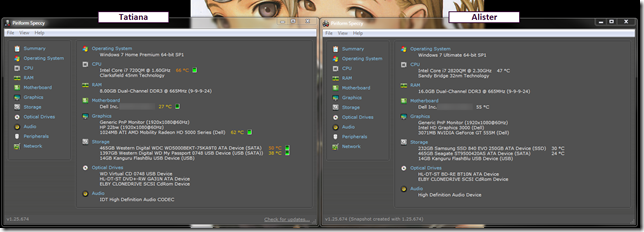
For the curious via Speccy:
Photos may follow later if I’m really bored.
Cheers!
--Claus Valca


