Showing posts with label Windows 7. Show all posts

Saturday, March 18, 2017

Enhanced Mitigation Experience Toolkit (EMET) 5.5/5.52 Uninstall Error 2738

I’ve been taking the layered “defense in depth” approach on my home systems for some time.

Including using (concurrently)…

Last night something started to go wrong with the process and the wheels came off the wagon.

Here’s how I got them back on.

I am running the Premium (lifetime subscription) version of Malwarebytes. Some time ago they came out with a new 3.0 version release.  I’ve been reading the reviews throughout the rollout and have waited to do the upgrade. Once nice feature is it now includes the full version of their awesome Anti-Exploit program at no cost to Premium subscribers; something I was using the limited/free version for but couldn’t protect my Chromium-based Vivaldi browser sessions with as the free version didn’t allow setting of custom protections.

As I said, all the bits had been running fine together although – to be fair – Malwarebytes does warn users of EMET during installation that it has compatibility issues and recommends removal of EMET.  If disregarded, the installation will continue fine.

Thursday night, my Malwarebytes 2.0 version final got auto-triggered to offer me the eligible upgrade to the 3.0 version.

I said OK and let it install.  Installation seemed to go fine. No errors.

However last night, I went to launch Microsoft Excel and EMET went crazy and blocked it from running due to a perceived exploit. That hasn’t ever happened before and I was very confident my system hadn’t been actually exploited. I tried both Excel 2007 and 2010 versions that I have and both got the same reaction by EMET. I then tried Word and it also caused EMET alerts and binary blockage. Hmm.

Well, maybe something in the new Malwarebytes 3.0 was causing a compatibility issue with EMET finally.

So I went to uninstall EMET.  Only I had two versions.
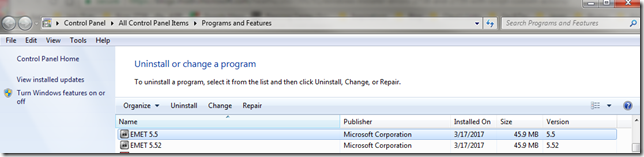
Programs and Features_2017-03-18_15-13-08

Not sure how that happened. EMET 5.52 was supposed to allow for in-place upgrade of EMET over a prior version. Didn’t recall getting an error before.

So I went to uninstall EMET 5.5 and got this:

EMET 5.5_2017-03-18_15-13-43

Same result trying to uninstall EMET 5.52

I tried repairs, changes, etc. to both EMET applications. I still had the original MSI installers for them both but even re-downloaded them from Microsoft. None seemed successful.  Note the dates in the “Installed On” column were yesterday’s so something in the processes I did worked, but it wouldn’t let me uninstall them; continuing to present that same “error code is 2738” message.

Since using Excel/Word were critical last night, I worked around the problem up removing all the EMET setting protections for the Microsoft Office suite application binaries. That let me run them without being blocked.

I figured that would be enough, but this afternoon I went to open a PDF with Adobe Reader – and EMET blocked it too from launching due to some kind of perceived exploit.

EMET had to finally go and I had to punch through that error code.

I ended up in a Microsoft forum where others with previous versions of EMET had encountered the same error but it seemed on installations – not uninstall activity.

Technet forums – Security (EMET forum search for “2738”)

Looking through them many seemed to share a common thread with a previous anti-virus product taking over, corrupting, or locking down a VBScript dll process.

Well, perhaps my Malwarebytes and/or CrytoPrevent protections were keeping the vbscript.dll service from being accessed or running?

So I removed my CryptoPrevent protections and disabled my MalwareBytes application.

Nope. Same error.

I did some more digging on a wider net and the more I read about other non-security applications having a
“2738” error on installation, I became convinced it was all related.

So after reading multiple posts I was confident to do the deeper work needed to try to fix this issue.

Using Registry Finder (under an elevated Administrator session) I searched my registry for the string {B54F3741-5B07-11cf-A4B0-00AA004A55E8}.

It came up 12 times, all in the expected locations, except I did have a single odd-string out under the HKEY_CURRENT_USER location. I was pretty sure that was my problem.

[HKEY_CURRENT_USER\Software\Classes\Wow6432Node\CLSID\{B54F3741-5B07-11cf-A4B0-00AA004A55E8}]

All the rest were under HKEY_CLASSES_ROOT, HKEY_LOCAL_MACHINE, or HKEY_USERS.

I exported the registry key first (just in case) then I deleted it.

I then opened up CMD (under an elevated Administrator session) and ran the following commands (note my system is a Windows 7 Home x64 OS):

  • cd %windir%\syswow64<enter>
  • regsvr32 vbscript.dll <enter>

cjj1w2zq.gps

I then went back and attempted to remove EMET 5.5 and it uninstalled with no more error 2738 codes.

I then followed by removing EMET 5.52 and it came off just fine as well with no errors.

I wrapped things up by re-applying my default CryptoPrevent and MalwareBytes protections states again.

Done.

Again, the trick was to remove the Registry entry just under the HKCU location where it was found present, then re-register the vbscript.dll component properly.

Later while preparing for this post I did find this EMET-related forum post that basically walks one through the same steps for an earlier version of EMET on a x32 bit based version of Windows 7. If you try to follow that and have an x64 bit version of Windows, you will need to adjust accordingly.

EMET 3.0.0 Installation fails on Win7 Pro 32Bit - Error Code 2738 – Microsoft TechNet

Additional resources and guides for addressing the Error Code 2738 problem:

The key to understanding why this works (and where the problem lies is explained nicely in Heath’s above post:

As some people have found, re-registering the runtime libraries vbscript.dll and jscript.dll will fix the errors, but that isn’t always the solution.

As a security measure, Windows Installer will not load script engines registered in HKEY_CURRENT_USER. As a user-writable store, a normal user could get an elevated install to run their library masking as a script engine if the custom action was not explicitly attributed with msidbCustomActionTypeNoImpersonate (0x0800). This is an elevation of privileges attack; thus, Windows Installer returns error message 2738 or 2739 for custom actions type 6 and type 5, respectively, and returns Windows error 1603, ERROR_INSTALL_FAILURE.

Because – somehow – vbscript.dll did get itself registered under my HKEY_CURRENT_USER location, the EMET MSI uninstaller script could not execute. Only by pulling it out, then re-registering it in the correct location automatically, would the removal process complete.

Final thoughts.

I only removed EMET from this particular system as it exhibited the crazy mitigation interceptions for Microsoft Office immediately after upgrading to MalwareBytes 3.0 Premium.

On my other Windows 7 Ultimate system, I am still running EMET (5.52 only) along with the protections noted in the top of this post. The only difference is that I’m using the free version of Malwarebytes 2.0 on it (without real-time protections). So until an issue appears, I’m keeping EMET on that system.

Lavie still is running Windows 8.1 on her laptop with a similar configuration. Lesson learned is that I will first remove EMET before upgrading her MBAM Premium version from 2.0 to 3.0.

Cheers!

--Claus Valca

Monday, September 05, 2016

Valca Windows KeyFinder Utilities

Last night I was culling my collection of Windows key-finding utilities.  There were some that had gone “404” and others that didn’t seem stable (or effectively work at all) on newer Windows 7/10 systems.

Many were collected back in the days of Windows XP so I decided to pick through them and dump the oldest ones and add some new ones.

This morning I saw that the TinyApps.org bloggist was hard at work on his own list!

Possibly we are being confronted with similar troublehsooting and service issues?

Here is my list and there are some similarities (as presented in semi-alphabetical order).

Some of these recover more than just the Windows OS key.

Some have not been updated in a while and may not work effectively on Win 7/8/8.1/10.

Then there is there is the manual method using CMD or PowerShell for most Win 10 / 8 / 8.1 systems.

I tend to prefer ProduKey, ShowKeyPlus, and Windows OEM Product Key Tool as my primary tools.

Cheers,

Claus Valca

Saturday, April 30, 2016

Call Me Burned but Recovered: Windows 10 Upgrade Failure

Hope springs eternal, but upgrading my vintage 2012 Dell XPS 17” L702X Windows 7 Pro laptop to Windows 10 Pro seems futile.

Despite what the cheerfuly positive Windows 10 Upgrade assistant says, Windows 10 just will not work on it.

Dell says the same thing.

Last weekend I was feeling bored so I decided to give it another go. I figured they’ve had a few months to fix some of the bugs and maybe make a more stable release version. I had it mostly working at least one time in the past before rolling back to Windows 7.

As a precaution I first uninstalled all my AV/AM/AE programs in case any of them gave the installation process the blues.

Then I let it run.  When I checked back the next morning (because the upgrade was still running overnight when I went to bed) it had “finished” and presented a BSOD type message amost illegibilly painted on the wigged out laptop display.

I booted from a Win 10 CD and tried to do both repairs and roll-backs but the loaded Windows 10 was having nothing of it and said it couldn’t. Seriously?

I had already been considering a “clean install” of Windows 10 based on my previous Windows 10 failure and thought that might present a better chance of getting a stable installation of Windows 10 on this laptop.

So I went through those paces too; How to do a Clean Install of Windows 10, the Easy Way via How-To Geek.

Only that just left me at a blinking cursor on a black screen when the Windows 10 installation was done. Seriously!

I did some cursory troubleshooting like taking the 2nd HDD out of the laptop but it didn’t make any difference. The primary drive is a SSD Samsung EVO 840 and maybe I need to change some options in BIOS. Don’t know and really don’t care.

At this point I had no Windows 7 and no Windows 10.

How to “roll back” now?

Fortunately I had taken out two insurance policies on just this kind of failure.

I used Disk2vhd to make a VHD “image” of my Windows 7 system’s primary HDD to an external USB HDD in case I needed to mount it and pull off any files after the Windows 10 upgrade had finished.

I also considered a plethora of Windows-based backup drive software options, but in the end just used OSFClone to simply and easily take an image of that same Win 7 primary HDD before turning the Windows 10 upgrader loose on it.

I also have a prepped and dead-useful Easy2Boot built USB stick that contains the OSFClone ISO image. So I had booted my Windows 7 system with Easy2Boot and selected the OSFCLone ISO I had copied there.

The whole configuration recognized my WD 2 TB external USB 3.0 HDD so I just wrote the IMG format file there.

So I had two “backup” images of my original system system drive.

Now how did I want to put them back?

In the end I decided to go simple.

I first booted with my custom WinPE boot USB stick and used DiskPart to rebuild the system’s primary HDD, “Clean” it, create a single primary partition, set it Active, assign it a drive letter, and then format it to NTFS.

Then, using my Easy2Boot USB stick I selected a pre-loaded ISO of Linux Mint (Cinnamon version) and booted my system with it.

I used the Ubuntu Disk Image Writer already integrated in the Mint OS build shell to browse to my IMG file on the external USB drive and simply selected my system’s primary HDD to write the image back to, after first confirming I was selecting the correct one with gParted.

Screenshot from 2016-04-24_2016-04-30_15-41-48

Once the image had been applied I shut down the system, removed all the USB drives, and rebooted.

I was prepared to need to do some repairs to the MBR post image reapplication, however they weren’t needed.

Up came my Windows 7 system just like I had left it…as if that entire unfortunate series of Windows 10 upgrade events had never happened.

I liked this whole-drive based backup/restore method as both the imaging and restoration were light and simple and didn’t require any system-based software installations.

I later found this application Drive Snapshot that looked like a great alternative as it is portable, says it is compatible with all Windows RAID types, and dead tiny/light.

There is a free 30-day trial version but since the product is offered over in Germany, I’m not sure just how easy it would be to order and try the full version from here in the States.  I would love to give it a shot.

I’ll do a follow up post with a bunch of Windows 10 rollback/restore information (for normal people) soon, but this method worked best for techie me.

Cheers,

--Claus Valca

Monday, February 15, 2016

Win 7 Task Image Corruption Errors: In which A Quick Fix is found and Blame is to be Assigned

When we last left the story, I had resolved a thorny issue getting a Glassware update to go on “clean” and re-attach to its service.

But subsequently I found on my Windows 7 (x64) Ultimate system that when I went into “Task Scheduler” via the Control Panel, I was getting this error:

2016-02-13 22_21_32-Task Scheduler

In total there were 46 different “tasks” that had that error message:

Task image corrupt: Dell SupportAssistAgent AutoUpdate
Task image corrupt: GoogleUpdateTaskMachineCore
Task image corrupt: GoogleUpdateTaskMachineUA
Task image corrupt: GoogleUpdateTaskUserS-1-5-21-1728537537-2011028439-759670610-1000Core
Task image corrupt: GoogleUpdateTaskUserS-1-5-21-1728537537-2011028439-759670610-1000UA
Task image corrupt: PCDEventLauncherTask
Task image corrupt: PCDoctorBackgroundMonitorTask
Task image corrupt: SamsungMagician
Task image corrupt: SystemToolsDailyTest
Task image corrupt: Microsoft\Office\Office Automatic Updates
Task image corrupt: Microsoft\Office\Office ClickToRun Service Monitor
Task image corrupt: Microsoft\Windows\Media Center\ActivateWindowsSearch
Task image corrupt: Microsoft\Windows\Media Center\ConfigureInternetTimeService
Task image corrupt: Microsoft\Windows\Media Center\DispatchRecoveryTasks
Task image corrupt: Microsoft\Windows\Media Center\ehDRMInit
Task image corrupt: Microsoft\Windows\Media Center\InstallPlayReady
Task image corrupt: Microsoft\Windows\Media Center\mcupdate
Task image corrupt: Microsoft\Windows\Media Center\mcupdate_scheduled
Task image corrupt: Microsoft\Windows\Media Center\MediaCenterRecoveryTask
Task image corrupt: Microsoft\Windows\Media Center\ObjectStoreRecoveryTask
Task image corrupt: Microsoft\Windows\Media Center\OCURActivate
Task image corrupt: Microsoft\Windows\Media Center\OCURDiscovery
Task image corrupt: Microsoft\Windows\Media Center\PBDADiscovery
Task image corrupt: Microsoft\Windows\Media Center\PBDADiscoveryW1
Task image corrupt: Microsoft\Windows\Media Center\PBDADiscoveryW2
Task image corrupt: Microsoft\Windows\Media Center\PvrRecoveryTask
Task image corrupt: Microsoft\Windows\Media Center\PvrScheduleTask
Task image corrupt: Microsoft\Windows\Media Center\RecordingRestart
Task image corrupt: Microsoft\Windows\Media Center\RegisterSearch
Task image corrupt: Microsoft\Windows\Media Center\ReindexSearchRoot
Task image corrupt: Microsoft\Windows\Media Center\SqlLiteRecoveryTask
Task image corrupt: Microsoft\Windows\Media Center\UpdateRecordPath
Task image corrupt: Microsoft\Windows\MobilePC\HotStart
Task image corrupt: Microsoft\Windows\MUI\Lpksetup
Task image corrupt: Microsoft\Windows\MUI\Mcbuilder
Task image corrupt: Microsoft\Windows\PerfTrack\BackgroundConfigSurveyor
Task image corrupt: Microsoft\Windows\RAC\RacTask
Task image corrupt: Microsoft\Windows\Shell\WindowsParentalControls
Task image corrupt: Microsoft\Windows\SideShow\AutoWake
Task image corrupt: Microsoft\Windows\SideShow\GadgetManager
Task image corrupt: Microsoft\Windows\SideShow\SessionAgent
Task image corrupt: Microsoft\Windows\SideShow\SystemDataProviders
Task image corrupt: Microsoft\Windows\Tcpip\IpAddressConflict1
Task image corrupt: Microsoft\Windows\Tcpip\IpAddressConflict2
Task image corrupt: Microsoft\Windows Live\SOXE\Extractor Definitions Update Task
Task image corrupt: OfficeSoftwareProtectionPlatform\SvcRestartTask

Oh my!  Did my Glasswire “repair” bork my system?  Did taking down the security perimeter allow an attack to penetrate?

Doubtful.  Once I clicked “OK” 46 times Task Scheduler would load and otherwise seemed OK. And the system would boot and run just fine. These errors were encountered only when loading up Task Scheduler.

Some initial research found these links:

That first link from Microsoft describes the manual repair process which is pretty painful…especially when you have a LOT of borked entries.

  1. Find the corrupted sub-key in the registry,
  2. Make a temporary copy of the corrupted task file
  3. Clean it up
    1. delete the task file
    2. delete the registry sub-key(s)
  4. Re-create the task by using the backed up copy

Luckily that last link in the Windows 7 Forums site had a recommendation for a quiet and obscure utility to help with the repair process…and explain just how these tasks got borked.

Repair Tasks – CodePlex project by Dijji

The Blame Game – Microsoft and my failed Windows 10 Upgrade/Rollback

Dijji explains exactly what happened on the main page…and it’s no surprise: my failed Windows 10 upgrade and rollback caused the issue.

In particular, it fixes problems where opening the Task Scheduler, or trying to configure Windows Backup, results in the message "The task image is corrupt or has been tampered with" (0x80041321).

Searching the web reveals that this message has been seen from time to time, and the (rather laborious) set of steps that can be taken to correct it are fairly well-documented (see here and script for it here).

However, it turns out that reverting to Windows 7 from Windows 10 generates this problem in spades. It can leave more than 40 scheduled tasks in a corrupt state (see this thread). This is because many task registry keys and the task definitions to which they refer are updated by a Windows 10 upgrade, but only the registry keys are restored on reversion, so Task Scheduler finds that, for these tasks, the task registry keys and task definitions are now inconsistent.

So basically, the Windows 10 upgrade adds a bunch of additional scheduled tasks to the system, but when you roll-back, they are not all removed. Then you get the errors.

Classy, Microsoft.

Dijji’s Repair Tasks Utility In Action

Fortunately, brilliant and clever community folks like Dijji are around to do the hard work and create solutions to mop up the mess left in isle 4.

After reading all of Dijji’s project documentation I went through the process and quickly had all my corrupted tasks restored, the ones I didn’t need removed, and Task Scheduler working normally again.

Repair Tasks is a brilliant kit of software.

First read this:  Repair Tasks – Documentation to get a deep dive into the problem and the steps the utility does in the repair process.

Then read this: Repair Tasks - Documentation - Windows 10 only tasks which gets into details on some task that are often found and not repaired on a first-run of the tool.

Then read this: Repair Tasks - Some Tasks Lost Apparently where “Norwood451” did a better job documenting the actual utility use in a walk-through better than I could.

Fixed in 14 steps. See below.

    1. Issue was Caused by reverting from Windows 10 back to Windows 7 (in my case windows 7 64 Bit)
    2. Download Repair Tasks by Dijji at https://repairtasks.codeplex.com/
    3. Download Windows7 Tasks.zip (DO NOT UNZIP) at https://repairtasks.codeplex.com/releases/view/617575?RateReview=true
    4. Create a Folder called AAAAATASK in your Documents (Which can be found START > Documents)
      C:\Users\David\Documents\AAAAATASK
    5. Open the downloaded RepairTasks.zip file From step 2 and copy both files (RepairTaskes.exe and RepairTasks.exe.config to the AAAAATASK folder in your documents folder.
    6. Copy the entire downloaded zip file Windows7 Tasks.zip to the AAAAATASK folder in your documents folder.
    7. Right click and Run as administrator RepairTaskes.exe
    8. Click the Scan Button to get list of corrupted files
    9. Click the repair Button. (most or all of the tasks should be repaired now. If not, go to step 10.
    10. Click the Radio button> Take tasks from backup
    11. Click Scan for a list of the remaining corrupted files.
    12. Click Repair again.
    13. You will get a pop-up window asking where the RepairTasks.zip is located-- the file you created AAAAATASK, which should be on the very top – of course, as reason for the name of the file.
    14. You can test by running Both Scans and if you do not get anymore lists of files. Boom! You are done.

Yep that is pretty much it.

After I did my first scan for issues I saved the results in a TXT file; that is where I got the list of 46 issues I opened up this post with. Super handy.

I then ran the “Repair” routine which almost instantly fixed 41 of them, leaving 5 remaining as seen below.

2016-02-14 13_07_53-Typical Windows 10 reversion errors

I then attempted a repair of those remaining five tasks from the offered “Windows7 Tasks.zip” file provided and did a second repair. That did the trick!

2016-02-14 13_08_35-Repair Tasks - Some Tasks Lost Apparently - Internet Explorer

When I was all done and subsequent reboots confirmed a normal Task Scheduler again, I ran a scan one last time and then chose a “Backup Tasks” routine to tuck these away in case this happens again. That way I can rely on my own system.

GSD Tip: If you do decide to do a Windows 7 to Windows 10 upgrade, be sure you take your own manual backups, set some system restore points, and also use this took to take a backup of your Tasks for good measure.

I think Dijji could be selling his project features just a bit short and recommend also highlighting it as a “regular” Task Scheduler backup tool, not just as a “repair” tool.

Yes…it was really THAT easy!

Repair Tasks – CodePlex project by Dijji – highly Valca recommended!

Cheers!

Fixing Glasswire Upgrade Issue: failed to attach to service

Man on a mission!

And in this GSD post The Struggles I explained an issue I had upgrading my free version of GlassWire on my Windows 7 Ultimate system.

And no sooner had I completed that task than GlassWire wanted to update to a new version as well.

So I went though the download/install process and it seemed to go on OK, but when it opened up it could not reconnect to the Glasswire service.

When I checked the Windows Service for it again it also showed marked for deletion.

So I uninstalled Glasswire, rebooted reinstalled Glasswire but again it could not attach to the service.

I checked the service again. It was present and set to Automatic but stopped. When I clicked “start” the service launch crashed with an error I didn’t capture.

Rinse-repeat-same result.

The updated Glasswire version 1.1.36b was doing fine on the upgrade process on Lavie’s laptop and my other Win 7 x64 laptop so I’m not sure what was the issue here.

Next I found an even newer version 1.1.4.850b. Same issues.

Finally I found the original Glasswire version 1.1.32b on one of my duplicated (but not recently sync’ed) USB drives.

That installed fine. The Glasswire service started automatically, and the app reconnected with no issues. So I’m leaving it there for the moment on this system.

So last weekend I turned my attention to troubleshooting that issue.

I did a few more rounds of uninstall/reinstall but to no avail and only the version 1.1.32b would work when installed.

I poked around on the GlassWire Official Forum a while and found a few others who had similar installation and/or service attachment issues.

So from those I came up with my own game-plan.

  1. Make sure the Glasswire service GWCtlSrv.exe (and any sub-processes) wasn’t running – kill if needed.
  2. Uninstall Glasswire via “Programs and Features”
  3. Delete the “C:\ProgramData\Glasswire” folder
  4. Scan the Registry for all keys with “Glasswire”
  5. Reboot
  6. Temporarily disable any running AV/AM protections (as reasonable).
    1. MalwareBytes AntiExploit
    2. Microsoft Security Essentials
    3. CryptoPrevent
    4. MalwareBytes Anti-Malware
    5. Zemana AntiLogger
    6. Note: EMET was left running
  7. Install the latest Glasswire release build
  8. (if everything OK) – re-enable all AV/AM protections that were disabled.
  9. Reboot and confirm all is well

And I did exactly that.

For step 4 I could have scanned my registry with any number of free utilities to make the process easier;

In the end I found Registry Finder the easiest to work with for this particular task.

I did a search in it for “Glasswire” and it came back with quite a lot of related keys still left over. I first exported these then I deleted them and rebooted the system. Nothing seemed harmed so I proceeded.

For step 6.3 I ended up “restoring” my original settings by choosing the “None – Remove all protection” option of CryptoPrevent.

My thought on temporarily disabling all of these were that perhaps some protection was blocking the proper installation/registration of the Glasswire service.

I then installed the latest version of Glasswire and it went on with no issues, connected to the Glasswire service, and the graph starting working normally again.

Hurray!

I re-enabled all the protections and rebooted.

Glasswire worked normally again.

Mischief managed.

Or was it?!! For another purpose I had to go into my “Task Scheduler” and was suddenly flooded with a long series of pop-ups like this for LOTS of different tasks. Oh SNAP!

2016-02-13 22_21_32-Task Scheduler

Come back for Episode 2 – in which Task Scheduler’s “The task image is corrupt or has been tampered with.” error is assessed, understood, and vanquished!

--Claus Valca

Saturday, December 12, 2015

The Struggles

Fittingly I had this post fully composed and was cleaning up the formatting in the Blogger WYSIWYG in Chromium when the browser page jumped back and I lost it all…maybe I brushed the laptop touch pad and it interpreted it as a gesture action. Don’t know. This current build of Chromium seems jumpy. I had the same thing happen on some general web-page browsing as well.

So my new blog posting process is to compose fully in WLW (at least that works). Then copy/paste into the Blogger WYSIWYG editor. Using anything but Chromium. We’ll see how that works.

So what I was trying to post is that these past two days have been filled with struggling against a series of random events during normal pc maintenance around the Valca home.

I spent several hours last night working on updating Lavie’s Dell Inspiron laptop; mostly Windows updates and third-party browser updates. Then I went through her “Programs & Features” and worked though each of those seeing if they had updated versions. Many did. So I took care of those.

I discovered that while the WiFi was working normally again under Win 8.1, the “Dell Wireless WiFi + Bluetooth Driver” install package listed in “Programs and Features” was corrupted. I couldn’t remove it. I wanted to be sure I had the installer package on hand in case a future Win 10 upgrade borked it again. Luckily I both found it - Dell Wireless 1703 WiFi+ Bluetooth Driver Driver Details – and was able to use it to do a repair/reinstall to get it on clean again under Win 8.1.

Of course, iTunes wanted to be updated, so I used the Apple Software Updater but it complained about the “iPod Service” not being able to start so the install kept failing. I then tried to download and run the iTunes package rather than using the updater but that failed at the same point.

I found this post Service ‘iPod Service’ (iPod Service) could not be installed... over in the Apple Support forums and followed “rickybpta” steps.
  • close SysInternals's Process Explorer ( if you have it and it's open )
  • close all Task Manager(s)
  • close Windows Services console ( services.msc )
  • close all command prompts ( cmd.exe )
  • open a cmd.exe as Admin
    • run: sc create "iPod Service" binpath= "C:\Program Files\iPod\bin\iPodService.exe"
    • close all command prompts ( cmd.exe )
  • open Windows Services console ( services.msc )
    • look for "iPod Service", see if it's not Disabled. If so, start it
    • close Windows Services console ( services.msc )
  • Run iTunes.msi again ( previously downloaded via the Apple Software Update's Only Download function )
That did the trick and it went on without any other fuss.

While I was doing all this work Lavie’s laptop seemed sluggish. In fact it has seemed that way to me for some time (Lavie shrugs) and I’ve been considering upgrading it to a SSD drive.  I was monitoring the performance using System Explorer’s process tree and Task Manager graphs but not really seeing any clues.

Then I opened up Resource Monitor and focused in on the file activity. I was shocked to see that the process that was doing all the file reads/writes was Classic Shell. To see if this could be responsible I closed out Classic Shell and the system sprang to life again. It seemed much more responsive and snappy again.

Lavie is going to see if the system seems better with Classic Shell after all the clean up work and then with it turned off before she considers letting me disable/remove it.

I’ve also followed this tip to add a semblance of a Start – All Programs list to the task bar. It’s a great tip and one I like to do for our Win 8.1 tablet users.
That service work alone on Lavie’s laptop should have been enough for the weekend.

However, I ran into a new round of issues on my workbench laptop this morning.

First off, VMware Workstation Player offered me an update to 12.1.0.  Sure.

Only the installer failed and left me with an error that “"Service VMware Authorization failed (VMAuthdService") could not be installed. Verify that you have sufficient privileges to install system services.”

I tried a few more times with no success.

I then downloaded the setup file directly from VMware and tried an install with the /clean switch but it said it couldn’t find an installed version.

Checking the Windows Services found a series of VMware related services that were “present” but looked like they were marked for deletion.

I walked though this VMware KB: Cleaning up after an incomplete uninstallation on a Windows host KB but wasn’t finding any remnants at all of the previously working installation.  So it looked like it had been taken off ok.

So I just rebooted the system and indeed the VMware service items were gone.  I tried the installer again with fingers crossed and the installer went on smoothly and the app ran again with no issues.

Whew!

And no sooner had I completed that task than GlassWire wanted to update to a new version as well.

So I went though the download/install process and it seemed to go on OK, but when it opened up it could not reconnect to the Glasswire service.

When I checked the Windows Service for it again it also showed marked for deletion.

So I uninstalled Glasswire, rebooted reinstalled Glasswire but again it could not attach to the service.

I checked the service again. It was present and set to Automatic but stopped. When I clicked “start” the service launch crashed with an error I didn’t capture.

Rinse-repeat-same result.

The updated Glasswire version 1.1.36b was doing fine on the upgrade process on Lavie’s laptop and my other Win 7 x64 laptop so I’m not sure what was the issue here.

Next I found an even newer version 1.1.4.850b. Same issues.

Finally I found the original Glasswire version 1.1.32b on one of my duplicated (but not recently sync’ed) USB drives.

That installed fine. The Glasswire service started automatically, and the app reconnected with no issues. So I’m leaving it there for the moment on this system.

Bother!

Claus Valca.


Saturday, November 28, 2015

GSD Superpost: Windows Performance Troubleshooting

It has been a long time since my Case of the Unexplained Donut of Death post where I dip into the deeper waters of Windows Performance troubleshooting.

I might use…

But eventually I hit upon the Windows Performance Analysis Toolkit in Windows 8 (SDK 8) and newer (Win 8.1 & 10).  See this GSD post for linkages to more tool tips for the above items.

Later I would find an additional tool PerfView that helps with trace file collection and analysis.

Now Windows 10 is out and while I really need to invest in a deep dive of a resource like the Windows Performance Analysis Field Guide (amazon link) by Clint Huffman, there are still a lot of tools and resources still to be discovered.

I’m still trying to understand the new feature set and capability of Windows Performance Toolkit for Windows 10.

The latest tool that has inspired me is Bruce Dawson’s “UIforETW” tool.

This is a tool that records ETW traces, works around ETW performance bugs, allows configuration of trace recording options, works as a trace management UI, and more.

Basically you download it, run it, allow it to install the required WPT packages, and then pretty much start tracing. It records to a circular buffer so if you experience something interesting, save the trace and rename/note it, and the trace keeps on going while you go exploring the captured trace file. Read Bruce’s post for a full walk-through.

Bruce also has some good posts on performance troubleshooting.

This is an awesomely helpful tool to keep on your USB drive!

I had also just discovered Clint Huffman’s PAL (Performance Analysis of Logs) Tool

Both the ETW tool and the PerfView tool in particular should make it easy for me to leave a shortcut on a user’s desk so they can run the tool if I need them to capture a recurring performance issue, then let me collect the (large) trace file at a later time for deeper analysis.

However it would be nice to make a scripted “click-to-run” or “circular capture at startup” routine for ongoing troubleshooting; assuming resources (disk space and system performance) are up to the task.

I’m looking at these posts for inspiration and refinement.

Of course, just being able to collect ETL trace files and look at them with the Windows Performance Analyzer tool isn’t remotely close to fixing the issue. Generally there aren’t any singing angels present pointing the way to the problem process or issue.

You have to deep dive into the trace file to isolate the issue and drill down into the root cause; then come up with a solution.

So here are a BUNCH of video resources (and a few blog posts) to help with the learning process and to illustrate the tools mentioned and techniques used in Windows performance troubleshooting.  I’m collecting them here so I can find them quickly when I need some inspiration or deeper learning.

Defrag Tools - Windows Performance Toolkit (WPT) Videos

Defrag Tools - PerfView Videos

Defrag Tools - General Troubleshooting Videos

Advanced, Deep, and Challenging Performance Troubleshooting Videos

That should keep us busy for a while!

Cheers!

Claus Valca

Windows Updating Fixes - Maybe

I have two Windows 7 Pro x64 systems up at the church-house that refuse to comply and install IE 11.

I keep reviewing the install log at C:\Windows\IE11_main.log for failure analysis and all the requirements seem to be present, but it still fails; both via Windows Updates or a manual (re) installation of all the pre-requisites and the main IE 11 install file.

(When I find where I put those log file captures I’ll update the post with more detail.)

Update: Found my log file capture! Install error 09C57

This is from just one of the two machines I’m having the same issue with. I need to pull the second system’s IE install log and compare to see if they match. I suspect they will.

It doesn’t matter if I run either the manual IE 11 installer package or the Windows Update obtained package…results end the same.

I’m cleaning up the log file and picking only some of the key lines from it for brevity.

  • Command line: "C:\Users\profile\Downloads\IE11-Windows6.1-x64-en-us.exe"
  • iexplore.exe version check success. Install can proceed.
  • Updated Download list, Hardware Blocking list, and no reboot policy files successfully downloaded and extracted for use.
  • Launched program to check hardware: "C:\Windows\TEMP\IE1924.tmp\IE11-SUPPORT\IEXPLORE.EXE" /CheckHardware "C:\Windows\TEMP\IE1924.tmp\IE11-support\HardwareBlockingList.xml"
  • Graphics Device Information: NVIDIA Quadro NVS 295
  • Hardware support check succeeded. Installation will continue.
    <cv note: all 9 of the packages download fine>
  • Prerequisite download processes have completed. Starting Installation of 9 prerequisites.
  • Launched package installation: C:\Windows\SysNative\dism.exe /online /add-package /packagepath:C:\Windows\TEMP\IE1924.tmp\KB2834140\Windows6.1-KB2834140-v2-x64.cab /quiet /norestart
  • Process 'C:\Windows\SysNative\dism.exe /online /add-package /packagepath:C:\Windows\TEMP\IE1924.tmp\KB2834140\Windows6.1-KB2834140-v2-x64.cab /quiet /norestart' exited with exit code 0x800F081E (-2146498530)
  • Error installing prerequisite file (C:\Windows\TEMP\IE1924.tmp\KB2834140_amd64.MSU): 0x800f081e (2148468766)
  • PauseOrResumeAUThread: Successfully resumed Automatic Updates.
  • Setup exit code: 0x00009C57 (40023) - Prerequisites failed to install.

I had tried to manually install each of the prerequisite files and don’t remember having any issues though I seem to recall when getting to KB2834140 it said it wasn’t required/needed on the system and exited.

The key clue is “exit code 0x800F081E (-2146498530)” which I understand means "The specified package is not applicable to this image".

Maybe I’ve got the system looking at and pulling a corrupted WSUS update?

Anyway…I’ll be coming back to this with a fresh post soon. Chasing down possibilities from these error codes quickly becomes an Alice in Wonderland adventure.

Likewise, at work found that some of our Surface Pro 3 tablets just don’t want to pull updates down from the WSUS.

Normally when a system is “stuck” getting updated WSUS patch delivery we might escalate getting it going (after confirming it is correctly pointing in the Registry) by first doing a “gpupdate /force”. I know.

If that doesn’t work we next try the following.

  1. wuauclt /resetauthorization /detectnow
  2. (wait 5-10 minutes)
  3. wuauclt /reportnow

If failing that, this routine comes.

  1. Stop the Automatic Updates service
  2. Rename the software distribution folder (i.e. C:\Windows\SoftwareDistribution).
  3. Restart the Automatic Update service
  4. wuauclt /resetauthorization /detectnow
  5. (wait 5-10 minutes)
  6. wuauclt /reportnow

Only that still didn’t work on the Surface Pro 3’s.

I really hoped not to reimage the systems as a “troubleshootin” solution as that is a lot of work and user impact so…I managed to get them working thusly.

I had checked the C:\Windows\WindowsUpdate.log and found a particular error that came up after each “manual” update refresh attempt.

That led me to this solution.

Since it was a Windows 8.1 system I ran the following command.

DISM.exe /Online /Cleanup-image /Restorehealth

It found an error with an AMD-related update package component (go figure) and repaired it.

After it completed, I did a system reboot and the updates have flowed faithfully since.

If you have a Windows 7 system, then you can use this System Update Readiness tool.

More Information and additional tools and tips:

None of those have helped with my IE 11 installation issue but with IE 8 (that it is stuck on since IE 9-10 also won’t go on) retiring soon, I’m determined to get it fixed once and for all.

Cheers!

Claus Valca

Sunday, November 15, 2015

Well that was unexpected: DVD stuck in slot-load drive

My otherwise cheer-filled weekend hit a snag Saturday.

After two weeks of smooth sailing on my Dell XPS laptop powerhouse running a Win10 installation, Win 10 totally blew out again. Really really bad.

I eventually gave up on the Windows 10 self-repair as that only led to a wheel of misfortune game of what will the new blue-screen ;( error message show this time. It was ugly.

I then bailed and decided to do a roll back to my Win 7 Ultimate OS which was still present.

Only that hung up and eventually got me a Windows 7 loading to blue-screen error loop.

I couldn’t find my Windows 7 Ultimate x64 setup disk so I popped a blank DVD in my Windows 7 x64 Dell Studio 1558 system and made a recovery disk to use.

Only the DVD appears to have gotten stuck in the drive slot.

It’s a slim slot-load DVD for this model so no paper-clip and tray tricks here.

Eventually I found my Win 7 Ultimate x64 setup disk after all and even though I got an error during reloading the last good System Restore point, the system booted up to my previous Win 7 OS pretty much intact. I had to install some Windows updates all over again, and reinstalled a few applications, but is is now back in order.

Windows 10 is now Verboten! on our Dell laptops for the foreseeable future.

With that crisis averted, I’ve turned to trying to extract the DVD from the slot load drive.

It isn’t pretty.

So I’ve been doing recon on how the slot-drive mechanisms work in the hope I can then extract the stuck DVD using a set of custom engineered extraction tools I’ll have to develop.  This seems to me to be the best hope right now.

The drive spins and the mechanism makes the ejection sounds. The DVD just won’t pop out. The system can read the disk fine so the reader and spindle are OK.  the little metal tab drops down that keeps the disk from falling out. Maybe the center hole on the disk is a bit small and jammed stuck on the spindle?  I’m hoping I can pop the DVD off the spindle then use double-stick tape with a thin piece of strong aluminum to pull it out.

Failing that I may have to pull the drive out of the laptop. I’m not bothered by the disassembly but would rather not have to.

If I go that way, do I want to get a replacement drive module? They aren’t too expensive…

Have anyone tried one of these kits? I could possibly not replace the DVD drive but buy a custom caddy to accept a 2nd HDD or SDD. The Studio 1558 only accepts a single drive bay but this would get me room for a 2nd drive. I’d probably go with a SSD based on heat/cooling concerns and power-draw. Is is worth the effort? I like the concept but have my worries.

Regardless, I might just end up having to go the simple route and leave the disk embedded in the system (which is otherwise fine) and just use a USB external DVD drive unit.  This one at least uses a tray…

I’m open to advice and suggestions to try!

Cheers

--Claus Valca

Tuesday, September 01, 2015

Windows Telemetry and Tracking Linkpost: Extended Edition

Call it bad timing.

I had only recently composed a rant post about privacy issues in Windows 10.

…and my RSS feed was growing with posts on new tracking issues spotted in Windows 7/8/8.1.

So when my firewall monitoring application GlassWire popped up an alert for a new network connection on my Windows 7 system with a suspicious sounding name -- I was all over it.

2015-08-29 07_31_46-bin

What the heck is diagtrackrunner.exe and what it is doing on my system?!!

Turns out it is yet another telemetry and diagnostics “feature” that has crept into Windows systems including Windows 7 and 8/8.1 versions via recent Windows Updates.

Here is a round-up of recent posts out of my RSS feed list that highlight and discuss Microsoft’s move to stealthy diagnostic and telemetry data collection on Windows 7/8 systems.

On the one hand it is very easy to toss the baby out with the bath-water and just pile on rants regarding Microsoft’s ongoing data-collection practices and techniques. Nobody likes a leaky boat and privacy sensitive computer users are easily offended and suspicious when new tracking features are discovered. Microsoft isn’t doing itself any favors either when information on these updates/features is nebulous, general, or even next-to-impossible to find. Even under the best of intentions and conditions -- assuming that the data collection is truly anonymized and used for best practices with diagnostics and system configuration improvements -- there is always the possibility that these features can be exploited and create a security risk; Lenovo and the Windows Platform Binary Table (WPBT) fiasco ring any bells?

Ars Technica’s writer Peter Bright sums it up nicely:

The concern with the new Diagnostic Tracking service is much the same as with Windows 10's tracking: it's not clear what's being sent, and there are concerns that it can't be readily controlled. The traffic to Microsoft's servers is encrypted, sent over HTTPS, so it can't be easily examined. While the knowledge based articles describing the new service list the DNS names of the servers that the service connects to, there are reports that the service ignores the system HOSTS file. As such, a traditional and simple method for redirecting the traffic doesn't work.

<snip>

As with the other privacy concerns around Windows, our feeling is that the major issue at stake here is not that Windows is collecting data, but that it put the user in control. Collecting information about application errors and the way the operating system is used is reasonable. Having an accurate picture of how people use the operating system is likely to produce a better platform in the future; knowing which applications crash, and why, is obviously invaluable if those apps are to be fixed.

But we continue to believe that people who do not wish to be a part of such data collection should have a clear and unambiguous way of opting out, and these opt-outs should be rigorous. Disabling CEIP, for example, should not only prevent systems from sending CEIP data, but it should also prevent systems from retrieving even configuration data from Microsoft's own systems. We would also argue that these settings should be made simpler; at the moment there are many individual controls each governing a particular behavior. Some kind of global control to supplement these fine-tuning switches would be an improvement. We like cloud connectivity and online features, but these should be paired with clear user control.

So in the interest of informing Windows users so they can make there own decisions, here is a current roundup of Windows 7/8.1 and Windows 10 privacy, telemetry, and diagnostic information and resources.

In Windows 7/8.1

The first articles (Link#1, Link#2) I posted above mentioned a handful of Microsoft KB’s that point to Windows Updates containing telemetry and diagnostic information collection call-backs to Microsoft.

In tracking down my “diagtrackrunner.exe” mystery, I found the following website that listed those, plus many more Windows Updates for Windows 7/8.1 systems that contain those same features according to the author.

I cannot confirm or validate if all of these are problematic. I can confirm I found most/all of them in auditing my Windows 7/8.1 systems since like a good sysadmin we religiously apply Windows updates to our home systems for security and stability benefit.

The website author didn’t link to the actual Microsoft KB’s. That would have been helpful but it isn’t too hard to do a Google.

But to make things easy, I used a combination of Google searches and the WinUpdatesList utility to provide links to each of the Microsoft KB’s I could find for those listed. This should allow you to do your own additional research and evaluation and decide if you want to keep the update or not, or at least (where possible) opt-out of some of the diagnostic and telemetry data reporting.

The article also provided uninstall “scripts” to use via an administrator-level command-line session to pull them off -- unless you want to do it the long way and use the Windows Control Panel > Programs and Features > Installed Updates panel to remove them.

Also note that while you may consider fully uninstalling and hiding (do not show) some/all of those updates from your Windows 7/8/8.1 system, another option would to be find/disable the service manually rather than fully remove the update.

As a free PSA for Microsoft, let me add that removal or disablement of some/all of these updates could potentially cause stability, security, or reduced feature support for your Windows system. And could possibly impact your ability to upgrade your current Windows system to Windows 10; either smoothly, safely, or at all. M’kay?

Here’s the list/link of the current roundup of subjects under suspicion; re-sorted in KB order.

To be clear, I’m not endorsing the removal of some/all of these updates from your system. Do your own research first and make your own educated decision.

All things considered, I’m currently going with Mr. Peter Bright’s angle and will give Microsoft the benefit of the doubt for now. But will keep in mind the sage wisdom of a certain one-eyed auror, “Constant Vigilance!”

Post update 2015-09-18 - TinyApps blog brings GSD notice of a Windows 7/8-focused privacy and telemetry squashing tool.

From the included README file:

The Microsoft Telemetry Removal Tool (or MTRT) is an automated script that aims to be the most current and complete collection of knowledge found on the internet pertaining to helping Windows 7/8/8.1 users rid themselves of as much Windows 10 "features" and notifications as possible.


==============
== Features ==
==============

This tool covers many areas of the decontamination process, such as:

   - Windows Update Settings: Changed to notify but not download update, optional updates are not packaged with important updates, and PC will not auto-reboot after update.
   - Disable Gwx/Skydrive/Spynet/Telemetry
   - Disable Telemetry scheduled tasks
   - Uninstall Diagnostic Tracking Service and attempt to lock down log file
   - Disable Remote Registry
   - Block hosts: Through the HOSTS file and PersistentRoutes
   - Delete the Windows.~BT, Windows.~WS and Windows.old folders, then attempt to lock them.
   - Remove and block evil updates: updates are uninstalled and then ignored in windows updates.

In Windows 10

You might want to just hop over and re-read this GSD post that addresses Windows 10 privacy issues:

But I decided to try to repackage it again here for more of an updated “all-in-one” resource.

The same team that brought the extended Windows privacy KB listing above also provides a very extensive step-through for increasing the privacy settings in Windows 10.

I’ve previously mentioned here at GSD that there are a number of guides on how to modify the Windows 10 settings -- either during a custom installation upgrade or after the upgrade has gone on. For more information and cross-checking/validation I encourage you to read these articles as well.

Likewise, there are a growing number of Windows 10 scripts and utilities that allow you to lock down many privacy settings in Windows 10, including some not easily accessible to the user.

More attempts at scary-sounding PSA notices first:

HERE BE DRAGONS WARNING #1:

I’ve seen the following post comment issued out by Microsoft to a number of bloggers referring to the tools that will be discussed below. So let me save them some time by reposting it here.

“We strongly suggest customers do not install applications of this nature. These types of third-party apps can alter the way the system operates, creating future problems and changing important settings and features.”

HERE BE DRAGONS WARNING #2:

Different tools take different approaches and some could significantly cause performance, stability, or security issues of their own if applied. Some whack into the Windows Registry. Some stomp on Windows services. A few even make (or block) specific network communications.  Few make backups of the system settings before changes are applied restricting your ability to roll-back the changes if something breaks.

Proceed at your own risk. I really encourage you to spend some time evaluating and understanding each of the tools listed or linked below before actually using.

Windows 10 Privacy Utilities and Scripts

Still determined?

OK. I did warn you.

Martin Brinkmann’s post provides links and overviews to (currently) six maybe-ready for primetime utilities that can help Windows 10 users manage and take (some) control of privacy in Windows 10.

I highly recommend starting out there, and he has done a great job and a lot of work comparing the features and issues each of them present.

I’ve built a list below using Martin Brinkmann’s initial Windows 10 privacy utility list and have further supplemented it with additional script-based and/or utilities I’ve found.

  1. Destroy Windows 10 Spying - by Nummer. (appears to support Windows 10/8.1/7 versions)
  2. Disable Win Tracking - by “10se1ucgo” on github
  3. DoNotSpy 10 - by pxc-coding
  4. Windows 10 Privacy and Shit - by “A Guest” - (BATch file fix format)
  5. Windows 10 Privacy Fixer - by “lordfiSh” on github
  6. W10 Privacy - German utility but supports German, English, & French languages
  7. O&O Shut Up 10 - by O&O Software - Note that this app provides the ability to set a system restore point before applying settings. That’s a feature that isn’t offered in many of these tools and can be challenging for some users to first do manually themselves. (review #1, review #2)
  8. Spybot Anti-Beacon for Windows 10 and forum download and update notice page. By Safer-Networking.org creators of the SpyBot S&D anti-malware utility.
  9. Windows 10 Enterprise LTSB - Mother of all tweak scripts - App Scripts - by “ericgl” on reboot.pro
  10. Ultimate Windows Tweaker 4 for Windows 10 - The Windows Club - this app contains a wide range of Windows 10 system tweaks, but specific to this post, includes a “Privacy” tab that addresses telemetry, biometric, advertising, search, Cortana, Windows Update sharing, feedback polls, password reveals, Steps Recorder, Inventory Collector and the Application Telemetry gathering. ghacks review
  11. WindowsLies/BlockWindows · GitHub or via Block Windows Spying Simple Script to Stop Spying - Windows batch (BAT) file script (and other stuff) to do a bunch of privacy settings and tweaks. What is nice about this approach is that you can review and modify/REM stuff you don’t want or need if you would like.
  12. AntiSpy for Windows 10 - Ashampoo Windows 10 privacy and tracking configuration utility. (via)

Of course…if all these tracking, telemetry, and privacy issues in Windows is giving you a headache, you could follow the advice of tinyapps.org and decide to chuck-it-all for a truly free OS: List of Free GNU/Linux Distributions - GNU Project - Free Software Foundation

Or if you are willing to try to find a balance between some open and closed source options, but still retain more control that Microsoft has been willing to provide you with, there are many, many good Linux based OS builds that are modern and easier to install/use than ever before on most (but not all) hardware platforms that run Windows.

And you will meet some really great people and communities in the process!

Constant Vigilance!

Claus Valca