Showing posts with label tutorials. Show all posts

Friday, October 12, 2018

QuickPost: Removing Trend Micro Worry-Free Business Security Agent without the password

Not too long ago one of the ministry departments of the church-house needed a computer set up in their room to help manage things.

We had an older Dell laptop that was a beater, but was a business class device that still retained more than adequate performance.

It took me the better part of a weekend to bring the Win 7 Pro OS back up to a fully patched and updated state and clean a lot of older/abandoned applications off.

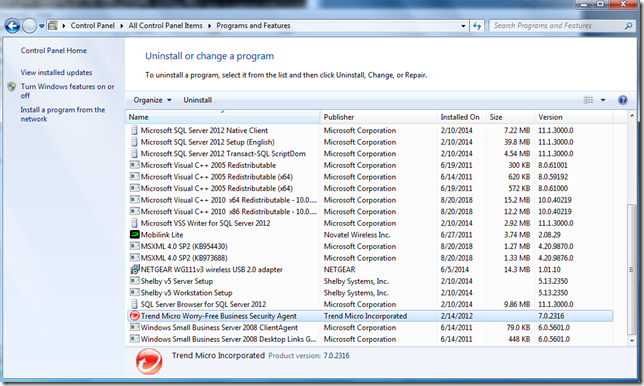
One of my last tasks was to remove the long-expired Trend Micro Worry-Free Business Security Agent off the system.

add-remove

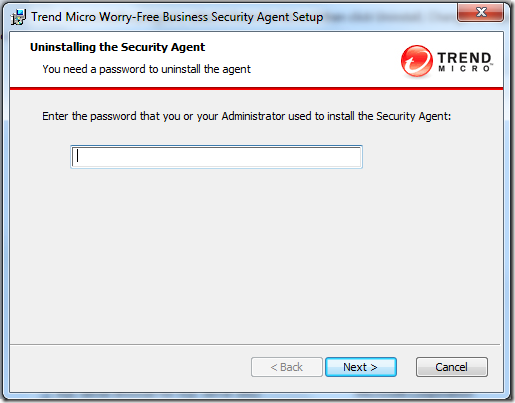
Before the uninstaller can complete, you must provide an administrator-set password (as a security feature).  Unfortunately, the admin who set it had long-since left the congregation and no documentation was left as to what it could be.

password

Bother.

Luckily, PowerBiz Solutions “down-under” had a promising tip:

How to uninstall Trend Micro’s Worry Free Business Security client agent without the password - PowerBiz Solutions

Note: The referenced link back to Trend Micro’s solutions page is now “404” but PowerBiz’s post provided a good start: (Update: Archived Trend Mircro solutions page via Wayback Machine – hat-tip to TinyApps bloggist!)

Basically, it involves setting the registry key “Allow Uninstall” to 1.
For WFBS versions 5.x and 6.x, this key is located here – HKEY_LOCAL_MACHINE\SOFTWARE\TrendMicro\PC-cillinNTCorp\CurrentVersion\Misc
For WFBS versions 7.x, this key can be found here – HKEY_LOCAL_MACHINE\SOFTWARE\TrendMicro\UniClient\1600\Misc

In my particular case, the version appeared to be 7.x.

version

A quick look in the Registry found the “AllowUninstall” key.

Capture-reg

…which I then changed to the needed “1” value.

Capture-regchange

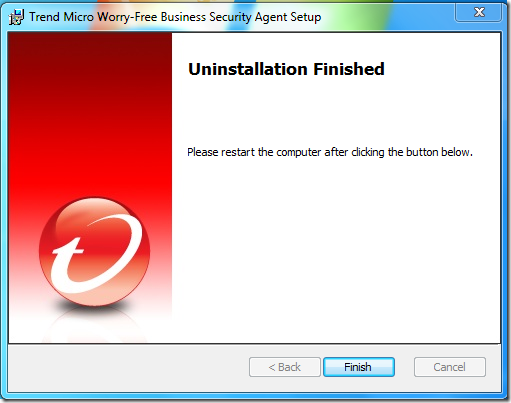
Once set, I was then able to go back and run the uninstaller without any password prompt.

success

Done

Success and done!

I then followed it up with a Microsoft Security Essentials installation that went on without issue and will provide sufficient real-time protection and current signature updates for AV/AM protection.

Cheers!

--Claus V.

Monday, May 30, 2016

More PowerShell Fun

PowerShell and Windows To Go USB stick building

PowerShell and WinPE USB stick building

Tips

Cheers,

Claus Valca

Sysadmin Tools and Tips Linkfest: Part II

Mores…

Windows Updating and Patching – Tips and Tricks

Windows Troubleshooting and Tips

Windows Tools

Windows PowerShell

Microsoft News Bits

Cheers,

Claus Valca

Sysadmin Tools and Tips Linkfest: Part I

More goodies for the Sysadmin crowd!

Cheers,

Claus Valca

Network Link Roundup

And yet another pile of URL web-linkage. This collection focuses on network techniques, tools, and software releases.

Grab a fork and dig in!

Cheers.

Claus Valca

Saturday, May 28, 2016

Run Free Google Nik Photoshop filter collection in Paint.NET

I have an older build of Adoble Photoshop that I rarely use for photo editing work. I prefer the freeware application Paint.NET.

So when I heard that the Google Nik Collection became a free download back in March I got really excited because at least I would have some new filters for Photoshop.

If you aren’t familiar with the Nik Collection and just hit that page, you might think that it offers seven or so very high-quailty photo retouching/editing filter profiles for use in Photoshop.

What it really contains is an amazing number of high-end photo retouching/editing filters that fall under seven primary filter categories.

But maybe you don’t have Adobe Photoshop so you have the sads as you couldn’t take advantage of these filters.

Fear not!  You can easily run the Google Nik Photoshop filters in the free Paint.NET photo-editing software application to your heart’s content and not need Adobe Photoshop at all.

image

sample photo by Mayur Gala via Unsplash with CC0 license

  1. Download/install Paint.NET (if you don’t have it already).
  2. Download and manually install the Paint.NET 8bf filter plugins.
    1. Once downloaded, unzip the file package.
    2. Close out Paint.NET if running. 
    3. From the unzipped location, copy the “PSFilterPdn.dll” and “PSFilterShim.exe” into the Paint.NET “Effects” folder (usually C:\Program Files\Paint.NET\Effects) (see here if needed) Download/install the Google Nik Collection. Tip: make a note of what the default install directory path is.
  3. Run Paint.NET
  4. Go to “Effects” on the Menu bar,
  5. Select the 8bf Filter near the bottom.
  6. In the window, click on “Search Directories” tab,
  7. Make sure the “Search Subdirectories” tick box is checked.
  8. Click on the “Add” button.
  9. Browse to the top-level folder location where the Google Nik Collection was installed (from step 3 tip) and select that folder.  (On my system it was “C:\Program Files\Google\Nik Collection”
  10. Click “OK” and the path will be added to the seach directory. (more details on installing Photoshop-compatible filteres wth 8bf Filter here.)
  11. Done!

To access the Google Nik Collection fiters in Paint.NET do this.

  1. Run Paint.NET if not already running.
  2. Load up an image file in Paint.NET to get started with.
  3. Go to “Effects” on the Menu bar,
  4. Select the “8bf Filter” near the bottom of the Effects dropdown listing.
  5. Select the “Filters” tab in the window.
  6. Expand the “Nik Collection”
  7. Pick a filter category
  8. Click the “Run Filter” button
  9. It will load up the image you have selected and then present you with the filter control window.
  10. On the top left side you will see the different sub-categories for the loaded filter.
  11. Select the filter subcategory and then try the different filters. You will see them previewed on your image.
  12. If you want, you can fine-tune the selected filter effect on the right hand side.

Amazing! All this in Paint.NET.

Mind blown.

Cheers.

Claus Valca

Saturday, April 30, 2016

Knife Shapening 101

My awesome family recently gave me a gift that was a set of J.A. Henckels Synergy 16-pc Knifes (Amazon link).

I passed our previous (still nice) knife block set to my in-laws who were discovered to be knife-less in the kitchen after their recent downsizing move.

I had also been gifted a set of high-grade japanese whetstones in four different grades along with a diamond-embedded whetstone leveling tool.

So, no more using the cheap little grindstone wheel kept in our cutlerly drawer; although it does do a great job on our “regular” kitchen knife.

My first attempt to use the new whetstones wasn’t a total failure. But as I learned from my pre-attempt studies, it takes a LOT of practice and patience to do right.

Here are some of the best links I found for my skill development.

I’m still refining my technique, though it is a surprisingly good exercise in stress reduction; especially since it is almost a ritual getting all the items prepared for the activity at hand.

Cheers!

--Claus Valca

Monday, February 15, 2016

MXA: Another specialized Windows Performance Tracing tool

Goodness knows I love a good Windows Performance Tracing exercise.

So imagine my delight when I spotted a new tool for doing just that – and one that is narrowly focused on tracing out audio/video playback issues!

Media eXperience Analyzer (MXA) is a visual performance analysis tool that enables engineers to optimize performance and quality of Media scenarios on Windows devices. MXA enables a broader range of performance engineers to infer meaningful information from a large amount discrete event data by representing events visually and providing powerful filtering capabilities. MXA is utilized to optimize quality, performance, and latency of the following scenarios:

    • Camera capture
    • Miracast & PlayTo
    • Energy efficiency for media
    • Audio & video playback & transcode
    • Real-time communications (Skype & Lync)
MXA is capable of loading traces collected on Windows, Windows Phone, and XBox. MXA assists with identifying delays and bottlenecks in the CPU, GPU, network, and disk and is primarily applied to:
    • Root causing audio and video glitches
    • Improving audio video synchronization
    • Correlating physical domain with software domain
    • Correlating power usage per component with system activity
    • Optimizing latency between Miracast source and sink devices
    • Optimizing devices for full screen video playback and low power audio
    • Verifying critical media threads are enlisted in Multimedia Class Scheduler Service (MMCSS)

How cool is that?!

To get a good understanding of the tool in action, Microsoft’s Channel 9 “Defrag Tools” has been running a series of sessions on it.

If you have worked with the Windows Performance Analysis Toolkit the interface and graphing should look pretty familiar.

Cheers!

--Claus Valca

Fixing Glasswire Upgrade Issue: failed to attach to service

Man on a mission!

And in this GSD post The Struggles I explained an issue I had upgrading my free version of GlassWire on my Windows 7 Ultimate system.

And no sooner had I completed that task than GlassWire wanted to update to a new version as well.

So I went though the download/install process and it seemed to go on OK, but when it opened up it could not reconnect to the Glasswire service.

When I checked the Windows Service for it again it also showed marked for deletion.

So I uninstalled Glasswire, rebooted reinstalled Glasswire but again it could not attach to the service.

I checked the service again. It was present and set to Automatic but stopped. When I clicked “start” the service launch crashed with an error I didn’t capture.

Rinse-repeat-same result.

The updated Glasswire version 1.1.36b was doing fine on the upgrade process on Lavie’s laptop and my other Win 7 x64 laptop so I’m not sure what was the issue here.

Next I found an even newer version 1.1.4.850b. Same issues.

Finally I found the original Glasswire version 1.1.32b on one of my duplicated (but not recently sync’ed) USB drives.

That installed fine. The Glasswire service started automatically, and the app reconnected with no issues. So I’m leaving it there for the moment on this system.

So last weekend I turned my attention to troubleshooting that issue.

I did a few more rounds of uninstall/reinstall but to no avail and only the version 1.1.32b would work when installed.

I poked around on the GlassWire Official Forum a while and found a few others who had similar installation and/or service attachment issues.

So from those I came up with my own game-plan.

  1. Make sure the Glasswire service GWCtlSrv.exe (and any sub-processes) wasn’t running – kill if needed.
  2. Uninstall Glasswire via “Programs and Features”
  3. Delete the “C:\ProgramData\Glasswire” folder
  4. Scan the Registry for all keys with “Glasswire”
  5. Reboot
  6. Temporarily disable any running AV/AM protections (as reasonable).
    1. MalwareBytes AntiExploit
    2. Microsoft Security Essentials
    3. CryptoPrevent
    4. MalwareBytes Anti-Malware
    5. Zemana AntiLogger
    6. Note: EMET was left running
  7. Install the latest Glasswire release build
  8. (if everything OK) – re-enable all AV/AM protections that were disabled.
  9. Reboot and confirm all is well

And I did exactly that.

For step 4 I could have scanned my registry with any number of free utilities to make the process easier;

In the end I found Registry Finder the easiest to work with for this particular task.

I did a search in it for “Glasswire” and it came back with quite a lot of related keys still left over. I first exported these then I deleted them and rebooted the system. Nothing seemed harmed so I proceeded.

For step 6.3 I ended up “restoring” my original settings by choosing the “None – Remove all protection” option of CryptoPrevent.

My thought on temporarily disabling all of these were that perhaps some protection was blocking the proper installation/registration of the Glasswire service.

I then installed the latest version of Glasswire and it went on with no issues, connected to the Glasswire service, and the graph starting working normally again.

Hurray!

I re-enabled all the protections and rebooted.

Glasswire worked normally again.

Mischief managed.

Or was it?!! For another purpose I had to go into my “Task Scheduler” and was suddenly flooded with a long series of pop-ups like this for LOTS of different tasks. Oh SNAP!

2016-02-13 22_21_32-Task Scheduler

Come back for Episode 2 – in which Task Scheduler’s “The task image is corrupt or has been tampered with.” error is assessed, understood, and vanquished!

--Claus Valca

Saturday, November 28, 2015

GSD Superpost: Windows Performance Troubleshooting

It has been a long time since my Case of the Unexplained Donut of Death post where I dip into the deeper waters of Windows Performance troubleshooting.

I might use…

But eventually I hit upon the Windows Performance Analysis Toolkit in Windows 8 (SDK 8) and newer (Win 8.1 & 10).  See this GSD post for linkages to more tool tips for the above items.

Later I would find an additional tool PerfView that helps with trace file collection and analysis.

Now Windows 10 is out and while I really need to invest in a deep dive of a resource like the Windows Performance Analysis Field Guide (amazon link) by Clint Huffman, there are still a lot of tools and resources still to be discovered.

I’m still trying to understand the new feature set and capability of Windows Performance Toolkit for Windows 10.

The latest tool that has inspired me is Bruce Dawson’s “UIforETW” tool.

This is a tool that records ETW traces, works around ETW performance bugs, allows configuration of trace recording options, works as a trace management UI, and more.

Basically you download it, run it, allow it to install the required WPT packages, and then pretty much start tracing. It records to a circular buffer so if you experience something interesting, save the trace and rename/note it, and the trace keeps on going while you go exploring the captured trace file. Read Bruce’s post for a full walk-through.

Bruce also has some good posts on performance troubleshooting.

This is an awesomely helpful tool to keep on your USB drive!

I had also just discovered Clint Huffman’s PAL (Performance Analysis of Logs) Tool

Both the ETW tool and the PerfView tool in particular should make it easy for me to leave a shortcut on a user’s desk so they can run the tool if I need them to capture a recurring performance issue, then let me collect the (large) trace file at a later time for deeper analysis.

However it would be nice to make a scripted “click-to-run” or “circular capture at startup” routine for ongoing troubleshooting; assuming resources (disk space and system performance) are up to the task.

I’m looking at these posts for inspiration and refinement.

Of course, just being able to collect ETL trace files and look at them with the Windows Performance Analyzer tool isn’t remotely close to fixing the issue. Generally there aren’t any singing angels present pointing the way to the problem process or issue.

You have to deep dive into the trace file to isolate the issue and drill down into the root cause; then come up with a solution.

So here are a BUNCH of video resources (and a few blog posts) to help with the learning process and to illustrate the tools mentioned and techniques used in Windows performance troubleshooting.  I’m collecting them here so I can find them quickly when I need some inspiration or deeper learning.

Defrag Tools - Windows Performance Toolkit (WPT) Videos

Defrag Tools - PerfView Videos

Defrag Tools - General Troubleshooting Videos

Advanced, Deep, and Challenging Performance Troubleshooting Videos

That should keep us busy for a while!

Cheers!

Claus Valca

Microsoft Training Courses: Networks, AD, & Security

I found these the other day while working on a project at work.

Networking

Networking Fundamentals - Microsoft Virtual Academy

Want to learn network security fundamentals? In this MVA course, discover the building blocks of modern network design and function and prepare for Exam 98-366: Networking Fundamentals, part of an MTA certification. Our online network security training course is free of charge and led by an expert who can help you build your skills and career.

Take this networking fundamentals training, and find out how to put the many pieces together to build a functional and secure network.

Understanding Local Area Networking
In this module you’ll learn about basic concepts and Local Area Networking.

Defining Networks with the OSI Model
This module describes the OSI model and how its layers determine how network traffic is moved and consumed.

Understanding Wired and Wireless Networks
This module covers the basics of wired and wireless media, protocols, standards, and concepts.

Understanding Internet Protocol
In this module you’ll learn about Internet Protocol (IP) and how it makes the internet and modern networks function.

Implementing TCP/IP in the Command Line
This module describes the tools used to manage and troubleshoot networks.

Working with Networking Services
This module describes the services that can be provided and that are required for a network to function.

Understanding Wide Area Networks
In this module you’ll learn about connecting your local area network to other local area networks over large geographic areas and across multiple types of boundaries.

Defining Network Infrastructure and Network Security
This module show you how to appropriately use the tools described in earlier modules to build a functional, secure network.

Recommended Resources and Next Steps for Networking Fundamentals
The information in this module provides you with an opportunity to dive deeper into Networking Fundamentals, at your own pace.

See also Networking Fundamentals - Channel 9

Another version perhaps or same one repackaged?

Introduction to Networking Fundamentals - Microsoft Virtual Academy

Educators, are you looking for a fast-paced and comprehensive introduction to network fundamentals? This on-demand, independent study course is just the ticket. Explore the basics of networking, and get a firm understanding of the underlying concepts. Each of these modules for educators and other learners runs about 30 minutes and covers new concepts, while reinforcing earlier topics. The course includes PowerPoint presentations for use individually or in the classroom.

Taught by educators with attention to the needs of school teachers and students, these courses address Local Area Networks (LANs), network definition using the OSI model, wired and wireless networks, Internet Protocol (IP), TCP/IP in the command line, networking services, wide area networks (WANs), and much more!

See these shorter supplemental videos for networking tips and tricks:

Active Directory

Active Directory Beginners Course - Microsoft Virtual Academy

This course provides students an introduction to Active Directory server roles in Windows Server. The course is intended for entry level students who want to get familiar with the Active Directory server roles and their basic functionality.

Introduction to Active Directory
This module provides an overview of the Active Directory roles available in Windows Server.

Active Directory Domain Services (DS)
This module provides an overview of Active Directory Domain Services in Windows Server.

Active Directory Certificate Services (CS)
This module provides an overview of Active Directory Certificate Services in Windows Server.

Active Directory Federation Services (FS)
This module provides an overview of Active Directory Federation Services in Windows Server.

Active Directory Rights Management Services (RMS)
This module provides an overview of Active Directory Rights Management Services in Windows Server.

Active Directory Lightweight Directory Services (LDS)
This module provides an overview of Active Directory Lightweight Directory Services in Windows Server.

See these supplemental videos for AD tips and tricks:

Security

Security Fundamentals Training Course - Microsoft Virtual Academy

With this Microsoft Technology Associate (MTA) Training course, you can prepare for MTA Exam 98-367. Build an understanding of security layers, operating system security, network security, and security software. The course leverages Microsoft Official Academic Course (MOAC) material for this exam.

Understanding Security Layers
Learn about defense in depth and the various options available for securing resources at the various layers at a high level.

Authentication, Authorization, and Accounting
Get an introduction to the topics of authentication, authorization, and accounting—what they are, how they are different, and how each is implemented and managed. Look at available options and how to use some of the tools in Windows for implementing each one.

Understanding Security Policies
Hear about security policies and how they may work in an organization. See how policies provided by Group Policy can prevent unauthorized access to an organization's resources.

Understanding Network Security
A network can be the most vulnerable part of an IT infrastructure. Learn some of the methods and options for securing these invaluable assets, and gain from a discussion of firewalls, Network Access Protection (NAP), protocols, and wireless networks, from a security standpoint.

Protecting the Server and Client
Learn about protecting the physical assets in your organization, including servers and clients—and the software running on them—and how to secure them.

Security in the Enterprise - Microsoft Virtual Academy

Do you know how cybercriminals work? Get helpful insight, in this cybersecurity course. As an IT Pro, you know that the computer threat landscape is continually changing and that increasingly sophisticated attacks are targeting your organization's infrastructure and confidential information.

Walk with experts through social media platforms to discover how they really work. Get tips and practical advice on social networking security. Plus, explore methods of developing a secure baseline and how to harden your Windows Enterprise architectures and applications from pass-the-hash and other advanced attacks, and look at system patching. Finally, learn how to help improve your organization's security with Microsoft operating systems and tools.

1 | Security Landscape of Today and Tomorrow
Learn about how the computer threat landscape is continually changing and how increasingly sophisticated attacks are targeting your organization’s infrastructure and confidential information.

2 | Social Media Security
In this eye-opening journey, venture into the very heart of social media platforms to discover how they really work. Get tips and practical advice on social networking security.

3 | Advanced Windows Defense
Explore methods of developing a secure baseline and how to harden your Windows Enterprise architectures and applications from pass-the-hash and other advanced attacks.

4 | Free Tools to Protect Your Windows Environment
Learn how Windows Clients are ready to mitigate some of these attacks and how you can utilize your security skills.

5 | Vulnerability and Patch Management
Do you patch your systems? How often? Do you know why you should take action against patching your systems? Find out, in this helpful module.

6 | Top Mitigation Methods to Protect Your Enterprise
Learn how to improve IT security with Microsoft operating systems and tools.

Get learning!

Claus Valca

Sunday, November 15, 2015

Well that was unexpected: DVD stuck in slot-load drive

My otherwise cheer-filled weekend hit a snag Saturday.

After two weeks of smooth sailing on my Dell XPS laptop powerhouse running a Win10 installation, Win 10 totally blew out again. Really really bad.

I eventually gave up on the Windows 10 self-repair as that only led to a wheel of misfortune game of what will the new blue-screen ;( error message show this time. It was ugly.

I then bailed and decided to do a roll back to my Win 7 Ultimate OS which was still present.

Only that hung up and eventually got me a Windows 7 loading to blue-screen error loop.

I couldn’t find my Windows 7 Ultimate x64 setup disk so I popped a blank DVD in my Windows 7 x64 Dell Studio 1558 system and made a recovery disk to use.

Only the DVD appears to have gotten stuck in the drive slot.

It’s a slim slot-load DVD for this model so no paper-clip and tray tricks here.

Eventually I found my Win 7 Ultimate x64 setup disk after all and even though I got an error during reloading the last good System Restore point, the system booted up to my previous Win 7 OS pretty much intact. I had to install some Windows updates all over again, and reinstalled a few applications, but is is now back in order.

Windows 10 is now Verboten! on our Dell laptops for the foreseeable future.

With that crisis averted, I’ve turned to trying to extract the DVD from the slot load drive.

It isn’t pretty.

So I’ve been doing recon on how the slot-drive mechanisms work in the hope I can then extract the stuck DVD using a set of custom engineered extraction tools I’ll have to develop.  This seems to me to be the best hope right now.

The drive spins and the mechanism makes the ejection sounds. The DVD just won’t pop out. The system can read the disk fine so the reader and spindle are OK.  the little metal tab drops down that keeps the disk from falling out. Maybe the center hole on the disk is a bit small and jammed stuck on the spindle?  I’m hoping I can pop the DVD off the spindle then use double-stick tape with a thin piece of strong aluminum to pull it out.

Failing that I may have to pull the drive out of the laptop. I’m not bothered by the disassembly but would rather not have to.

If I go that way, do I want to get a replacement drive module? They aren’t too expensive…

Have anyone tried one of these kits? I could possibly not replace the DVD drive but buy a custom caddy to accept a 2nd HDD or SDD. The Studio 1558 only accepts a single drive bay but this would get me room for a 2nd drive. I’d probably go with a SSD based on heat/cooling concerns and power-draw. Is is worth the effort? I like the concept but have my worries.

Regardless, I might just end up having to go the simple route and leave the disk embedded in the system (which is otherwise fine) and just use a USB external DVD drive unit.  This one at least uses a tray…

I’m open to advice and suggestions to try!

Cheers

--Claus Valca

Tuesday, September 01, 2015

Windows 10 Linkpost: Unspecified Update Version

More GSD Windows 10 post linkage at the post bottom.

Nope. Still haven’t upgraded out Win 7 systems (x3) to Windows 10 here at home.

Still waiting to be sure the Dell systems have a chance to use as many “custom” Dell drivers for Win 10 feature support as possible.

As of the time of this blog post..

  • My Dell Studio 15 (1558) isn’t listed anywhere on the page.
  • Nor is my Dell XPS L702X laptop model.
  • Nor is Lavie’s Dell Inspiron 15 (3520).

Non In-Place Upgrade “Clean Install” of Windows 10 Tip

Ask most any Windows 10 sysadmin or enthusiast and they will say that the “best” way to install Windows is to do a “clean” install rather than an in-place upgrade.

The downside is that can require a lot of work; backing up user profiles/data. Reinstalling of applications and software. Re-tweaking of all the settings, configurations, and adjustments you have done over the years (if you even remember them all).

The positive is that you get rid of all the extra “stuff” you have accumulated while running your Windows system and start with a “fresh” system load to build on. Something like that parable about having a firm foundation before building.

Anyway, while feedback is quite positive on the Windows 7/8.1 in-place upgrade process to Windows 10, and there are already documented ways to do a “clean install” upgrade of Windows 10 for a qualifying system, this new “clean install” method is slick and looks really good for those who are interested.

Ready, Steady, Prepare!

When you are ready to do your Windows 10 upgrade you may want to first review this post:

Update to Windows 10 Headache Free With A Pre-Upgrade Checklist - HowTo Geek

Also, BetaNews has a post about a free offer for software to assist with data-transfer between a current system and a Windows 10 system (personal use restriction).

It looks like it is kinda like the Microsoft EasyTransfer or USMT but from a third-party application.

Windows 10 Updates

Microsoft can now update your Windows 10 system at will, use your system to seed other Win 10 system updating (inside and outside your own network/ownership), and may be vague about what those forced updates actually do. Granted you do have some limited control over those items, and enterprise builds of Win 10 have even more control, but still…

Windows 10 How-To and Tips

Like any new Windows system release, it takes a while to learn a new set of tricks and tweaks to get a measure of control back and set the system back up like you like it. Here are some more links to that end.

GSD Windows 10 Linkpost list

Listed chronologically from most recent posting downward.

--Cheers.

Claus Valca

Friday, July 31, 2015

Windows 10 Linkpost: Pulp Fiction Edition

04uq2cu0.ifl
“010 Ten Detective Aces May-Jun-1933” CC by 2.0 attribution: by Will Hart on flickr.

OK. Here we go. Windows 10 has been released to the masses, world-wide.

Pandemonium is ripping across continents, hoards are massing on borders, panic is in the streets and geekdom has gone underground in an attempt to hide from in inundation of phone calls from family, in-laws, out-laws, and friends seeking comfort, guidance, and recovery from this Windows 10 invasion appearing on their Windows 7 & 8.1 systems.

Seriously…the Windows 10 rollout is going on. Some folks who elected to use the “Get Windows 10” notifier in their system tray are queuing for their installation/upgrade.

Others are still debating if the decision to upgrade now is wise (a wise choice IMHO).

So fresh out of the gate, here is a new collection of Windows 10 Release links and considerations everyone would be well-advised to review and consider before punching that  upgrade button.

I highly encourage any visitors to this humble blog to first take some time reading this previous post to get up to speed.

Now, on to the linkage!

A PSA For Dell Hardware Users!

I’m putting this on the top of the list. Just because Microsoft has tossed a “you can upgrade to Windows 10 if you want” icon on your computer doesn’t mean that your hardware can successfully upgrade to Windows 10.

By that I use Dell as an example.

See, turns out that WIndows 10 may not be able to provide correct/functional “generic” device drivers for all hardware…laptop mother-boards are particularly challenging with driver availability. Dell laptops in particular seem to be tripping out the Windows 10 installer.

I did some digging and found these Dell links of interest.

As of the time of this blog post..

  • My Dell Studio 15 (1558) isn’t listed anywhere on the page.
  • Nor is my Dell XPS L702X laptop model.
  • Nor is Lavie’s Dell Inspiron 15 (3520).

According to Dell, the non-listing of these laptops means “…if your computer model is not listed, the hardware has not been tested and drivers have not been updated for that model, and Dell does not recommended an upgrade to Windows 10. If you wish to proceed with an upgrade to Windows 10 on an untested system.”

I’m a pretty good Windows sysadmin, and to me, those words mean that I won’t be upgrading ANY of our systems to Windows 10 until it has been out for a while, and drivers are available for our platforms.

So…think long and hard grasshopper before you do the upgrade. It might work with no issues, maybe. But I’d advise to check your hardware manufacture’s support site and try to confirm if it is Win 10 tested before jumping off that cliff.

You’ve been warned!

Windows 10 Privacy Concerns

Next clue for your consideration should be a full review and understanding of Windows 10 privacy changes brought in by Microsoft. Maybe you aren’t concerned but you should at least be informed.

Windows 10: Privacy nightmare - tinyapps.org. Tiny apps summarized some of the top privacy concerns. Read the post my friends.

When installation completes, be sure to click the tiny "Customize" link on the "Get going fast" screen; you may (not) be surprised at how invasive Microsoft has become. Here's a taste from that post (these are all enabled by default):

  1. "Personalize your speech, typing, and inking input by sending contacts and calendar details, along with other associated input data to Microsoft."
  2. "Send typing and inking data to Microsoft to improve the recognition and suggestion platform."
  3. "Use pge prediction to improve reading, speed up browsing, and make your overall experience better in Windows browsers. Your browsing data will be sent to Microsoft."
  4. "Automatically connect to suggested open hotspots. Not all networks are secure."
  5. "Automatically connect to networks shared by your contacts."
  6. "Send error and diagnostic information to Microsoft." (The toggle switch to enable or disable was hidden below the screen; a near-invisible scroll bar was required to view it.)

More topics and details I encourage you to carefully review.

Windows 10 ISO downloads

Depending on your upgrade plans, you may or may not need a local “hard-copy” of the Windows 10 installation files available. That said, it’s good to have a copy handy on DVD or USB, just in case something bad happens.

Express or Custom Setup & Security Considerations: Choose wisely grasshopper!

…as for me and my family, we will choose “custom”…

Basically, Express goes ahead and tells Microsoft to allow all their recommended default settings and such…things you may not want if you read the privacy concern links above.

The custom is more of a headache to wade through but you are turning off options and protecting your privacy (to the degree you can) by doing so.

Belt and Zipper check: Is your Security solution Windows 10 Compatible?

You probably are running one or more security products on your Windows 7/8.1 system right now. They are working hard to keep you, your system, and your data safe from threats, hacks, and exploits.

Before you do your upgrade, stop for a moment and check to see if the software vendor has confirmed that their product is -- in fact -- Windows 10 compatible.  If it isn’t then you run risks of lowered protection, non-functional software, BSOD’s, etc.  If you don’t see your security products are Win 10 compatible, I again urge you to wait, or to consider the implications of switching to a Windows 10 compatible security product before you punch the upgrade button.

Also, AV-Comparatives recommends uninstalling any existing security program(s) before doing your upgrade then reinstalling the latest version after upgrade is done. Security apps can cause conflicts with software installations and doing a OS upgrade is one of the biggest software installs you can do!

Got a third-party whole-disk encryption solution installed? Tread carefully and consider a full disk decryption before upgrade, then re-encrypt after confirming Win 10 compatibility.

As far as my lineup goes…

Reason to Wait #15: Win 10 Service Release 1 coming (very) soon

So based on the new -- let’s get it out the door, and just cram updates/fixes down whenever we need to -- service model, it should be as no surprise to hear a new Service Release bundle may be right around the corner.

Another reason to wait in my book.

OK - Decision Time Upgrade now or Not?

You’ve probably figured out my position at this point (let’s wait a while as there is no rush). But here are some additional opinions from trusted sources.

So you really want it now do you? Mmmkay.

On your own head be it.

So what do I do?

Even if you have erred on the side of caution and are not upgrading now, it would be beneficial to acquaint yourself with the Windows 10 upgrade process so you won’t be surprised.

Clean versus Dirty Installs

Most non-technical consumers (or those who don’t have a geek in the family to buy off support with beer and pizza) will go ahead and opt to take the in-place upgrade.  Generally this will be fine and smooth and no real harm will come out of it.

However, many battle-hardened Windows sysadmins and geeks may tell you that the better option is to do a “clean” install. Basically that means backing up all your files/folders/data/settings then wiping out your system and installing a pristine version of Windows 10 on the system and then loading our files/folders/data/applications/settings. It is very labor intensive and carries its own risks. But the reward is a fresh and clean OS load and few carryovers of old drivers, problems, and configuration issues.

Here are some guides on a Clean install process with Windows 10.

Note, there are some potential “gotchas” particularly with the free Windows 10 license key. So read first carefully.

The TinyApps bloggist shared some great resources in his earlier Win 10 Privacy post. Read these carefully as they contain great advise.

First Things First (after you’ve done the Windows 10 thing)

So here are some recommended setting changes you should check out and consider making after you have done your Windows 10 installation. Most involve security and privacy settings. However some also involve bandwidth and network options and impacts.

Windows 10 Tweaking - Start with “Start”

Windows 10 Upgrade Troubleshooting

Sometimes, the best laid plans go to pot and things fall apart. Here are some resources.

Great! Everything is Awesome! (Umm, how do I use Windows 10?)

Got you covered, my friends…

Reviews, Feedback, and Pure Opinionated Factual Opinions

Still not sure about this whole Windows 10 thing? Think it is a clever trap by Microsoft to lock you into a new product, get to you be a minion on their road to eventually overtake the Apple AppStore? Done laughing yet?

Good luck,

--Claus Valca