Showing posts with label virtualization. Show all posts

Monday, May 30, 2016

Sysadmin Tools and Tips Linkfest: Part II

Mores…

Windows Updating and Patching – Tips and Tricks

Windows Troubleshooting and Tips

Windows Tools

Windows PowerShell

Microsoft News Bits

Cheers,

Claus Valca

Saturday, April 30, 2016

Possible Windows 10 Alternative Install?

I’m not sure anyone really knows what Microsoft will do once the “free upgrade” period to Windows 10 expires.

Will folks who haven’t upgraded their systems get a second chance from Microsoft and still be able to attempt a free upgrade after that point?

Will Microsoft remove the “free” offer and require purchase of future Windows 10 upgrades for supported OS’s?

If so, will Microsoft uninstall/strip out all their “Get Windows 10” software dumped on Windows 7/8/8.1 systems and their browsers?

I guess we will find out in a few months.

So I was wondering if there could be a backup plan to get Windows 10 safely and stably installed on our seemingly incompatible laptops before that time limted offer expires – just in case.

My thought was to take a backup of our Windows systems (see previous post), then wipe out Windows entirely and reload a clean build of a Linux OS version.

All of these come in (or support) the Cinnamon desktop theme that I like best.

I’ve already been able to run all of them on my laptops via Easy2Boot to confirm they all work just fine (actually stupid-fast and stable unlike Windows 10) on our laptop hardware and WiFi network.

Once I have Linux running, I can then either install VMware Workstation Player or Oracle VM VirtualBox.

Next I should then be able to create a VM and just do a clean install of Windows 10 into it and activate it. I’ve been running the free Windows 10 VM’s offered by Microsoft for some time in both just fine.

I guess the only serious drawback is figuring out how to “secure” the Linux OS – or if I really need to!  I’m so conditioned to have so many firewalls, anti-exploit, anti-malware, and anti-crypto-locker layers running on my Windows systems I’m honestly not sure what to do. It’s one thing for a Windows guy or gal to play with and use various Linux distros in a “LiveCD” type of manner, it’s another thing to load them on your hardware and depend on them as your daily driver OS.

There really just aren’t the same number of Linux AV/AM products out there – because they really aren’t needed? To a Windows sysadmin running an OS without that protection in place just seems like going out in public naked!

Does anyone have any thoughts, links, or software recommendations regarding setting up a layered security approach on a home-user’s Linux OS system? Or it is really just not needed?

Cinnamon Extras:

Easy2Boot Extras:

Cheers,

--Claus Valca

Monday, February 16, 2015

Virtual Grumbles

So I saw this past week that Oracle had come out with a new build of VirtualBox.

Downloads – Oracle VM VirtualBox - version 4.3.22

I’ve had some real headaches lately with recent VirtualBox builds so I should have known better.

The upgrade went first onto my “Alister” laptop and in less than a minute the update process had smoothly completed.  That gave me hope and confidence.

Then I tried it the following day on my “Tatiana” laptop. That took over 15 minutes, (apparently) stalled update applications, one very exciting BSOD, multiple repair/install/remove routines, and significant banging of forehead on desk surface.

I did manage to get VirtualBox pulled off Tatiana, and to recover with no lingering harm from the BSOD, but as Tatiana remains my “primary” beloved system, VirtualBox is now “VERBOTEN” on Tatiana.

I do still need access to it on Tatiana, so I’m going to stick with VMware Player 6.0 only which I’ve had no issues with, and then run VirtualBox inside one of my tester Windows VM’s.

It’s a long tail solution, but it’s the safest, and with an i7 processor, 8 GB of RAM, and careful selection of the VM RAM allocations, Tatiana should be up to the task.

Cheers,

--Claus V.

Sunday, February 08, 2015

Links for the Sysadmin crowd

Here is the last push linkfest for the day.

Mostly geared to system administrators but – hey – who knows, even you might find something useful here!

Have a brilliant week!

Cheers.

--Claus Valca

Saturday, November 15, 2014

Speed Dating Windows SBS 2008/Server 2012 Essentials

I’ve had to up my game at the church-house and start assisting with more regular Windows desktop administration and support.

I’ve been doing it already for some time, but for the most part it has been focused on just some of the physical network items and a few key workstations. I’ve not needed to address the domain/server operations yet.

That changed a few weeks ago when the deacon wearing the primary “network admin” hat decided he wanted to share it with me.

A few logins later and now I’ve been granted full domain admin rights on the Windows server. Nice.

While I have a lot of hands-on time for domain administration and objects/permissions, truth be told, I’ve had very little opportunity to work on the actual Windows servers.

Time to get learning!

After a few hours of recon-work, I had established we are running Windows SBS 2008.

So before I got too crazy with my RDC Win Server work on the live server, I thought it might be good to build a few VM’s with available trial versions. This way I can spend some time looking around and getting the flow of things without worrying about impacting the live server—at least at first.

I decided to play with Windows Server 2012 Essentials as well as SBS 2008 just to compare the differences. I must say I much more like WS 2012 Essentials. It is slick.

Windows Server Essentials (Small Business Server) – Microsoft TechNet

Windows Server R2 Essentials

Installation and setup was so simple it was frightening.

The price-point for WS 2012 R2 Essentials is pretty decent too. If I get any more laptops or desktop systems, I might have to seriously consider getting a copy and setting up our own home domain network.

In getting it set up in my VM, I discovered a cool trick from Andrea Matesi to getting MSSE to install as a poor-man’s AV solution. Perfect for this VM-loaded trial.

Read the post for the details but basically you set the installer binary to run in compatibility mode for Win 7, then install it via a command-prompt “mseinstall /disableoslimit”  Super clever.

For kicks and grins, I decided to load the Windows Management Framework 5.0 Preview as well. This was to get me the very latest version of PowerShell to fiddle with.

image

Windows Small Business Server (SBS) 2008

It took me two tries before I was actually able to get SBS 2008 installed in a VMWare Player session for some reason. The first go, I just could not get the vm to pick up a network driver.  Not sure what happened, but the second time it worked fine.

image

More Windows Server Resources:

So the first issue I had to address was that although I (my user object) had full permission rights to just about everything, I just could not get either my user account or a few other important ones to map to a Windows network share on the server. Permissions were perfect. It took me a whole day before I figured out some basic foundational items for share permissions in SBS.

Steep learning curve lowered…I discovered it wasn’t enough just to set user domain permission shares to have rights to a folder, I had to go into the SBS Console, select the “Shared Folders and Web Sites” module, then select the folder (share) access was desired on, then change folder permissions to add the SBS user account so they can access it. Once done, I was able to easily map the network share from the local workstation with nary a fuss.

I know…basic stuff…I’ve got a lot to learn quickly…

The next “major” issue I need to address (and haven’t yet) is to get things properly configured to either A) fix the SBS WSUS service on the system or B) disable it entirely so the Windows client systems (desktops/laptops) can self-manage updates directly.

Currently, all the domain systems don’t get updates, at all. Checking Windows Updates shows the message that “Updates are managed by system Administrator”. If you click the link below to check online for Updates, you then find like 20 GB (I slightly exaggerate) of updates available to actually bring the system current. Nice.  So we have be manually checking each system and manually forcing them to pull down updates to at least get caught up. It’s a serious security issue from a patching standpoint.

I’ve collected the links below for reference, now I need to dig around on the live server to figure out just what part of it is “broken” and if it would be best to disable things altogether or try to repair it so updates flow from the server to the clients again properly. Not all of these may specifically be applicable but they seem like a good place to get to better know the lay of the land.

I would be appreciative to any good links to Windows SBS administrations resources and/or blogs that might help me get up to speed with being an effective sysadmin for SBS/Server Essential systems. Even it is down-and-dirty basic foundational stuff. Got to start somewheres!

Whew.

--Claus Valca

Tuesday, November 11, 2014

VirtualBox Working Again

Back with Oracle’s Virtual Box 4.3.14 version release, it had some new security enhancements that broke things bad. Really bad. As in I can’t launch my VM’s any more bad.

I rolled back to 4.3.12 and was fine again.

Here’s the drama for the curious.

That eventually got resolved.

Today I downloaded and installed the latest current version (4.3.18) and all my VM’s are running fine with this version.

So there you go.  Better late than never I suppose.

--Claus Valca.

Saturday, October 04, 2014

Windows 10 (TP version) it is…

OK, so at first we thought it might be “Win 9” but the TP name is now known to be “Windows 10”.

Why 10? Well speculation continues, but the most logical explanation put forward (which in the InterWeb of things means it must be totally Photo shopped) is that some software coding looks for Win 95/98 versions with a wildcard routine…so Windows 9 might trip it and muck things up worse.

So there you go.

Also for the tinfoil hat wearers out there, be aware that the Windows 10 TP version EULA from Microsoft contains some strong usage/behavior monitoring should you decide to download, install, and accept the privilege of running it.

Windows 10 TP “Privacy Statements” PSA

Windows 10 Technical Preview: Data protection declaration allows Microsoft to collect almost any data (GTranslated) - Caschys Blog.

Want to read it for yourself directly from Microsoft?

Also, if your PC runs into problems, Microsoft will likely examine your system files. If the privacy of your system files is a concern, consider using a different PC. For more info, read our privacy statement.

Data We Collect

Microsoft collects many kinds of information in a variety of ways in order to operate effectively and provide you the best products, services and experiences we can. We may combine this data with information that is linked to your user ID, such as information contained in your Microsoft account.

When you acquire, install and use the Program, Microsoft collects information about you, your devices, applications and networks, and your use of those devices, applications and networks. Examples of data we collect include your name, email address, preferences and interests; browsing, search and file history; phone call and SMS data; device configuration and sensor data; and application usage. For example, when you:

  • install the Program, we may collect information about your device and applications and use it for purposes such as determining or improving compatibility,

  • use voice input features like speech-to-text, we may collect voice information and use it for purposes such as improving speech processing,

  • open a file, we may collect information about the file, the application used to open the file, and how long it takes any use it for purposes such as improving performance, or

  • enter text, we may collect typed characters and use them for purposes such as improving autocomplete and spellcheck features.

The Program contains internet-enabled features and social functionality. When these features are used, they transmit certain standard computer information ("Standard Computer Data") to Microsoft. Standard Computer Data may include information about the Program computing environment such as IP address, network status, operating conditions and information about devices and software used with the Program.

The Program contains internet-enabled features that transmit performance or usage information to Microsoft (“Experience Data”). Experience Data may include information about the Program’s performance and reliability, such as how quickly the Program responds when you click a button or how many problems you experience with the Program. Experience Data may also include information about your use of the Program, such as the features used most often or how frequently you launch programs. Experience Data may be collected through the use of cookies or similar technologies; learn more below.

So, use caution and contemplation before deploying it in a production network/environment with live user-data/files.

Of course, to Microsoft’s favor, that should be part of the “benefit” we get for first-access to their product so they can monitor and improve it for everyone.

Just something to keep in mind.

Moving on…to the Win 10 TP general linkage

Installation Options for Win 10 TP

Command Prompt feature adds in Win 10 TP

Even Deeper Technical Features of Win 10 TP

Start Menu and Related Features of Win 10 TP

I’ve not yet enrolled in the “Insider” program and downloaded the Windows 10 Technical Preview bits yet, but will probably do so and run in a tightly locked down virtualized environment.

However, if the primary feature sets revolve around the Start Menu and don’t deliver some killer kernel-level and OS enhancements, I’m probably not moving off Windows 7 anytime soon after it’s release.  Lavie will probably want it on her Win 8.1 system though…

And so the great Windows OS experiment continues…

Cheers!

Claus Valca

Shellshock Patching for little old me here at GSD

So while I do primarily run Windows OS versions here at the GSD micro-ranch, I do have at least one Ubuntu (14.04) virtual machine that I use.

So, it seemed like a Good Idea to go ahead and do some patching.

The very first thing I did was to hit the easy button and just open a terminal prompt and type/execute

sudo apt-get update

Or you could just run the “Software Updater” application.

(Note: it’s good practice to do that regularly, regardless if there is an exploit-de-jour out and about or not!)

Then -- for good measure and a waste of time -- I did this:

sudo apt-get update && sudo apt-get install --only-upgrade bash

Maybe you will want to do this also for cleanup; optional.

sudo apt-get autoremove

Reboot and done; at least until I check back weekly and look for new updates.

References:

Also, for you Apple OS users:

Cheers,

Claus Valca

Saturday, August 02, 2014

Oracle Virtual Box 4.3.14 Update Travails!

On my home system I run the following virtualization software packages.

So when I saw that Oracle had released a new version of their Virtual Box (4.3.14) that had some nice new features, I naturally went on and applied the update.

VirtualBox 4.3.14 adds Blu-ray support for Mac hosts, squashes more bugs - BetaNews

However, it crashed on relaunch once the updating was done. Never even loaded the VM management console.

I uninstalled/repaired/reloaded multiple times, disabled all kinds of security layer software. No luck.

After about 2 hours of wasted troubleshooting time I bailed and decided to come back a few days later.

That session began with some web-searching and guess what? This build has all kinds of issues!

Failed to verify process integrity (rc=-5640) - virtualbox.org forums (what my error looked like)

Windows hardening in version 4.3.14 - virtualbox.org forums. From that link:

As of version 4.3.14, VirtualBox for Windows has hardened security to eliminate a possible exploit that could allow malicious user/s to have access to your system. This has triggered an issue where some Windows users can not install or run their guests. At this time it seems to be 3rd party apps that are causing this, like virus scanners and sandboxing software.

4.3.14 conflicts with anti-virus packages - virtualbox.org forums. This is the main issue discussion and monitoring thread.

At the time of this blog post, Oracle has release a tweaked version 4.3.15 (build 95286). See the thread link above for the URL as it may update again and that should provide the most current download package available.

In my case, I had to roll back to my previous 4.3.12 r93733 build and all my Virtual Box VM’s are running just fine like before. So I’m waiting until the FINAL fix is provided before redoing this again.

In related VM linkage, here are some more tidbits you might find useful:

And, you would know, VMware also released an update to their VMware Player (version 6.0.3)

Unlike Oracle’s package, this one went on and ran with no issues at all.

At least there’s that…

Cheers!

--Claus V.

Saturday, May 31, 2014

Modern.IE Tester VM Update

It’s been almost a year since I posted information about the free Internet Explorer | modern.IE VMs.

I’ve found them very helpful to have around.  The latest versions are updated through April 2014 so less patching to bring up to state if you refresh them.

Anyway, here are some new observations I’ve made recently.

A new Win 8.1 version is available.

The Win 8.1 version cannot be rearmed…however it is good for the same previous timeframe (in total) as you used to get original state + 2 rearms under Win 7; 90 days. Also, it actually provides a countdown indicator on the desktop letting you know how many days are remaining…so you can plan accordingly. That is a nice touch.

They are still offering a Windows XP version; even though the mainstream OS is “retired”.

Per my previous post and other documentation on the web, (for Win 7) you would simply open a command prompt (with admin-level privileges) and then type in “slmgr –rearm”.

Only when I tried that on a system, it kept tossing errors about it not being valid.

After a lot of trial and error I had to type it in as “slmgr /rearm” and then it took with the argument variable needing a “/” rather than a “-“.

I confess I’m stumped a bit as when I tried it on a different VM from the same build set, it worked just fine with the “-“.

This Technet guide Slmgr.vbs Options for Volume Activation does show usage with a “/” so the mystery remains. So if you have trouble with the “-rearm” working, try the “/rearm” pattern instead.

Also, my earlier post mentioned that if you want to use a “custom” user account, you can. Again, you just need to disable the “auto-login” feature for the accounts. Again, I’m sure all my dear readers know how to do that but if not…Tip: Auto-Login Your Windows 7 User Account | Cool Stuff | Channel 9 except in this case after first running “control userpasswords2”, for step 4 you want to “Check the option “User must enter a user name and password to use this computer.”

One other thing I noticed is that Microsoft is using the great Sysinternals tool BgInfo to generate system information and customize the wallpaper. You can manually personalize the wallpaper setting but once you reboot it is back to BgInfo.

I thought that running “Autoruns” would point out where the call was coming from at startup so I could disable it, but alas it didn’t quickly help.

It took a bit more exploring but here is the solution if you want to easily disable that behavior…at least in the Win 7 VM.

  • Go to C: and look for the “Wallpaper” folder.
  • Open it up and then find the “autologon” batch file.
  • Right click and select “Edit”.
  • You should see a single line there.
  • Add “REM: ” to the front of the existing line. That will keep it from executing when the batch file is called.
  • Save the file.
  • Now any custom wallpaper settings you make will be kept…at least until you have to rearm the temporary activation period. In that case you will get a black wallpaper, but you won’t have to redo the steps above again…just reset your wallpaper personalization settings.

If you really want to know where the actual “autorun” file call to the c:\wallpaper\autologon.bat file is coming from at boot, here you go.

It is in the Registry under the following location:

“HKEY_CURRENT_USER\Software\Microsoft\Windows\CurrentVersion\Group Policy\Scripts\Logon\0\0”

Look for a key in that location called “Script” that has a value of “C:\Wallpaper\autologon.bat”

I suppose you could remove the string value as well in this Registry location as an alternative solution…REM’ing out the BAT file line seemed less dramatic and worked so I just went that solution.

Cheers!

--Claus Valca

Sunday, March 09, 2014

New and Updated Software

Here are some new and updates software listings from this week:

Wireshark - Now out in 1.10.6 (Stable release) and 1.8.13 (Old Stable release).

Wireshark · Wireshark 1.10.6 Release Notes

Updates: Process Explorer v16.02, Process Monitor v3.1, PSExec v2.1, Sigcheck v2.03 - Sysinternals Site Discussion blog

OpenedFilesView - Nirsoft - I normally only mention new NirSoft tools, but this older application release is noteworthy as Nir Sofer reports he found he does have a valid digital signature he can use with it so you won’t need to run in on 64-bit systems in driver signing test mode any longer. Sweet!

Apparently, Windows Live Writer got a stealth version bump to 16.4.3522. I first spotted it via this FileHippo mirror link: Download Windows Live Writer 16.4.3522 - FileHippo.com

Trying to find comprehensive release notes on any of the Windows Live Essential applications is a nightmare. However I did eventually track down this page which seems better than nothing: Windows Live Essentials release notes

ImageCacheViewer - v1.00 - NirSoft - New free utility from Nir Sofer to “view images in the cache of your Web browser.” Some more details in this BetaNews post: Browse your IE, Firefox and Chrome caches with NirSoft’s ImageCacheViewer

Finally, the Oracle VM VirtualBox platform got an update. It is now sitting at version 4.3.8-92456.

Happy updating.

--Claus Valca

Sunday, February 16, 2014

Speaking of Malware and other annoyances…

Since we have been talking about malware on some of the recent posts, here were some articles that seemed to do a great job of putting things into context.

What a fake antivirus attack on a trusted website looks like - Ars Technica - This is exactly what almost got my Dad into trouble a few weeks ago.

Ad2Store redirections: the latest annoyance for mobile users - Malwarebytes Unpacked. I can’t count how many times I’ve visited the home-page of a regional newspaper on my iPhone, then instantly “BAMO” I get redirected and instead of Chrome for iOS that I was looking at, I am now staring at my AppStore application offering me a stupid “free” game to download. This has annoyed and bothered me to no end. I knew the general mechanism on why this occurred from time to time, however this Malwarebytes blog post does an excellent job sorting it out in a way that can be explained for less technical users (family/friends) who encounter it. Well worth the read.

The best part for me was the following recommendation:

“…it would make more sense for Apple (in the name of ‘user experience’) to block all non user initiated requests to launch the App Store (or at least prompt the user before) and the same goes for Google with its Play Store.”

Yep. Got my vote.

Download Wrappers and Unwanted Software are pure evil - Scott Hanselman. Trying to counsel family and friends to download software from a third-party site is fraught with dangers. I always try to get them to the main software developer’s site rather than one of the many that also offer download links. There are a handful (maybe two such as filehippo or Major Geeks) that I trust but that’s about it. Even some software companies are not hosting their free product downloads on third-party download hosting sites. As Scott points out and illustrates, it is very easy to get sucked down a rabbit-hole of Alice in Wonderland craziness trying to download a simple application if you are not very, very, very careful and vigilant. Downloaders beware!Operation SnowMan: DeputyDog Actor Compromises US Veterans of Foreign Wars Website | FireEye Blog

Localized malvertising affects some OpenDNS users - Malwarebytes Unpacked. Great. Even your DNS provider isn’t immune from making things worse for you.

CryptoLocker ransomware is flourishing - BetaNews. Yep. And I am still running and recommending the free CryptoPrevent utility from Foolish IT LLC. For more info see GSD post link #1 and GSD post link #2

Internet Explorer 10 has a zero-day vulnerability. It’s so serious, security folks are recommending users of IE 10 or IE 9 either:

  1. Upgrade to IE 11 (if supported on your OS),
  2. Switch over to an alternative browser such as Chrome or Firefox, or
  3. Install Microsoft’s Enhanced Mitigation Toolkit (EMET).

IE 11 users are OK and safe.

And certain Linksys router models also have their own malware/infection issue to be dealt with.

--Claus V.

Saturday, January 11, 2014

Sysadmin Linkfest Grab-Bag Collection

Over the past several months I’ve collected the following interesting links, articles, blog-posts, and utility notices that caught my fancy.

I’m pretty confident you will be able to find at least one link here to entertain yourself with.

ComputerZen Ultimate Utility List 2014 Edition

Scott Hanselman's 2014 Ultimate Developer and Power Users Tool List for Windows - Scott Hanselman - I found more than a few power-tools listed here that I use and several new ones I made the note to explore further. Many of the tools here are developer specific but that doesn’t mean the average sysadmin cannot locate something they could use.

Utility Rundown

Updates: Coreinfo v3.21, Disk2vhd v2.0, LiveKd v5.31 - Sysinternals Site Discussion

Using Autoruns to validate system drivers - Clint Huffman's Windows Troubleshooting in the Field Blog

RawCopy - reboot.pro - NTFS file copier for low-level disk reading by parsing the $MFT, including locked ones.  Spotted via this BetaNews post: RawCopy lets you copy any NTFS file -- even if it’s locked

Of course that “RawCopy” shouldn’t be confused with these other (also great) file copiers:

USB Related

USB Image Tool 1.64 released. See the USB Image Tool main page for one of the best USB device imaging apps I’ve ever used.

Having trouble making files contiguous on a USB drive? - RMPrepUSB, Easy2Boot and USB booting.  Great tip on using Defraggler to make specific files contiguous on your USB drive.

Sysadmin Tips and Talk

How to Copy Recovery Drive to an External Drive in Windows 8.1 - Next of Windows

Adobe credentials and the serious insecurity of password hints - Troy Hunt’s blog

How to Get a Windows XP Mode Virtual Machine on Windows 8.1 - Lenny Zeltser - very clever!

Remotely query user profile information with PowerShell - 4sysops

WinSxS Folder Cleanup – Regain disk space in Windows 7 - 4sysops

Remoting Week: Non-Domain Remoting - Hey, Scripting Guy! Blog

Case Of The Missing Ini Files – A WinDbg Reconstruction - chentiangemalc - Brilliant explanation on how with tremendous patience and WinDbg, some missing INI files were re-created for customer program operation.

Video: Checking the Digital Signature of Windows Executables - Didier Stevens

Virtual Machines

Releasing IE11 virtual machines to modern.IE - Windows blog

IE11 Virtual Machines Now Available on modern.IE - IEBlog

Basically, IE 11 for Windows 7 and IE 11 on Windows 8.1 virtual machines have now been released by Microsoft. Go get ‘em!

Oracle VM VirtualBox - Version 4.3.6 was released a while back. See the Changelog for details.

Project Management Software

I hesitated dropping these links here rather than giving them their own post. But here they will sit.

Project Management Tips and Software - my original post from back in 2007. Been a while…

Express Project - free project planning software. I think this is what got my re-hunt for project management software restarted. Screenshots

GanttProject - free desktop project management tool

Bridging the Gantt - PDF Link - SANS Institute Reading Room paper. Nice intro to the Gantt tool.

OpenProj - Project Management - Free project management program.

Open Workbench - another free project management program.

TaskJuggler - free project tool.

dotproject - Open Source project and task management software

ΤΙΜΙΟΣ Gantt Chart Designer - almost as simple as you can get.

Manual Gantt Charting in Excel - David Seah

Miscellaneous Software Finds

NimbleText - a fine little freeware (for now) tool

PhotoFilmStrip - Ken-Burns Slideshows in Full-HD - just updated to version 2.0 in late November 2013. I love this tool and it really makes doing videos of static digital picture files much more interesting for presentations.

LibreCAD, 2D-CAD - version 2.0 was recently released.  MS Visio does all my heavy lifting, but I’ve seen some CAD masters do amazing floor plans with their CAD app that can run circles around my Visio work. So this seems like a great place to get your feet wet in CAD software at a great price point - Free! See also the large list of YouTube video tutorials: librecad - YouTube. For those who want to really try with no commitment, check out LibreCAD Portable 2.0.0 (2D computer-aided design (CAD) tool) over at PortableApps.com

Ultimate Windows Tweaker 3.0 for Windows 8 - I’ve not done much tweaking to Lavie’s Windows 8 system. We did add a start-button replacement utility and make some minor tweaks but that was pretty much it. That said, this would be a great tool for doing some more advanced tweaks to Windows 8.

Projects - Bitdefender Labs - Bitdefender has a number of free security-focused tools here for the interested.

Cheers,

Claus V.

Saturday, November 02, 2013

Ubuntu 13.10 Upgrade - Lessons Learned & VIDMA utility found

A few weeks ago a new release of Ubuntu came out.

Naturally that meant it was update time!

I have been getting pretty good at this now so I though I had it all figured out.

Wrong.

Here you go…documented for your entertainment and my education.

  1. Find in RSS feeds that my Ubuntu 13.04 Raring Ringtail install has a Ubuntu 13.10 Saucy Salamander update available.
    ●  Upgrade your PCs, servers, and phones: Ubuntu 13.10 lands tomorrow - Ars Technica
    ●  Ubuntu 13.10 review: The Linux OS of the future remains a year away - Ars Technica
    ●  Ubuntu 13.10 Released - But Is It An Essential Upgrade? - OMG! Ubuntu
    ●  Ubuntu 13.10 Saucy Salamander Review: A Boring Amphibian - Desktop Linux Reviews
    ●  Ubuntu 13.10 (Saucy Salamander) review: Smart Scopes in, Mir out - ZDNet
    ●  Saucy Salamander/Release Notes - Ubuntu Wiki
  2. Excitedly start the in-place upgrade of my VirtualBox Ubuntu build.
  3. Remembered this time (3rds the charm) that VirtualBox upgrades screw with Ubuntu (and I had recently upgraded to a new VirtualBox release and hadn’t ran my Ubuntu guest since) unless you first disable 3D acceleration in the VM machine settings. So I disabled it, launched the Ubuntu VM and now was able to load the desktop!
    hk3ijk2t.dbz
    At that point I was able to install/upgrade to the latest VirtualBox Extension pack within Ubuntu proper. It ran slow as molasses but got the job done. For some reason I keep forgetting what the correct option clicks to get the Extension pack installer auto-running after I mount the CD/ISO file. I did better this time. For some reason the dialog window prompts aren’t fully intuitive to me as a Windows user.
    1. First, run the installer from the host.
      rlkvvpwv.u4z
    2. Next choose the “Ask what to do” option (I think this is where I get tripped up and select another option incorrectly).
      egm215wp.p3c
    3. Run the auto installer
      zdshppbk.nv0
    4. Authenticate and install
      rf4k25to.2tb
      ●  How do I install Guest Additions in VirtualBox? - Ask Ubuntu.
      ●  Installing Guest Additions on Ubuntu - VirtualBoxes
  4. Once done, I rebooted the system after re-enabling the 3D Acceleration option in the VM settings.
  5. From there I continue by using Daniel Benny Simanjuntak’s tip in a previous Ubuntu post comments I did to run the following command from the terminal to start the upgrade process.
         …through terminal one can upgrade as well using the command:
          sudo do-release-upgrade -d
  6. Watch with anticipation.
  7. Installation failed.
  8. What!
  9. Try again.
  10. Failed again.
  11. Read error and log dialogs carefully and figure out I don’t have enough free space on my virtual hard drive. Apparently I set it up for a fixed disk size of about 8 GB.
  12. Started simple and ran command “sudo apt-get clean”. I seem to recall I had to do that last time I did an Ubuntu upgrade.
  13. That cleaned a bunch of stuff but when I tried to do the upgrade, I still didn’t have enough free space left to perform the upgrade. It eventually became clear that it was time to increase the size of my virtual hard drive. Goody.
  14. I tried a number of processes to expand (in place) my VM’s VDI virtual HDD file. None of them seemed to work successfully. It was super frustrating.
  15. Found vidma - Virtual Disks Manipulator (tool for resizing VDI). It’s a tiny standalone command line tool for resizing (fixed and dynamic type) VDI files. It is “Alpha” software but I figured I had little to loose at this point as if this didn’t work, I’d probably be going back to square one anyway.
    1. To make things easy I copied the utility over into the same location of my VDI file.
    2. Opened a command line window in this location
    3. Ran the command “vidma Xplico.vdi 20480” and fed it confirmations as needed. (Actually I  used the even value amount “20000” and resulted in a 19.53 GB expanded drive…not quite 20 GB even which the 20480 figure would have done.)
    4. Watched and waited patiently as it processed the file.
    5. When it was done I relaunched the VM (hurray it came up fine) and using GParted inside the current Ubuntu VM, checked the /dev/sda drive. It was showing the full 19.53 GiB partition. Up from the original 8 GiB.
  16. That was part one. Now I had to resize my active partition to incorporate the additional unallocated space that I had created in step 13 with vidma.
  17. I shut down the VM and rebooted it after attaching a GParted ISO. This would let me manipulate the internal partition information of my VDI file.
    1. Basically I followed (starting down the page at Step 4 “Expand the partition in the larger virtual disk”) the guide found posted by Eugene over at Trivial Proof: Resizing a VirtualBox Virtual Hard Disk
    2. Because I had set my Ubuntu drive up with a swap partition, I had to deal with it first as explained in the addendum in that guide.
    3. For some reason I was not able to move the swap partition out of the way as it describes. So I ended up following a tip in the comments from “jayesh” after carefully noting what size it originally was set at.

      ”I had an extended partition containing a swap partition between my root partition and unallocated space. So i tried to follow ADDENDUM steps but i was not able to move the extended partition in one step. So, i extended the "extended partition" with unallocated space, then moved the swap partition to the end of this new partition and finally shrink the extended partition to its original size, leaving unallocated space close to my root partition.”

      This post guide over at mwpreston.net expands that process in wonderful detail if you want more information before trying: Expanding a Linux disk with gparted (and getting swap out of the way) - mwpreston.net
    4. I then was able to expand the existing (in use partition) to take in (almost) all of the newly created unallocated space.
    5. Whew!
    6. Rebooted and detached the GParted ISO.
    7. My VM guest came up just fine and after another check in the GParted tool, confirmed things were put right again and I now had 18.43 GB of available space.
      0kiq0qqt.5i2
  18. Time to retry the Ubuntu 13.10 upgrade!
  19. From a terminal session: “sudo do-release-upgrade -d”
  20. Let it run forever…do a few reboots…
  21. When it is all settled down, I log in and kick the tires a bit, and change the desktop to the charming “Saucy Salamander” image.
    xefhiohv.gp2
  22. Looked for and updated any pending applications needing updating. Done.
  23. Check “Upgrade to Saucy Salamander” off my to-do list.

I would swear I captured a ton of screen shots of the actual VDI expansion and post-GParted partition wrangling work to document what I was doing, but I just can’t find where I put the screen cap files. Despite my best efforts to scour my HDD’s looking for them they just haven’t turned up. If I do later stumble upon them, I’ll update the post accordingly.

The only other “gotcha” I discovered immediately after the upgrade is that my beloved power-button in the top-right bar in Ubuntu 13.04 had been removed.  How do I shut the figgin thing down now?

prdh4foo.lrr

Apparently I wasn’t the only dolt stumbling over this, post upgrade.

Per that thread, I ended up settling for the “open a terminal, type sudo shutdown -h now, press enter and put the password” shutdown method.

Since that original upgrade to 13.10, I have since ran the Software Updater again to bring it current and I find my familiar shutdown icon is now back. Hurrah!

j0ajwvzt.gnj

I hope this helps any Ubuntu noobies out there with the upgrade process if you are running it in VirtualBox.

Previous Ubuntu upgrade posts here on GSD.

--Claus Valca

Linkfest for the SysAdmins

Here is some assorted linkage from the past week or two that might be of interest to the system administrators lurking around.

Cheers,

Claus Valca

New Software Updates + VMware Tools Update fix

The Valca household has survived last week’s torrential rain event. Unfortunately both our vehicles took a hit.

No…no cars were flooded due to poor driving decisions…they stayed high-and-dry…but they did suffer some incidental damage.

My beloved Saturn Ion apparently had material in the catalytic converter come loose and cause a blockage in the exhaust system.  That led to a significant power-loss -- I was only able to nurse it up to 55-60 MPH on the freeway. That’s a life-threatening highway speed here in Texas. I found a new local repair shop that was able to diagnose it (and +1 point for my dad who also guessed that would be the issue). So it awaits a new cat-converter install…and for good measure I’m having the front struts replaced as well as they are OEM and the front suspension is all clunky over road bumps and RR tracks. With almost 200,000 miles on it, I guess it is time.

Meanwhile, I got in Lavie’s car yesterday to borrow it while mine is in the shop. She doesn’t drive it much. It is a 2001 Nissan Altima with barely 43,000 miles on it. All was well until I went to unplug and toss her cell-phone charger on the passenger side foot-well floorboard…and found it full with 1.5” of standing water. Gasp!  Luckily I hadn’t put the car in reverse yet to slosh it out. Bother.  After some extensive wet/dry vac work it was only damp and between a few sunny dry days and some well placed Damp Rid containers I think we will be good. The windshield has some cracks in it that might cause it to not pass this month’s due vehicle safety inspection so the decision was made to schedule a windscreen replacement…which will result in all new weather seals.  The rest of the car was bone-dry so I really don’t think it was a seal that failed. My guess is the torrential rains (appx 3.5 inches in 24 hours) cascading down the windshield may have poured into the fresh-air intake vent under the hood which ran down into the passenger side foot well.  Not sure why it was just that side and not the driver’s as well. Thoughts?

So with one car finishing the air-out process and the other in the shop, it has been a bit stressful. Fortunately family and friends and Boss have been supportive and encouraging…and our older but beloved (and paid for) vehicles will continue to drive on a while longer.

Anyway…enough boring personal stuff…here is small collection of updated software you might want to check out as well as a fix for an aggravating VMware Player problem I ran into this morning after updating the main VMware Player application.

VMware Player Plus - Now updated to version 6.0.1. Note that VMware Player Plus is the $ version for commercial license usage. The free for personal use VMware Player is still around, but you just have to confirm that option during the setup. I prefer to use this VM software platform for my Windows guest clients and VirtualBox for my Linux-based ones.

One curious thing about this most recent version that I hadn’t encountered until now.

I had just upgraded to this latest VMware Player (host) software on Windows 7 and then launched an XP client so I could update the VMware Tools as well.

Strangely the Windows XP guest I started up reported it was stuck downloading the tools. On boot up of the VM guest, it offered me the upgrade tools option at the bottom of the window, and when I selected that action button, it popped a dialog window that said "VMware Tools installation cannot be started until the current download finishes." If I go to the VMware host’s menu, it says "Downloading VMware Tools" where it should say Upgrade/Reinstall VMware Tools.

I took matters into my own hands and was able to map the virtual CD ROM in my virtual XP client to the VMWare Tools ISO file for Windows at "C:\Program Files (x86)\VMware\VMware Player\windows.iso" figuring that it was the latest version and came down for the ride when I updated the host client software.

Once "mounted" it auto-started the VMWare Tools setup wizard in the XP guest session which I ran though and installed with no issues. A reboot and it was current in the XP VM.

However....on reboot VMware Player host software still was reporting the upgrade tools option at the bottom of the window, and when I selected that again, it said "VMware Tools installation cannot be started until the current download finishes."

Here's how I cleared it in VMWare Player (based on this forum thread I found and solution offered by John Swanagon).

    • Launch VMware Player.
    • Click "Player"
    • Click "File"
    • Click “Player Preferences”.
    • Under "Software updates” section.
    • Click “Connection Settings”.
    • In the “Connection Settings” window, change the proxy from “No proxy” to “Windows proxy settings”.
    • Click OK.
    • Click OK.
    • Open Internet Explorer. (note these IE steps may vary based on your IE version)
    • Click "Tools" then select “Internet Options”.
    • Click the “Connections” tab.
    • Click the “LAN settings” button.
    • Confirm/Select the “Automatically detect settings” option.
    • Click “OK”.
    • Click “OK”.
    • Close Internet Explorer.
    • Exit VMware Player.
    • Run VMware Player as an Administrator.
    • Click "Player"
    • Click "File"
    • Click “Player Preferences”.
    • Under "Software updates” section.
    • Click “Edit” -> “Preferences”.
    • Click “Download All Components Now”.

Additional components for other guest OS systems downloaded and when done, and VMware player re-launched, the message at the bottom of the screen finally was cleared!

Updates: PsExec v2.0, RAMMap v1.3, Sigcheck v2.0  - Sysinternals Site Discussion Blog

Updates: RAMMap v1.32, Sigcheck v2.01 - Sysinternals Site Discussion Blog

New Utility - QuickHash - Foolish IT LLC

OSFMount - updated 10-22-13 - version 1.5.1014.

  • Fixed issue with detecting partitions for ImageUSB images
  • Windows dynamic disks are now supported
  • Fixed issue with mounting via OSFMount command line with "-o rw" option
  • Fixed issue with mounting multiple partitions in an image file as writable due to file sharing permissions
  • Fixed issue with mounting multiple partitions in an image file from command line
  • Drive letters 'A' and 'B' can now be used
  • Propagated changes from Imdisk v1.7.5 including some key fixes:
    • Disks with "lost" drive letters can now be removed
    • Notifications hanging on drive creation and removal

I personally prefer to use Olof Lagerkvist’s ImDisk Virtual Disk Driver, also recently updated on 10-25-13 to build version 1.7.6.

Why do I mention that? well the OSFMount utility is based on Olof’s ImDisk software. That’s all.

mozdev.org - newsfox: installation - My favorite Firefox RSS reader is updated to 1.0.8.4.4.  Release notes

Speaking of Mozilla, Firefox was updated to version 25.0 and Thunderbird was updated to 24.1.0

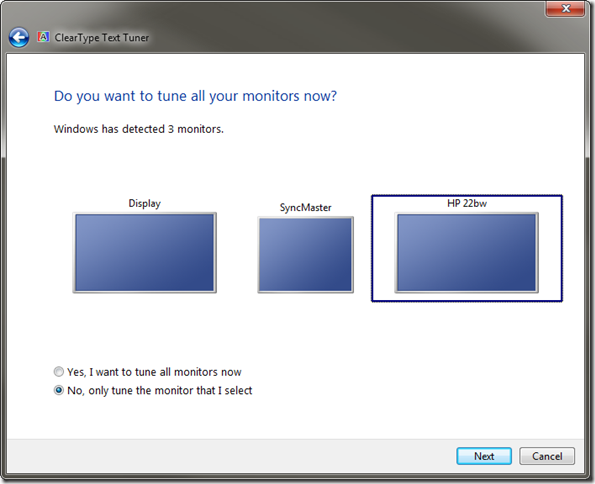
Also, I’ve gone to a 3-monitor setup at home with my laptop. My desk is quite full!

I’m running my primary display from the attached Dell Studio 15 HD laptop display. It is super-sharp and has great resolution.

My secondary display is one of a pair of older Samsung SyncMaster 930B-A displays I got a long time ago as a gift from my brother. Maximum resolution is just 1280x1024 so it looks a bit under-scaled with the other displays but it seems to work great for text which is fine when I am pounding out blog posts. No OEM Win7 x64 bit hardware drivers exist for it either so it’s running the standard Microsoft PnP display driver just fine. The 4:3 ratio (the others are wide-screen format) also makes composing text documents more comfortable.

Since (like most Dell laptops) the laptop can only drive a maximum of two display outputs natively, I’m running this display with a StarTech USB 3.0 to DVI Adapter. I didn’t have any issues getting the drivers installed and the system up and running. It’s a must-have hardware accessory if you are running multiple monitors with a laptop and can’t toss in another hardware card internally.

My third display is a HP Pavilion 22bw 21.5-inch Diagonal IPS LED Backlit Monitor(C4D29AA) that I picked up some time ago on sale at a big-box outlet. Not a lot to say. It is HD and I am running it off the HDMI port on my laptop. Overall it is decent, but I am disappointed in the text-clarity of the display. Watching a video on it is fine, but for extended text-composition on it, it just isn’t as clear as I would prefer.

In good news, under Windows 7 (at least) you can set the ClearType text on a per-monitor basis!

5jle4vuv.ji2

That has helped a bit but the text still doesn’t compare with my primary laptop display.

Cheers!

Claus Valca.