Saturday, July 22, 2006

Sickly Saturday

Lavie's been sick since Wednesday.

It looks like she has a stomach-virus. She's taking some trans-dermal phenegan, and I just made another run to the grocery store for ice-pops, Capri-Sun, Jello, etc. She has to get feeling better because I'm planning on making blueberry muffins (from a box...) for tomorrow morning.

What's even worse is that she hasn't been able to take any of her regular meds. for several days since she is afraid of loosing them. She really needs them to help manage her fibromyalgia. Not only is she sick and weak, she is also deeply sore and miserable on top of the viral aches and pains.

I'm saving up a big rant posting on that thing called (tentatively) "Fibromyalgia Sucks".

So today it is just more bed-rest for Lavie and Claus's spousal tenderness and nursing.

In between bed-care, I plan on sitting down with Alvis at her pc and picking out a new Linux distro to put on her pc.

She is using a very old version of SimplyMEPIS but all attempts at getting it to recognize her iPod Shuffle have failed.

I am going to try the latest Ubuntu-based version of SimplyMEPIS (v6.0) along with SLAX and PCLinuxOS (kid-version).

I'll give you some links and screen shots and results later today.

Oh yeah, I have a little "Last Exile" image download project I'm working on as well. I ended up snagging 6 new Firefox extensions. I'll detail those out later as well.

Hope to see you in clearing skies,
--Claus

Friday, July 21, 2006

Effective Shark Strike!

(Wire)Shark strike that is....

Noticed while loading my blog page that the blogpage was referencing a cross-link to the x.phoenix-dns.com server.

That didn't sound like any link I had ever coded into the page, so I was instantly concerned that maybe someone-somehow-dropped the code in or was attempting to hijack something.

Claus had a mystery!

(Wire)Shark bite #1

First thing I did was to examine my blog template code. Nope, no references to it there. I then checked the page code on a loaded page. Nope. Hmm.

I Googled it, and found some things that that suggested complaints of it being a spam-source. Not a good sign. I was getting suspicious now as my gmail account has been getting hit harder with more spam lately. (It has caught it all, but I was curious as to the sudden increase...)

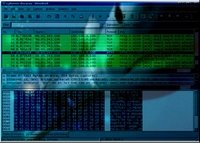
Since it wasn't going to be an easy solution, I brought out the big-fish: Wireshark. This is a network protocol analysis tool. I fired it up so I could start a packet-capture loading my blog page. This way I hoped I could find out what was calling to that site.

With Wireshark running packet captures, I dumped my browser cache and reloaded the web-page. Once loaded I stopped the packet capture and started picking through the code.

I ran a quick packet search of the packet byte string values looking for x.phoenix-dns Bingo! I found a number of them. Examining the packet text data I found that it was related to requests of a graphic hyperlink to www.erisfree.com.

ErisFree was the website where I was able to generate the basic code for this blog-template I am using right now. That seemed fine. But when I went to the web-page--there is an account-suspended message!

Mystery solved!

The template HTML code was calling to display the ErisFree logo off the server that site was hosted on. Since the account is suspended, it was generating the calls to the x.phoenix-dns site to get instructions. That cross-site chatter is what I was seeing in my browser's status bar.

I edited the impacted references code out of my template and problem is solved.

Now maybe you can see why having a network protocol analysis program could be useful for bloggers!

And x.phoenix-net is off the hook as a source of any of my suspicions--just a simple cross-linking call going on.

(Wire)Shark bite #2

While looking into my template code, I found where my gmail address was actually coded into my page. I had missed that! That's probably where the spam-bots were harvesting my email address from. I pulled it out as well.

If you need to email me it's (this blog title as one word)@gmail.com

I hope that tweak cuts down the spam.

(Wire)Shark bite #3

I also noticed this blog's HTML "Keywords" meta tag code was filled with useful stuff for ErisFree (as examples) but not conducive for Grand Stream Dream's overall purpose. The Keywords coding allows search engines to better associate your site with web-searches. I fixed that up as well with some better word associations.

(Wire)Shark bite #4

That stupid copyright symbol I have at the bottom of the right column never displayed correctly. I found the correct HTML code on-line and fixed that also.

See what happens when you feed a shark?

--Claus

Lego Links (plus More)

Here are some fun Lego Links I came across:

Top 10 Strangest Lego Creations - via Look At This

Han Solo in Carbonite

Lego Difference Engine

Build your own USB Lego stick

The Unofficial LEGO Builder's Guide Blog

Harry S. Truman AircraftCarrier in Minifig Size - WOW! Be sure to click through all the pages of this thing...use the "Next" link at the bottom right corner of the pictures--they get better on each page.

Monty Python's Holy Grail done up in Lego style.

Eric Harshbarger's LEGO pages

Other things to see (non-Lego)

More Abandoned Places and Things

The Thames Estuary Army Forts

Modern Ruins and Urban Exploration

Voyage to Utopia and the City Obscure - crazy well done graphic artwork.

Obscures Cities / Cities of the Fantastic - Yes, the site is in French. Just explore and click around. You are sure to find some gems.

--Claus

GSD's New Favicon!

Since I have been playing with icons so much lately, I finally decided to do something about making a favicon for the "Grand Stream Dreams" blog.

If you are not familiar with what I am talking about, a favicon is a personalized bookmark icon for a webpage. IE 6 is kinda cranky about displaying them, but I hear IE 7 works fine. Firefox handles them no problem!

One of the challenges in making a favicon is that they are at 16x16 pixel size. That makes it very challenging to create a graphic that is clean and visible at that size.

It took me a fair amount of work but I got one created that I was happy with and added some text to it.

You can do it by hand like I did, or you can use a service like Chami.com's FavIcon from Pics: the first web tool for creating still / animated favicons from regular images

Next I had to upload the icon image file to a hosting site. Blogger/Blogspot doesn't handle .ico/.gif formats that it needs to be in. I tried using my flckr account, but that also changed the file format at upload. Finally I discovered the clever and nice site Photobucket.com. They provide free image and video hosting in a format that is very helpful to bloggers.

Once I had uploaded the file, I had to add some HTML code to my blog's template and voilla! Done!

Hope you enjoy it!

More icon links:

Anime icons/avatars
Large format, Last Exile icons - via Fleet of Little Ships


Update--favicon v2.0 Thanks Jim!

See you in the skies,
--Claus

Wednesday, July 19, 2006

How To: Create an Icon Library


There are a lot of things I care about with my computer systems, and many more things I do not.

Hardware specs are important, but I don't live or die on the latest and greatest numbers. My home computing needs are pretty simple. As long as my system is as secure as I can "reasonably" make it, as long as it is stable, and as long as I don't run out of disk storage, I'm pretty happy.

I do have a few weaknesses when it comes to computers, however. I love desktop images--the prettier and more colorful the better--even if I can't ever see them all. And I like having a wide variety of icons to customize my desktop and folders with.

Most icon packages offered come as packages of individual .ico files. That's nice, but I like to have them bundled into a single icon library file (.icl or .ico) format. It makes it easier for me to manage and browse them. So I've had to learn how to "roll my own" icon library files. Let me show you how to do it as well.

How-To: Convert Icons into a Single Icon Library

1) Get an application to build icon library files.

There are lots out there. I've recently been playing with GConvert from G.D.G. Software. The GUI is very nice and the product worked perfectly. It does a lot more things besides just building icon library files, but is a nice professional place to start. Two other professional icon products are Microangleo and Axialis.

For this exercise, I will be using the freeware application IconShop (v1.20). It works perfectly for this task.

Download and run a virus scan of that application. Then unpack it somewhere helpful. It is actually a "standalone" application so you can just run the unpacked IconShop.exe file to launch the app.

2) Get some icons!

Again, there are lots of options out there! My two favorite sources are the Iconfactory's New Icon "showroom" and InterfaceLIFT's Windows Icons. If strange and bizarre icons are more your taste, try Gort's icons over at forrestwalter. With a little bit of work, you can also download and convert Mac icon packages and use on Windows, but that will be another post.

Let's practice using Louie Mantia's beautiful system icon set called Aqua Neue (Graphite).

Download those and after running through your virus scanner, unzip them to a folder on your desktop (or some other convenient location).

3) Launch IconShop.exe

You should have a three-pane window. The directory tree is on the left. Any valid icon files (for the selected folder) are in the top-right pane and the icon file contents are displayed below. You can change the icon format size displayed in the drop-down Format box in the toolbar. I like the "all formats" myself.

4) Open Windows Explorer (or your favorite file management application) and browse to and open the icon file you unzipped. Depending how you unzipped it, your folder list may vary. Mine says "1865_aquaneugraphite\Aqua Neue (Graphite) - Windows\". In there you should find 87 files of the .ico variety.

5) Resize your Windows Explorer and IconShop windows so that you can easily drag and drop files from the Explorer window into the lower right windows pane of IconShop.

6) Select all the .ico files listed in Windows Explorer.

7) Drag them off the Windows Explorer and drop them onto the lower-right pane of IconShop. Depending on your system speed it may pause a moment but it should then display them and report on the bottom status bar that you have 5 formats, 86 icons, and 86 images. Good!

8) In IconShop, click on File, Save As.

Delete the default file name (AFP Location.ico) and provide a new filename "Aqua Neue (Graphite)" or whatever.

9) Decide what format you wish to save your icon library in.

It is fine if you want to go with the default "ICL" format. If you want to save it in an .ico format, just type the following (including quotation marks!) "Aqua Neue (Graphite).ico" in the File name line instead.

Note: I prefer using .ico as my icon library file format as Windows defaults to picking up these types when browsing for and applying new icons to files/folders. It just makes it easier to search for them.

10) Change your "Save In" location to where you want to drop the file.

(I keep my icon libraries in an folder named "ICONS" in my Windows folder.)

Click "Save" and you've done it!

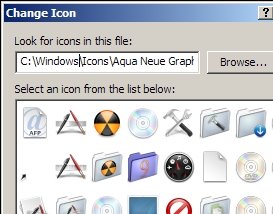
To take advantage of your new creation, pick a shortcut on your desktop, right-click and select "properties." Then click the "Change Icon" button. Click the "Browse" button and browse to the folder where you saved your newly created icon library file. Select the file and click "Open". Pick your new icon (I like those spiffy hard-drive icons) and then select "Apply" and "OK".

Done! You should now see your new custom icon!

To start a new icon file, go back to IconShop and click the blank-page (new) icon on the toolbar and repeat the applicable steps!

(You may delete the unzipped icon package as well as the original zip file once you are done building the icon library file--you shouldn't need to keep them.)

Once you get this down, you may find you tend to use the same icons. You can even custom-build your own "favorites" icon library file. Just use IconShop to to export your favorite icons and repeat the steps, or even simpler, open two sessions of IconShop and use one to search, view and copy desired icons out of and then paste them into the other session. Fast and Easy! This way you just have a single icon fileset you can keep handy for your personal use!

Please read and respect the icon author's "readme" file often included with the icon packages. Most allow free use of icons for personal usage, but not in commercial or corporate settings, and very few let you re-distribute their icons in new packages. If that's what you need, take some time and you can fine some nice sets that allow free-reign in usage.

Happy icon collection building!

Additional Icon links:

@icon sushi - multi-task freeware icon utility.

LiquidIcon XP Editor - very popular freeware icon editor and extractor. Nice set of features.

ResThief - freeware icon extractor. Use to scan dll's, exe's and other similar files and extract hidden icons from them.

See you in the skies,
--Claus

Monday, July 17, 2006

Add & Remove Program Helpers

I try hard not to have too many unnecessary applications fully installed on my pc.

Whenever possible I prefer "standalone/portable" applications that can run from a program folder or off a USB stick but don't need to be "installed" in the normal sense. However, Lavie and Alvis both have quite a few "must keep installed" applications and there are even more of my own I cannot get to run any-other way.

The end result is that when I try to open my Add/Remove programs list from within the Control Panel, it takes a long time to build the program list. It takes even longer if the option to show Windows Updates in enabled.

I've been using two clever little programs for some time now to work around this problem and generate almost instant listings of programs. I simply keep shortcuts to them in my Start Program listing.

SARARP - Small And Fast Add/Remove Programs - Freeware. Nice

Uninstall Tool 1.6.6 - Freeware - I am using this one just a touch more now. I like the GUI layout just a tad more. From CrystalIdea Software. Also has an option to allow you to view "hidden installation" elements that don't show up in normal listings. Handy

More linkage:

RipIt4Me: Back up those pesky protected DVDs - I haven't tried ripping a copy of a DVD yet. I really don't have a need, but just in case you are interested, this little gem proposes to help you with the toughest DVD nuts. via download squad.

Warp Forest - Flash based arcade/puzzle game. Starts easy but gets mentally challenging fast. You must work out proper event sequences to advance to the next level.

Like playing Flash-based games, but not always connected to the Net?

If you use Firefox you can usually capture the .swf Flash file to your pc locally.

1) Open/launch the Flash game/file by clicking on its link.
2) Then right-click around on the page with the Flash window displayed. Eventually you should find a spot (usually near an edge) and get Firefox's context menu.
3) Select the "View Page Info" button.
4) Then in the Page Info window, click the "Media" tab and browse the "Type" column to find "Embed."
5) Look at the address listed and find the file(s) ending in the ".swf" format.
6) Next click that line once and then click the "Save As" button to save to your favorite location.

Then use Swiff Player - Freeware - to play the Flash files "standalone" mode whenever you want. Clever!

See you in the skies,
--Claus

Sunday, July 16, 2006

Virtual Machines for Windows


So far Claus has covered the following (hopefully) critical security issues for Windows-based system users:

Firewall protection options: (w)Hole Lot of Firewall Info

Rootkit protection options: Windows Rootkit Detectors, and

Sandbox protection options: Sandboxing for System Security

Today we move on to the next-level of system protection; virtual machines. I've touched on this before.

As I have mentioned, trying to install and run new software can be a gamble. It should work, but it could (intentionally or not) render your system inoperable. There are many bad things that can impact you pc: viruses, trojans, malware...beta software and just plain bad code. By using a virtual machine system, you can effectively replicate an entire operating system on your desktop without needing a second pc. If something bad occurs you can either try to fix the virtual machine settings or just delete the virtual machine and simply restore your virtual machine to its original state.

The Wikipedia has a very good article about virtual machines.

I want to focus on three primary virtual machine software packages. There are quite a few more, but these seem to run quite well on most Windows based PC's.

Microsoft Virtual PC 2004

Previously a "to purchase" product, Microsoft recently announced it is releasing Microsoft Virtual PC 2004 for free. And it will also release Virtual PC 2007 free when it is finalized. Nice news.

The prime benefit of using this product is that (one would expect) that Microsoft would be in the best position to write code to emulate it's own systems. It doesn't play perfectly with all operating systems. Take some time to look over Jonathan Maltz's website: What Works and What Doesn't in Microsoft Virtual PC 2004 and acquaint yourself with the list before taking the time to try to install a particular system in Virtual PC.

Virtual PC Guy's WebLog is another great place to keep up with important and useful tips and issues in using Virtual PC.

Finally, Robert Moir has a wonderful set of Virtual PC 2004 FAQ well worth reviewing prior to setting up your first session. Including the ever useful: Installing Guest Operating Systems.

VMware

VMware offers a number of wonderful visualization products including their free VMware Player and the trialware VMware Workstation.

If you want to get started quickly then I suggest trying the VMware Workstation product. It easily allows you to create new virtual systems. However, if you need a free product and don't mind jumping through some hoops, give VMware Player a try. VMware has compiled an extensive list of "virtual appliances" and I would probably point most new users to their "Browser Appliance" image that uses the Linux Ubuntu build with Firefox as the best introduction.

If you don't have the money to pony-up for a full version of VMware Workstation, but want to build your own virtual systems there are a lot of options--they just take some work to use.

I'm not sure if this is where the whole idea got started, but Hack a Day posted a How-to: VMware player modification that walked users through setting up their own VMware virtual disks. The commentators then took the idea and ran with it.

John Bokma posted a wonderful guide: Creating an XP Pro VM for the free VMware Player

David Kuder hosts his VM Builder script on the web. You just complete some settings on line and the system and the script prepares a text file for you to use in your VMX configuration file.

EasyVMX!: Virtual Machine Creator goes one step further. It allows you three options for creating your virtual VMware machine: Super Simple Edition, EasyVMX or Expert. Depending on the sophistication level needed, pick your choice. The site also offers sets of IDE VMDK disk images from 500MB up to 100GB sizes for download (actual file size is much smaller). This can really save a ton of manual configuration time.

QEMU

QEMU is an emulator for various CPU's. It can run on Linux, Windows and Mac OS X systems.

There are a number of ways you can try this out. To get a first-start, you might consider Damn Small Linux's QEMU:Embedded version Damn Small Linux". It contains a package pre-wrapped with QEMU virtual machine. The trick to finding this one is to look for a download build with "embedded" in the name. The current version at this time is dsl-3.0.1-embedded.zip Just go to the site, or click on this download link to their site and find a mirror. Then browse the tree until you find an appropriate zip version.

QEMU is a really flexible program. David Reynolds has created his amazing Qemu Manager program that really provides a great GUI QEMU manager. I really think this is a "must have" program if you are using QEMU in Windows. I love to use this to manage and launch various Linux "Live CD" distributions in ISO format. David has some great screenshots on the process on his About Qemu Manager page.

There is also the QGui QEMU Launcher as well. It is similar to Qemu Manager. I haven't used this one as much, but it is another option.

While you're at it, check out the Main Page - FreeOsZoo for additional "ready-to-run" images of QEMU virtual systems.

While it takes a bit more work, I still recommend using VMware's versions the best. I find them to operate much faster, but Virtual PC 2004 is still a great product. For something fast (to get started) using for ISO images, QEMU with Qemu Manager is my pick. Having all three in your arsenal of options is best. And when it comes to virtual machines, the more system RAM and CPU power at your primary system's disposal the better.

So go download these today, experiment, and get to know these tools. They can really provide a great test-bed for new software and applications as well as provide an additional layer of security when doing web-surfing and downloading.

See you in the skies,
--Claus