Grand Stream Dreams blog

...soaring up...chasing dreams...what would I do if I caught one...

Oscar watch Linkpost

Alvis and Lavie are watching the Oscars tonight and I’m along for the ride.

I wasn’t able to come even close to getting out some of the posting I wanted.  Nothing like a short weekend, a bit of weed-pulling in the yard, and the regular mix of loving on the girls to wear a weekend out.

Couple that with my curiosity and dogged determination to note a few problems for research, then spend a few more hours or two researching those things.  Next thing I know I’ve quadrupled the number of links…and post topics....I was planning to work on.

Here are some miscellaneous links I’ve collected this past week.

The nominees this week are…

U3 Removal Tool – The link to remove this enhanced feature from some USB drives has been changed.  This is the new one.  I always keep this handy and remove U3 from our family USB drives if purchased so equipped.

<--InGuardians --> Defensive Intelligence – Great collection of some good cheat-sheets on Windows Command Line Tools, Super Netcat Cheat Sheet , and Useful Attack Tools.  While you are there picking up those PDF’s, take a look around and consider some other pen-testing papers while you are at it.

The Deployment Guys : Working with Crashdumps - Debugger 101 – Really good and approachable post on some basic Windows crashdump information and handling.  Good stuff for sysadmins.

Engineering Windows 7 : Engineering the Windows 7 Boot Animation – Who knew that so much went into the design and engineering of the Windows boot sequences.  There is a lot going on in the process as well as how it has been enhanced and optimized for Windows 7.  Read it and appreciate it.  Then move on.

Sunbelt Blog: New Sunbelt research site – Alex Eckelberry and his team have been hard at work developing a useful portal for researchers of virus/malware related items over at (beta page link).sunbeltsecurity.com.  Research information on current threats, submit a wild threat, submit a false-positive report (for Sunbelt products), upload a suspicious file to their automated sandbox server to see what the system might do on a live system, and much more.  Certainly a site worth bookmarking.

Highlighter v1.0.1 Released – Mandiant M-unition Blog – Miscellaneous fixes and performance gain for Highlighter, a great and cool-featured log-file parser and text file viewer.  They also gave notice they are working towards large file (1GB+) log-file support.  Neat.

MindSniffer, Updated Audit Viewer released – Mandiant M-unition Blog – MindSniffer is “…a tool that will allow the user to translate snort signatures to either XML jobs or python plugins that can be used to identify processes containing strings that match snort signatures.” While Audit Viewer got a large number of strong modifications and feature enhancements including the ability to launch Memorize another free and useful memory image capture tool for system investigators. “Audit Viewer is an open source tool that allows users to examine the results of Memoryze’s analysis. Audit Viewer allows the incident responder or forensic analyst to quickly view complex XML output in an easily readable format.”

And the award for the most cool tools in single post this week goes to….

Harlan Carvey at the Windows Incident Response blog for his post

Looking for "Bad Stuff", part I – Last but not least, Windows forensic expert Harlan Carvey has a great post full of all kinds of awesome links (including a GSD post) for getting starting on looking for baddies on a captured system.  I’ve been heavy on imaging these past weeks so this particular section was very interesting reading!

Mounting The Image
One of the first things we can do to make our analysis somewhat more efficient is to gather some tools. As such, we'd like to mount our image as a read-only file system...to do so, we can look to commercial apps such as ASRData's SmartMount, or you can use freeware tools such as ImDisk or VDKWin. The VDK executable will let you get the partition table information from within the acquired image, as will the GUI-based Partition Find and Mount (discussed at the SANS Forensic Blog)...however, Partition Find and Mount does not appear to have the ability to mount a partition read-only; it will reportedly allow you to mount a potentially corrupted partition, so this may be an option...in order to recover data for analysis, mount the partition, and then acquire an image of it.

Harlan then goes on to targeting the value of Log files, Event logs, Registry analysis, and some very specialized malware hunting and busting tools well worth remembering and becoming familiar with such as missidentify, sigcheck, LADS (see also Nir Sofer’s tool   ), and YARA and Scout Sniper.

Awesome contributions in all fields!

--Claus V.

File Recovery Extravaganza

Nothing like a real-world challenge to lead me to burn through a few hours of research and followup.

It all started with this post by Dwight Silverman over at the Tech Blog:

Long story short, a business system crashed, some system recovery was applied, and the result was that critical files disappeared.  Dwight was brought in to help try to get them back and asked for advice from his blog followers.

Stop, Drop, and Roll

When you encounter the situation where your data is gone, here are some immediate steps to help mitigate the disaster:

  1. Shut down the system immediately.  Don’t try to do a “System Restore”. Don’t try to replace a year’s worth of data by putting the contents of the Recycle Bin back on the system.  Shut it down immediately.  If it is mission-critical just kill the power and skip the graceful power-off steps.
  2. Don’t try to do anything else at the moment.  The more you fiddle, repair, and “fix” the system trying to get the files back in your panic and stress, the greater likely-hood of overwriting the data on your drive.  It’s also easier to make silly mistakes when you are stressed. 
  3. Walk away, take a deep breath and develop a strategy for your recovery attack.
  4. Unless your drive hardware cratered or a secure-deletion/wipe occurred, there is a very good chance the data is still sitting there.  The trick will be to access it again.
  5. I personally recommend pulling the drive out of the system and either placing it as a “slave” drive in another system or into a USB drive enclosure to access.  This increases the chance you will avoid rebooting the system accidentally.
  6. If it is mission-critical data you are trying to resuscitate, get an image-capture of the drive before doing anything else.  No file-based imaging will do; you must do a sector-based image capture so we can get every bit of data that the original has, including those that are no longer recorded in the file allocation table. Ghost and Linux’s “dd” methods are good examples.  Clonezilla, ImageX, DriveImage XML are not.
  7. Some imaging solutions will allow you to mount the image so you can work with your copy rather than the actual drive.  That brings more options to the table.
  8. Forensic experts use both write-back blockers with the physical drive as well as software that is configured to read only, all to avoid compromise of the original drive.  They do this to preserve the integrity of the original contents which is something we should keep in mind as well.
  9. Plan for where you will put the files if you recover them.  Have another USB drive or storage device handy to move the (hopefully) recovered files to.  Writing the recovered files back to the same drive risks corrupting the files and data with overwriting.

For even more tips and guidance, check out the following guide from Easeus:

Freeware Recovery Software

In most of my situations, I am using Windows as my recovery environment.  Either via Win PE boot disk or with Windows XP/Vista as the host and the target drive as a slave or mounted image.  Thus most all the tools I’m mentioning are Windows-based.  That is the sea I swim in at home and work so I have to be prepared to support it.

Many of these are “portable” meaning they can run from a LiveCD or USB device.  Particularly flexible if you are using a Win PE based boot disk.  Check the licensing as some may be free for personal use but may not be free for business use.

PC Inspector File Recovery – This remains my primary tool for file recovery.  The interface is a bit wonky but it seems to get the job done really well.  Scans can take a long time to process an entire disk, but it has been very successful in the attempts I have needed it for.

Recuva - Undelete, Unerase, File Recovery – This is my second “go-to” file recovery tool.  It is very easy to use and has a non-technical interface.  As an added bonus there is a previewer window to view images on pre-recovered files (graphic files) as well as file properties and information.  The fast scan rarely provides many finds, but the in-depth scan can recover loads of stuff…if you are patient!  It also has a filter tool to narrow down the results in various file formats or you can enter your own wildcard criteria if you are looking for a particularly named file. See this Using Recuva tutorial for more.

PhotoRec – CGSecurity – Although geared primarily to recovering graphics-related files that have been deleted, it can handle other files as well.  The GUI is command-text based, so nothing sexy here, but you don’t have to look sexy to be good!  As an added benefit it runs on a variety of OS.  PhotoRec Step By Step is a great tutorial.

TestDisk – CGSecurity – Same folks as PhotoRec but this tool is focused primarily at getting back systems partitions that have been damaged or destroyed. Besides the MBR and partition recovery work, it also can recover deleted files and/or copy them to another drive.

DiskDigger – Dmitry Brant – Had to update this post to add this new release in.  Portable and does not require an install. Also has a preview feature so you can see what it is you are about to recover, and how much of the data from the file is present.  Nice GUI, easy to use, does sector-based scanning for the file-search, and filtering of scans for particular file types common to most home-user and office systems.  Spotted tonight via Lifehacker.

Roadkil.’s Undelete – No bells or whistles.  Just a simple and direct deleted file-recovery application.

DataRecovery – A step up on the simplicity scale. Unpack and run. No install needed.  Fast and deep scans available. Sort and filter results.  Also allows you to secure-wipe deleted files for never-again-recovery.  GUI interface is simple for beginners.

ADRC Data Recovery Tools -  A full package of advanced data recovery tools.  Not only can you recover deleted files, but you can also create a disk image for backup and restore it to another drive, you can copy files from drives with bad sectors, do a disk clone, backup/edit/restore your boot parameters and much more!  The website is off line sometimes so you might want to try this alternative download location: The Portable Freeware Collection - ADRC Data Recovery Tools

SoftPerfect File Recovery – Very simple to use interface and not many items.  Great if you have to suggest just such a program tell your extended family member to try without your supervision but it’s a non-critical file (say grandma’s cookie recipe that is written down elsewhere in the house)

Recover Files – Heavy duty tool that is hard to believe is free.  This has a lot of options for filtering results, looking for specific sizes or dates, and hiding of overwritten or temporary system files.  The interface is nice as well.  Because it is able to display results in the original folder structure, it makes it easier to navigate in your search for a particular deleted file(s).

Undelete Plus – Another professional-grade product and interface for heavy-duty searching and sorting of recovered file results.  Nice

Pandora File Recovery – offered in both a free “installable” version as well as a portable version shipping on USB drive for purchase.  Many of the same features as others, but with some other bells and whistles like estimating the success of recovery, previewing certain files and properties before recovery, etc. 

Restoration 3.2.13 – No install needed. Download, unpack, and run.  Very simple interface and not many options.  If tiny is what you want, this is a good option.

NTFS Undelete – High marks for two different reasons.  First it has a nice clean and clear interface that doesn’t require much work to get started.  Second, they provide a ISO-download to instantly create your own boot disk with the application on it already.  Very nice for folks who aren’t into rescue-disk building.  Oh yeah, did I mention it was open-source?

Ultimate Data Recovery – Another undelete program option.

FileExtractor – Another open-source tool for recovering deleted files.  While the interface is a bit GUI-simple, a big plus for the non-technical folks is that it is wizard-based.  So once you get the program running it will hold your hand and guide you through the recovery stages.

FreeUndelete – Simple and uncomplicated interface.

Boot-Disk Based Recovery

There are also a number of tools that can be used to boot a system “off-line” and recover the files of the drive in place.

While not rocket-science, they do generally require a bit more technical skill to use.

However, they also up the ante in flexibility and chance of success.

Trinity Rescue Kit – Heavy duty Linux based tool.  It packs a lot of heavy lifting tools in a small package. Drawback is that it is script/cli based so unless you are familiar with Linux, it might be too scary for some.  For tips see these two posts: Trinity Rescue Kit: Usage Howto and 4sysops - FREE: Trinity Rescue Kit (TRK)

SystemRescueCd – Linux LiveCD that allows off-line booting of a system.  Comes with great partition recovery and management tools along with some file recovery tools previously mentioned above.  A solid solution.  For more details see Quick start guide.

Windows FE – (GSD Blog post) - You have to build and pack it up yourself, but the benefit of Win FE is that it is set to prevent write-back to any local drives it finds.  Keeps you from overwriting the drive by accident.

Win PE -- (GSD Blog post collection) – Windows PE is a built-it-yourself LiveCD environment that has a big plus of being able to run most “portable” Windows applications. So if you have a favorite Windows supported file-recovery program and it is portable, it just might run great off this boot-environment in an OS you are comfortable in.

VistaPE (project page) and Custom Win PE Boot Disk Building (GSD Blog post) – Build a Vista-based Win PE 2.0 boot disk with lots of awesome tools and utilities.   I love this project and have done a lot of work in it.  If other Linux LiveCD projects didn’t have so many awesome tools and utilities, I would probably use it exclusively.

Ultimate Boot CD – An awesome pre-packaged collection of tools and utilities (mostly simple-GUI only) on a bootable CD.  Simply a must-carry in every sysadmin and troubleshooting responder’s toolkit.  Packs a number of file-recovery tools on the disk.

UBCD for Windows – A WinPE 1.0 (XP-based) project builder.  Create a great tool with lots of utilities.  Similar to Bart’s Preinstalled Environment (BartPE) bootable live windows CD/DVD project but a bit more updated and with some different program offerings.  It takes some work and resources, but produces a great and useful tool.

Aftermath

In Dwight’s case he was very lucky and was able to use Recuva despite all the previous work and remediation done on the system before he got there.

They broke most of the “rules” but still made off like bandits.

Which gives hopes to everyone else that if he can do it, even in those circumstance, mere mortals might also stand a chance to get grandma’s cookie recipe back from the brink of deleted disaster.

Pick out one or two or three, with slightly different items to provide you a number of options, then practice and get comfortable and experienced in using them.

And consider this; if these free tools can help mere mortals, imagine what a trained and experienced forensic examiner can do with the right tools, skills, and proper acquisition and recovery procedure!  It makes my heart warm with envy.

If you want it really gone, then you need to do a secure wipe of either the entire disk or at least the “free-space”…but that’s another post.

Cheers!

--Claus V.

Rx for Prescription Management

Just what the doctor ordered!

Hard to believe but it was over two years ago when I went looking to build a small collection of useful tools for Lavie.

The primary item I was looking for, a solid freeware prescription manager, was still never found.  I had found and offered Lavie some alternatives, but none really captured her imagination.

So the other day she asked me if I could help her take another look for some.

Apparently, the intervening years have been very good.

Not only did I find one; I found three—all free!

JCMatt software -- My Medications List Lite – (freeware) - Down and dirty simple.  Enter the name of the medication, the dosage, any instructions, quantity, next refill date, and any notes.  Nice plain interface.  You can print out the items, and view the embedded calendar.  Items listed have their “refill date” turn red when they reach less than seven days until the refill comes due.  This can remind you to call in your prescription renewal early.

image

JCMatt software -- My Medications List - (freeware) – Same concept but on steroids.  Track name, dosage, type (tablet, capsule, etc.), quantity, pills/day, dosing instructions, cost, condition, Rx Number, last refill date, last renewal date, and a notes field. View a running total of the medication (each/all) monthly, quarterly, yearly. Not only can you print them, but you can also email or fax them (integrates with your default services) to your pharmacy and/or doctor with pre-formatted fields.

There is no calendar like the “lite” version, but the info bar above the list will show green if you are on an item in good standing, but will display boldly-red if the prescription has less than seven days to go before renewal.

There is also a “web-lookup” button.  Select a particular medication entry, and then click the “lookup” button.  Your default web browser will go to the online medication research site Drugs.com so you can get additional information on the item.

Imagine printing all this information on your prescription history before you go to your doctor visits!  No more guessing or relying on memory. 

Both the “full” and “lite” versions are supported on MS Windows 95/98/Me/NT4/2000/XP/Vista.

image

The only drawbacks I have found so far is that they are not “portable” out of the box.  They require an installation on the host system.  I didn’t notice any ads or other “junk” that accompanied the installation so they appear clean and “system friendly”.  Super nice!  I do wish that they integrated their prescription renewal dates in a embedded calendar…which the full version seems to lack.

While you can’t track all the family member’s prescriptions in a single database, you can create a file for each person and track that way.

Medrex Free - (freeware) – Pretty simple. Enter the name, script #, # days supply, last filled, remaining refills, notes and a few minor fields.  Save them, view them, print them.  Not much more to say than that.

image

Lavie likes the “full” version of JCMatt software’s “My Medications List” as it has the level of detail and item-management that she demands.

I’m sure that short of making your own up in a spreadsheet or database, one of these will be found sufficient to meet your home and family prescription tracking needs.

Making them Portable

Alas, it isn’t always so easy to unpack the setup file or just copy the program folder to another location and uninstall the application.  These seem to use some slightly uncommon installers and need some helper files that get installed outside the program folder.

My Medications List Lite

Download and unzip the file.  Run the setup program. 

Once installed find the program folder under the “C:\Program Files\My Medications List Lite” and copy this folder to another location. 

Then search and find the following files that were either added to the “C:\Windows\system32” folder or were attempted to be added there:

  • "C:\Windows\System32\hh.exe"
  • "C:\Windows\System32\itircl.dll”
  • "C:\Windows\System32\itss.dll"
  • "C:\Windows\System32\hhctrl.ocx"
  • "C:\Windows\System32\MSFLXGRD.OCX"

Copy them into the copied “My Medications List Lite” folder as well.

The following files were already present on my Vista system before the install but I copied them into the copied folder anyway.

  • "C:\WINDOWS\SYSTEM32\VB6STKIT.DLL"
  • "C:\WINDOWS\SYSTEM32\COMCAT.DLL"
  • "C:\WINDOWS\SYSTEM32\STDOLE2.TLB"
  • "C:\WINDOWS\SYSTEM32\ASYCFILT.DLL
  • "C:\WINDOWS\SYSTEM32\OLEPRO32.DLL"
  • "C:\WINDOWS\SYSTEM32\OLEAUT32.DLL"
  • "C:\WINDOWS\SYSTEM32\msvbvm60.dll"

Now uninstall “My Medications List Lite” using the Add/Remove programs under the Control Panel.

Finally browse back to the copied folder and launch “My Medications List Lite.exe”.

Works fine on Vista.  Should work well on XP as well.  Total program folder size = 3.36 MB.  It would be a lot smaller if I hadn’t bother copying that second set of pre-existing applications in there.

My Medications List

Download and unzip the file.  Run the setup program. 

Once installed find the program folder under the “C:\Program Files\My Medications List” and copy this folder to another location. 

Then search and find the following files that were either added to the “C:\Windows\system32” folder or were attempted to be added there:

  • "C:\Windows\system32\MSWINSCK.OCX"
  • "C:\Windows\system32\Splitter.ocx"

Copy them into the copied “My Medications List” folder as well.

Now uninstall “My Medications List” using the removal icon under the Program list .

Finally browse back to the copied folder and launch “My Medications List.exe”.

Works fine on Vista.  Should work well on XP as well.  Total program folder size = 1.08MB. 

Medrex Free

Install the application.  Once installed, find the program folder under the C:\Program Files\Medrex and copy this folder to another location.  Then search and find the following files that were added to the C:\Windows\system32 folder:

  • "C:\Windows\system32\EPSFLA.OCX"
  • "C:\Windows\system32\IGThreed40.ocx"
  • "C:\Windows\system32\vbskpro2.ocx"
  • "C:\Windows\system32\mscal.ocx"

Copy them into the copied Medrex folder as well.

Now uninstall Medrex using the included uninstaller icon.

Finally browse back to the copied folder and launch meds.exe.

Works fine on Vista.  Should work well on XP as well.  Total program folder size = 1.19 MB

Note, based on my install monitoring, there is a bunch of registry key creation and file registration activity.  Following the steps above seem to let the applications work well, but some features or elements might be “broken” in the process.

Don’t come crying to me if something happens unexpectedly.

I prefer “portable” applications so I can tote them around on USB sticks and such.  However your mileage may vary.

Like I said earlier, these seem to install cleanly with no adds or other nuisances, so a full install on your system seems like a small price to pay for these great freeware prescription managers.

Cheers!

--Claus V.

Macrium Reflect: free drive imaging software

I deal a lot at work with drive imaging.

I prefer using Microsoft’s ImageX tool.  Clonezilla is also used as an alternative imaging method. I find it useful to give our techs multiple methods to image a system.  This allows flexibility if hardware issues make one method less reliable or problematic (usually due to available system RAM).

Both are “file based” imaging tools rather than “sector based” tool.  Therefore they aren’t useful for forensic drive imaging, but that’s another post.

Anyway, I came across Macrium Reflect FREE Edition which looked interesting as it contains some neat options:

  • Create a disk image whilst running Windows using Microsoft Volume Shadow copy Service (VSS).
  • Image to Network, USB, FireWire drives and DVD.
  • Built in scheduler.
  • 32 bit and native 64 bit versions.
  • Industry leading compression levels and speed.
  • Linux based Rescue CD with Network access and full GUI. Only 6.5MB in size!
  • Built in CD/DVD packet writing engine. Supports packet writing to DVD DL media with Windows Vista.
  • HTML log files.
  • Being able to image running systems, to a network share, on a schedule sounds pretty cool.  It looks like it also falls into the “file-based” imaging category of image software.

    Restoration can be done with either a Linux of WinPE based disk.  The tool has a wizard to assist you in the process.

    There is a nice review here where I learned about the tool:

    It reminded me quite a bit of the DriveImage XML Backup software I also am familiar with.

    Has anyone used or formed an opinion on Macrium Reflect?  If time allows, I plan to test it out next week.

    For a big list of other disk imaging software check out this GSD post:

    FYI,

    --Claus V.

    Kurious Kaspersky Tweaker

    I was doing some research on an unrelated post topic and came across a tool that allows you to modify “undocumented” registry settings for Kaspersky Anti-Virus 2009.

    Not sure if this is up anyone’s alley, but I do look with interest in any tool that allows modification of anti-virus/anti-malware settings both from a tweaking and possible manipulation-attack vector.

    Nice review of the tool here:

    Claus V.

    GSD guest post at TUG blog

    I was asked to do a guest-review post for The Undershirt Guy Blog.

    I had picked up some Jockey Mock Neck (Hi-neck) T Shirts after a long search for just such a product.  Head over there if you are interested in reading a long and detailed review of them.

    Very short review:

    • love ‘em
    • long tails
    • tag-less (except for the tiny hamster-tail tab at the back bottom tail)
    • minimal horizontal shrinkage
    • acceptable vertical shrinkage due to starting length.
    • 100% cotton (black or white colors available) with nice weight.
    • Nice high-neck collar…may be prone to light piling due to short beards.

    They provide a crisp, professional look under uniforms and polo shirts, and will probably reduce “ring-around-the-collar” stains for button-downs.

    TUG’s blog is a great source of all kinds of men’s undershirt reviews and linkage.  So if you are a bit OCD regarding the fit, style, and performance of your undershirts, you might want to stop in and have a look around.

    Cheers!

    Claus V.

    Wait, Wait, I know this one!

    Faithful readers of the GSD blog may vaguely remember this post from the archives:

    In summary, enterprise had deployed some Dell dual-core supported systems and then we later discovered that incorrect hall.dll and multi-core kernel files were included in the image, rendering the dual-barrel cpu’s single shooters.

    In the post I outlined a method we ended up deploying to fix them “on the fly” in the field instead of having to reimage them with a corrected image build.

    So many, many systems successfully fixed later I started getting calls saying weirdness was raising its head again.

    Strike One

    A field tech gave me a call after trying the fix and reported the following error after applying our fix:

    He had followed the steps, replaced the single-core hal.dll and ntoskrnl.exe files with the multi-core versions particular to our system, and rebooted.

    And was presented with the following error on a baby-blue Windows screen:

    "autochk not found - skipping autocheck"

    Rebooting the system repeated the error and neither system-restore or last good known configuration helped.  Even after he copied the original files back (renamed .old in our process), the error would not go away.

    We used a WinPE boot disk and verified that the autochk file was still present and accounted for in the C:\Windows\system32 folder.

    Puzzled, we took down the notes, recovered the user data to a USB drive, and reimaged the system to get it going again with the fixed dual-core system image.

    Strike Two

    A few weeks later Mr. No (one of our senior network watchers) was in the field and was leading a project to update re-deployed systems.  As such he was also checking for and updating the core files on some systems he discovered were not correctly applied

    And he ended up with the same error.

    Now my whole attention was on this.  I could understand if a field tech made a mistake in the dual-core enablement process, but Mr. No?  Not likely.

    After a considerable amount of troubleshooting assistance over the phone, we again collected our notes and Mr. No bailed and reimaged the system, again after recovering the user’s data.

    Why after a long run of success with this technique were both field techs and senior staff finding the process no longer working?

    It’s Outta da Park!

    Then I figured it out…while taking my morning shower last week…go figure.

    It was simple.

    When I got to the office I asked Mr. No what Service Pack level the system was at.  He didn’t know because he hadn’t checked.  Yep.  Suspected as such.

    So I fired up my image building system, XP Pro with SP3 and applied the dual-core fix to it, rebooted, and…

    "autochk not found - skipping autocheck"

    replicated exactly, the error message the team was seeing.

    What I realized is that it was very likely (later confirmed) that the staff were first applying XP SP3 to the systems they were checking (yes, yes, enterprise still hasn’t pushed out SP3 to our systems yet…we are having to do the updates ourselves at this point…I know, but not my department….) before applying the dual-core fix.

    When the autochk process ran at boot it knew that these system files were incorrect versions, thus borking the fix and boot.

    So I extracted the XP SP3 file versions and issued updated instructions that everyone now has to check to see what SP version the XP system is running, then apply the correct multi-core files to the system.

    As the files are captured on our systems:

    XP Pro SP2 

    hal.dll & halmacpi.dll – file version 5.1.2600.2705

    ntoskrnl.exe & ntkrnlmp.exe – file version 5.1.2600.3093

    XP Pro SP3

    hal.dll & halmacpi.dll – file version 5.1.2600.5512

    ntoskrnl.exe & ntkrnlmp.exe – file version 5.1.2600.5657

    Repeated tests on the imaging systems demonstrated this fixed that problem and would restore dual-core functionality to the appropriate systems.

    So the lesson is this, if you have corrupted or incorrect core Windows systems files, be very, very sure if you seek to replace them with ones from another system or Windows setup disk, that you use ones from a similar Service Pack level.  At the very least, check the file properties if possible and note the version number.

    It might save you some headaches.

    Possibly related

    Good luck,

    --Claus V.

    A Few Fix-It notes

    Not really fitting in a particular category, these might be of use to folks looking for tips, or software.

    See Ya!

    --Claus V.

    Security Briefing Time

    image

    cc photo credit DSCF3001 by joelogon on Flickr

    From Briefing Time, a B-25J “Mitchell” bomber.

    I love bomber nose art.  Couldn’t have asked for a more perfect find this time!

    • Overwriting can occur anytime, as long as it is done once after - SANS Computer Forensics, Investigation, and Response blog.  Continuing the discussion on hard-disk wiping efficacy; one time overwrite, whatever the source, is usually sufficient.

    • BackTrack 4 Beta released 2009 – LiveCD released by Remote-Exploit.org that is focused on pen-testing.  Really nice tool for security testers. Advanced tools and utilities.  Not for mere mortals!

    • Using RegRipper for malware detection – Windows Incident Response blog – Harlan really shows the benefits for sysadmins in being familiar with some forensic tools and techniques.  Being familiar with registry research can help pin down malware detection and infection studies.

    • The Trojan solved it! Catching a fraudster with another criminal, ‘myspacce.exe’ - SANS Computer Forensics, Investigation, and Response blog.  A really great study-read on how a malware infection gave away the subject of a forensics investigation.  Again, the focus here is picking up tips for system admins on malware knowledge and user activity. Also valuable in showing how alternative data streams of NTFS can be used in research as well as looking in the System Restore points for timing of activity.

    • More tricks from Conficker and VM detection – SANS ISC Handler’s Diary blog – This time the focus is on how malware can use changes to the Access Control Lists (ACL/Windows File Permissions) settings on a particular registry key to prevent everyone (including Administrators) from removing the key.  It also checks to see if it is running on a virtual machine.  All indications is that this is a pretty sophisticated and well written nasty.

    • Keeping Conficker / Downadup malware off your network in 2009 - Napera Networks – Great breakdown of important items to know about this malware and how to keep your systems clean.

    • Best defense against malware: Smarter users – Chron.com TechBlog – local Houston reminder why a/v software itself might not be the end-all solution.  Slow DAT file updates look like it bit the H-town city government in the rear.

    • Win32/Srizbi - Microsoft Malware Protection Center blog – Brief writeup of trojan dropper/rootkit that is targeted by the MSRT tool.  Some technical information on where to look for it in the file system and registry as well as how it works.  Good stuff.

    • IE8 Security Part VIII: SmartScreen Filter Release Candidate Update – IEBlog team details some improvements in the way their product will alert users to unsafe web-pages.  Nice design work and is similar to what Firefox 3.x is using for end-user notifications as well.  i hope we can deploy this at our workplace environment not long after it is released and tested on our internal web-site pages.

    • Exploit Shield 0.60 Beta - F-Secure Weblog – New version, now Vista compatible (32-bit at least) of a tool to provide various heuristics-based security protection.  Haven’t personally tried it out yet, but likely will be tossing it on a virtual machine system in the near future.

    Cheers!

    --Claus V.

    Windows FE – Details Teased out of the Web

    As long as I have been acquainting myself with both Window PE building and forensics LiveCD’s I keep stumbling over references to something known as Windows FE (aka. Win FE and WinFE) .

    Now, I’m sure if I was a professional forensics investigator I would already have realms of info with this tool.

    I’m not and I don’t so I will only speak to what I have discovered so any other curious Win PE builders who come across this reference will have some more detailed information.

    Windows FE

    From all indications, Windows FE (forensic environment) is a Windows PE based custom build that is offered by Microsoft to forensic examiners and law enforcement officers.  It is not publically available.

    The official information regarding it seems to suggest that it (and supporting tools) can be obtained from Microsoft only through their “LE Portal”

    It provides a Windows PE LiveCD boot environment that allows Windows software to run, along with specific command-line tools that will assist and benefit the forensic examiner.

    From all I have read, one of the “special” features is the ability to safely mount media to receive the captured image from a system as well as safe mounting of the host disk to prevent write-back that could harm the integrity of the recovered disk as evidence.

    After much work, I finally was able to dig out a link that seems to describe exactly how the Windows FE base disk is built.

    The Smoking Gun

    You might want to download it now just in case it is removed in the future.

    That Word doc file is very interesting (to Win PE builders like me) and specifically outlines what makes WinFE (or Win FE) so special: it’s a registry mod (two actually) that prevents modification of any of the media on the booted system.

    5. In regedit, go to the HKEY_LOCAL_MACHINE\winfesystem\ControlSet001\Services\MountMgr key, and if the NoAutoMount dword does not exist, create a dword named "NoAutoMount" with a setting of 1. If the key already exists, change the setting to 1 if it is any other value.

    6. Next, go to HKEY_LOCAL_MACHINE\winfesystem\ControlSet001\Services\partmgr\Parameters and change the SanPolicy setting to 3. (If the Parameters key does not exist, create it.) At this point, the registry in the mounted .wim file is set to boot and operate without mounting volumes or modifying media.

    The rest of the document pretty much is just standard Win PE building stuff you have already read here at GSD blog or other sources.

    There was also a link in it to this:

    Last updated September 2008, it contains a collection of tools for Windows-based forensics work. 

    I haven’t picked through them, but according to the “what’s included” there are at least nine modules that might be worth looking into for forensics students as well as sysadmins (like me) who seek to leverage the tools and techniques of the forensics pros for dealing with system issues, imaging, and malware incidence response events.

    Win FE in the Field

    Win FE has come up in the Windows Incident Response blog and the comments from time to time.

    I also saw mention of it at this post Windows Forensic Environment by Hogfly over at his Forensic Incident Response blog.

    I swear I also saw on another forensics-blog and had previously bookmarked/blogged a reference to a third-party sponsored Win FE inspired package that might even have been USB based. However I have been unsuccessful at re-locating it.

    However, while hunting this info down, I found a great forensics blog from the UK that made multiple “live-fire” references to using Win FE: Forensics from the sausage factory

    I know Win FE is being used and touted in the forensics community. It showed up as a topic at the PFIC 2008 conferenceTroy Larson is (still ?) a senior forensics investigator in Microsoft’s IT Security group.  I’m sure he’s a cool and knowledgeable guy and his association with Microsoft makes perfect sense from the Win PE foundation angle.

    My educated guess is that the “troyla” noted in the Word document I found and Troy Larson are one and the same.  Cool!

    I only wish he would release more gems on Win FE as they might be great for us Win PE builders.  I understand the need to keep most of it under wraps for the “LE” (law enforcement) professionals but I bet there is some good stuff in there for system administrators who use Win PE builds in their daily applications.

    I also suspect Windows 7 and the enhanced Win PE 3.0 environment will only bring more power and flexibility to this Win FE technique.

    New Forensic Blog Finds

    And here are some more interesting forensics-related blogs I found (or re-discovered) in the search-process:

    Hope this helps clarify (and expand) the base knowledge about Win FE.

    As a Win PE / VistaPE building nut, this is great info to know!

    Hope I got the fact right for the Win FE pros.

    Cheers!

    --Claus V.

    Helix3: Thanks for the memories…

    Buried in the reams of RSS feeds this week was this disturbing gem.

    What?

    Why would someone need to replace Helix?  It’s been arguably the best free LiveCD tool for doing “forensics” work on a system that I have had the chance to work with!

    I did a bit  more searching and found the answer:

    The developers of Helix3 have decided to support their work by going to a commercial business model.

    Then next generation of Helix3 “Pro” will be copyrighted and available via subscription only.

    They have some various news about the new product they will be soon offering.

    BTW – Helix3 isn’t a version. The “3” references the three “modes” of Helix: Incident Response, Electronic Discovery, and Forensics.  The last “free” version appears to be (2008R1) by my accounting.  According to e-fense, the latest current version (for subscribers) is Helix3 2009R1.

    I’ve got no beef with this decision.  They’ve done considerable work getting this thing going and out the door for so long.  Best wishes for them to earn some green from their efforts.

    In addition to offering training sessions and various security-related services, they will also be bringing out three new/improved products:

    I’m just sad to see it no longer be freely available.

    Where do we go from here?

    Fortunately, the void left by Helix3 doesn’t seem to be open for long.

    There are some new and improved offerings of LiveCD based forensic tools in the pipes.

    Replacing Helix – SecuraBit – The SecuraBit team is working with the SUMO Linux (5 builds in one: Backtrack 3, Helix 2.0, Samurai Linux, DBAN, DVL) developer to make a replacement for Helix that combines the very best of all the free forensics tools out there.  Can’t wait to see what this one will deliver!

    Helix3 (free) – The last free version of Helix.  Now fully requires contact info for direct-download of distro file.

    SUMO Linux – mentioned before, this LiveDVD made by Marcus J. Carey and Sun Tzu Data packages four security and forensics related distributions into a single disk.

    DEFT Linux – Until SecuraBit’s distro comes out, this is where my money is being placed at the moment.  Right now the DEFT team has released version 4 of their Xubuntu based LiveCD for forensics work.  There is a version 4.1 beta there, as well as word that version 4.2 is coming soon.  DEFT version 5 might see release at the end of 2009.  Also available are builds for a USB device install (bootable).  All these DEFT versions also come with Windows forensics tool bags.  Cool.  I plan to do some downloading of these latest USB and beta versions next week.  I’ll let  you know what I “discover”.

    Thanks for the memories. and I guess I had better make sure my current Helix ISO files are kept safe for the future.

    --Claus V.

    Laptop DC plug protection hack: Safety on the cheap!

    Faithful readers of the GSD blog may remember the near-disaster we went through here with our Gateway laptop:

    Basically the plug socket jack solder-points became broken on the systemboard.

    This turns to be a common problem for many laptops.

    It was a $250 fix that I would rather not repeat.

    Looking at the design and knowing how Alvis (and I) had been using it, I suspected the L-shaped design of the plug allowed it to swing downward and then when carelessly set on a lap, the ottoman, a table, etc. this could put pressure on the systemboard jack solder points and cause them to break.  Take a look at what I mean below.

    image

    In most cases that plug wants to point directly down and makes a 90-degree connection into the laptop DC plug jack receptacle.  Any pressure on the plug cord housing is transmitted directly to the plug jack as it is not fortified tightly/directly to the laptop casing body like some other systems I’ve seen (Dell).

    I saw a guide once where a guy had hacked together a “strain-relief” connection with an unused modem jack plug/socket, cable, and some rubber bands.  It was ugly but worked.

    Unfortunately, the back of this model laptop only has the DC plug socket on one side and a VGA D-sub connection point on the other corner.

    image

    But wait….maybe I could make a low-profile “dummy cap” for it to which I can affix a clip of sorts to hook the AC cord wire into.  That should keep the L-shaped AC/DC plug aligned safely so it doesn’t get jammed when resting on the desk or my lap and maybe apply pressure again that could re-break the solder joints.

    I ran this thought across the D-man’s desk but he was having a hard time following.

    So last weekend I did the hack and took pictures so everyone can see the MacGyver jury-rigging job that I did.

    So far field-deployment has been very positive in the results!

    The Hack-Job

    I dropped in at RadioShack and picked up a 15-Position HD Male Solder D-Sub Connector.  They actually had two models.  One with the pins inserted as shown above and one without the pins inserted.

    I got the pins-in-place model as I was thinking that the pins would help keep the jack aligned and attached more firmly.  In hindsight I should have got the other one.

    Once at home I got out the Dremel and drilled a vertical 90-degree hole in the portion of the connector just behind the "plate”.  The hole was just large enough for a small plastic zip-fastener to fit through.  I also ground-smooth the sharp edges created when I drilled out the hole to make sure the cord (or me) didn’t get cut by any burrs.

    Once done I inspected the work.

    The problem I saw was that when I drilled through it some of the pins were now very loose.  I removed these with needle-nose pliers.

    Then I wondered if maybe while making the cut, some metal fragments might cause a “short” between pins, thus sending a false signal to the VGA system.  That probably wouldn’t be good.

    So I ended up extracting them all to leave the connector “pin-less”.

    I attached the connector on one end of the laptop.

    I then plugged in the DC plug on one side.

    I routed the cord horizontally across the back being sure to leave just a little bit of slack to keep tension off the jack itself.

    Then I threaded the zip-tie through the hole and bound the cord snugly to the connector housing with it; trimming off the zip-tie excess when done.

    image

    image

    image

    Thoughts

    It works great.

    the L-shaped jack is now safely oriented to keep it from getting jammed when the laptop is on a flat surface.

    image

    I suppose I could use screws to more securely attach it to the laptop, but I decided against that. I do want it to “break-away” easily if the cord is tripped over or snagged.

    I did lightly crimp the housing just a bit to allow a snugger fit on the VGA plug itself.

    I probably should have mounted it securely in a vise when I did the drill-out to get a more accurate hole and placement, but it was close enough.

    All said, it cost just under $5.00 to rig this preventative getup.

    Not too bad and not too ugly.

    It remains small enough to wrap the cord up without adding much bulk.

    Small price to pay.

    Cheers!

    --Claus V.

    Windows 7 News Roundup #7: SKU’s, UAC’s, and VHD’s

    Lots of stuff going on with Windows 7 this week. 

    Fortunately it has been concentrated in a few key areas: SKU’s for Windows 7 and more back-n-forth action with UAC than we say during this year’s Super Bowl.

    • How well does Windows 7 handle 512MB? - Ed Bott’s Microsoft Report.  “Very well” apparently is the answer.  I’m not surprised and I suppose some real low-end systems might be used to run Windows 7 (along with “netbooks”) but I wouldn’t want to have to use a system with anything less than 2GB RAM now.  Call me spoiled but I like the extra headroom.

    • A closer look at the Windows 7 SKUs - Windows 7 Team Blog and Six of 7: Microsoft announces Windows 7 versions – Chron.com TechBlog.  Details emerge from the W7 levels for sale.  Do want Windows 7 Home Premium or Windows 7 Professional?   A single DVD will contain all versions offered for Windows 7, so if you go cheap and regret it, you get instant upgrade satisfaction (with some extra greenbacks).  As you crawl up the SKU food-chain, you keep all the features of the lower versions, but get more. Then if you are in a “specific market” there is Windows 7 Starter, Windows 7 Home Basic, and Windows 7 Enterprise.  Then there is Windows 7 Ultimate which offers the whole kit-n-caboodle.   Yep.  Leave it to MS to make product selection still clear as mud.

    • Windows 7 DirectAccess – Features and Windows 7 DirectAccess – Experiences – 4sysops blog takes a look at this VPN-replacement feature for Windows 7 clients and Server 2008.  It has lots of features and supports automatic, VPN’ish connections between the user’s system and the remote server with no end-user interaction once set up.  However it does seem to have some high requirements to function on the server side.  Looks to be pretty cool but I’m not seeing it as a replacement for traditional VPN setups anytime soon.

    And then there was that whole UAC fumble and recovery…

    • Engineering Windows 7 : Update on UAC – Engineering Windows 7 Blog – Microsoft goes in depth on why W7 UAC is so much better than Vista UAC. Not only that, they feel malware will have an even harder time getting on a W7 system than a Vista system.  And that people (sysadmins and security folks) just aren’t getting those facts correct.  Key takeaway quotes were “One important thing to know is that UAC is not a security boundary. UAC helps people be more secure, but it is not a cure all. UAC helps most by being the prompt before software is installed.” and “Recapping the discussion so far, we know that the recent feedback does not represent a security vulnerability because malicious software would already need to be running on the system.”  I know they are working hard at listening to test users, but they just weren’t also listening to the outcry from the security researchers and folks who have to clean up the messes users make on their systems, despite UAC.

    • Windows 7 auto-elevation mistake lets malware elevate freely, easily - Within Windows. R.Rivera then found that not only was the previous issue with UAC still bad, a new weakness was found.  If (malicious or otherwise) code uses a “trusted” MS binary to launch another code under an elevated process (malicious or otherwise) UAC settings for notification/approval of the elevation was bypassed.  Oops.

    • Second Windows 7 beta UAC security flaw: malware can silently self-elevate with default UAC policy – istartedsomething – Long Zheng details R.Rivera’s findings a bit more and makes them easy and clear to see the danger this presents.  Even if “UAC is not a security boundary.”

    • List of Windows 7 (beta build 7000) auto-elevated binaries - Within Windows – R.Rivera then goes through the binaries in Windows 7 and identifies 68 selected binaries that could be potentially used (some more likely than others) to auto-elevate any code they are asked to execute on behalf on the application that has engaged them to do so.

    • Engineering Windows 7 : UAC Feedback and Follow-Up  – Engineering Windows 7 Blog – Windows developers finally listen to the outcry from it’s professional users and relent on UAC design and conceptualizations:

      With this feedback and a lot more we are going to deliver two changes to the Release Candidate that we’ll all see. First, the UAC control panel will run in a high integrity process, which requires elevation. That was already in the works before this discussion and doing this prevents all the mechanics around SendKeys and the like from working. Second, changing the level of the UAC will also prompt for confirmation

      The first change was a bug fix and we actually have a couple of others similar to that—this is a beta still, even if many of us are running it full time. The second change is due directly to the feedback we’re seeing. This “inconsistency” in the model is exactly the path we’re taking. The way we‘re going to think about this that the UAC setting is something like a password, and to change your password you need to enter your old password.

      The feedback is that UAC is special, because it can be used to disable silently future warnings if that change is not elevated and so to change the UAC setting an elevation will be required.

    Windows 7 and VHD Mounting

    A lesser-know feature of Windows 7 is its native support to recognize and access virtual hard drive files.  Now to be clear, this won’t be the same as actually virtually “running” any OS the virtual hard drive may have (a la Virtual PC 2007).  It is more like mounting an “off-line” version of the virtual hard drive so you can access the files contained within.

    But how to do this is neither intuitive or well documented.

    Thank goodness for the Virtual PC Guy

    In Windows 7 / Windows Server 2008 R2 VHD support is now part of the platform.  This means that you do not need to enable Hyper-V to mount and manipulate virtual hard disks.  You can mount virtual hard disks directly on your Windows 7 / Windows Server 2008 R2 system in two ways.  The first is to use the Disk Management UI:

    1. Open the Start menu
    2. Right click on Computer and select Manage
    3. Expand Storage and click on Disk Management
    4. Click on the Action menu and select Attach VHD
    5. Enter the Location and name of you virtual hard disk (there is a browse button you can use)
    6. Click OK

    And you are done - simple!  To unmount the virtual hard disk you just need to right click on Disk entry for the virtual hard disk and select Detach VHD.

    The other option is to use diskpart.  To do this you will need to:

    1. Open up an administrative command prompt.
    2. Run diskpart
    3. Type in SELECT VDISK FILE=insert your VHD file path and name here
    4. Type in ATTACH VDISK

    When you are done you can unmount the VHD using the DETACH VDISK command under diskpart.

    Awesome work there Ben!

    Though I personally think Microsoft should just go ahead and add it natively to the right-click shell context menu to instantly allow for right-click mounting/dismounting of the VHD’s.  I think it will only be a short matter of time before someone is clever enough to do so via a registry hack like the method Robert McLaws came up with for handling WIM file mounting/dismounting.

    Cheers!

    --Claus V.

    This week in security and forensics

    Just a smattering of links this week.

    Not that there wasn’t a lot going on….

    • Sample Analysis System - F-Secure Weblog – F-Secure is now offering a new way to submit malware samples (or suspected malware samples).  Users can register or submit anonymously…though being anonymous has its limits.  Registered users are able to access reports, track usage, and (it appears) retrieve reports on items they have turned in in the past.  This might encourage dedicated contributors as well as help organize regular users’ data.

    • How Do They Make All That Malware? – Larry Seltzer at eWeek does a short post that outlines how malware writers bulk-create their naughty-naughties as well as how the A/V companies leverage web-based scanning services to bulk up on their own DAT signatures.  It’s a constant arms race with many being caught and protected against, but like those little swimmers, it just takes one to make it through.

    • Forensic Links – Windows Incident Response blog – Nice collection of links related to Windows forensics. Some memory and registry review linkage.

    • TimeLine Analysis  – Windows Incident Response blog – One of the challenges in forensics work is trying to lay out a time-line for events.  While one would think that with all the file-dating, file access dating, logging, and other excitement that Windows is constantly doing, it would end up in a simple open-n-shut case.  Turns out that is much harder to do…at least do accurately and do well.  Different applications and systems record time data in different ways and formats. It takes a multitude of tools and skill from the examiner to slowly peel back all the layers and lay out a solid scenario of events.

    • The Security Shoggoth: Strings and update – The Security Shoggoth blog – Light but useful examination on the use of Strings from Sysinternals.  Specifically how some additional arguments on the command-line can pull either ASCII or UNICODE strings out of search parameters.

    • Browser Plugins, Add-Ons and Security Advisers – Hackademix blog. Giorgio Maone goes on an offensive defense of Firefox security when it comes to Add-ons and other things.  Yes, clearly all these elements make Firefox great, but also open the browser to security issues if a malicious add-on is adopted. Fortunately, as Giorgio shares, there is a whole lot of cross checking going on in the community.  As long as you are getting your Add-ons from trusted sources, you should be good.

    • OpenDNS to block Conficker - heise Security UK – This great DNS service on Monday will begin to block Conficker attempts to connect to potential control servers. Administrator alerts to the presence of the worm will be available and should help efforts to locate infected systems. The service is free to both businesses and home users, but will require registration to access the tracking and logging features. I use OpenDNS at home and have configured our router to use it as the DNS service.  Never had any issues.  It is an amazing service.

    Breaking Update to post

    • Some tricks from Conficker's bag - SANS-ISC Handler’s Diary has some more information on the Conficker virus.  Interesting findings: First that is checks to see the way it was executed  Depending on what it finds, it acts accordingly.  Secondly, it patches (in memory) the MS flaw that allows it to attack a system in the first place.  This is to presumably prevent the system it is running on from being cross-attacked by other malware using the same exploit it is.  It’s not an altruistic move as it isn’t a permanent patch.  Finally (and this was new to me), it uses an Microsoft code element to delete all System Restore points for the system.  This prevents responders/users from going back to a previous “pre-infection” recovery point.  Mighty nasty!

    • Bits from Bill: Protection is Here for Win32/Conficker.A and .B – WinPatrol father Bill Pytlovany shares a few more news and tips regarding the Conficker headache.

    --Claus V.

    Windows Goodies

    Just some neat (for sysadmins) posts on Windows related items

    • The Case of the Phantom Desktop Files – Mark’s Blog.  Yep. Microsoft Sysinternals guru Mark Russinovich breaks down a new mystery revealed on his wife’s system.  It’s good information and might be valuable from a forensics or malware fighting perspective.  Turns out it is a PMIE(Private [browsing] Mode Internet Explorer) Integrity Level thing and as always, very fascinating.
    • Help! My Application only runs on a Single Processor system! – Ask the Performance Team blog – The Windows pros provide some nice advise on how to get a balky application to play nicely on a multi-core system.  They provide a number of (relatively) easy methods for forcing the app (affinity) to run on a particular core or cores to help tune its performance.  These GSD blog posts might be related and worth looking into as well: Enabling Dual-Core Support and Windows CPU throttling techniques.
    • Birth of a Security Feature: ClickJacking Defense – IEBlog continues it drumbeating celebration of IE8’s “ClickJacking” defenses. They’ve done the coding in their browser and now are out to convert the web developers to change their code to “activate” that protection.  I’m not sure I fully understand it but something just seems a bit off.  Maybe I’ve been reading NoScript (and clickjacking defender) Giorgio Maone’s hackademix.net blog responses to the whole thing too much and have become biased.  To the IE team’s credit, at least they are trying.
    • TaoSecurity: Benefits of Removing Administrator Access in Windows – Links to a study that shows that (big surprise) running Windows from a non-Administrator level account provides better system integrity protection than doing so under an Admin level account. 
    • Windows XP Your Way- Configuring Windows Explorer – Somehow at work the other day I was fast-finger clicking though a ton of windows on my desktop. One of which was Windows Explorer. Anyway, I ended up accidently setting the display sorting view of the items to show them all grouped alphabetically.  It was big-time annoying and I had to Google this stupid solution to find the menu path needed to correct it back to my “detail” view preference.

    Enjoy.

    --Claus Valca

    More Browser Bits

    A bitty collection of browser related linkage this week.

    • Newsfox NEXT v1.0.5rc1 – IMHO simply the best RSS feed Add-on extension for Firefox there is hands down.  Development has slowed but the developer continues to tweak it.  I’m using it right now and it performs great and is stable on my systems. The RSS feed that describes this release doesn’t pull up the actual update post yet so I have copied it below.

        This will become version 1.0.5 after bug fixes. This will not happen for months due to time constraints/scheduling. I expect that this version can be used without any difficulties.

        The usual disclaimers apply: this is a beta release so use it with caution on a backup of your Newsfox folder.

        The new features (where to look for bugs to fix):

        • Relative references allowed for NewsFox folder
          The folder for NewsFox has been hard coded which creates an annoyance, but not lack of functionality, when using portable Firefox. The annoyance being that the new directory needs to be chosen each time, and in fact if the newsfox directory is not carefully chosen so that it doesn't exist as a non-NewsFox folder on other machines, there could be problems running NewsFox. This version allows relative filenames such as ../../newsfox (. is the current directory and .. is the parent directory) and uses a default of ./ where .=the newsfox folder contained in the profile folder. Hence if you use ./, there should be no problems with portable Firefox. Existing users may wish to change their NewsFox folder to use a relative reference, either in Options > General tab > NewsFox directory or by setting newsfox.global.directory equal to './'. Equivalently, the about:config preference newsfox.global.directory can be reset(removed), which will cause the default to be used.
        • Expanded search option dialog if search is not over all feeds (bug#20506)
          It is now easier to set a search over a collection of feeds that is not a regular group. See the bug for more information.
        • Blank source or XHTML in source
          Now if a source is set in a feed and it has a blank name, NewsFox uses .... Also if XHTML is in the source name, NewsFox processes it correctly.
        • Sound for new articles (bug#20218)
          For sound notification set newsfox.global.notifyUponNewSound equal to true. If the file NFsound.wav exists in the profile directory, it will be played when there are new articles. If the file NFsound.wav does not exist, the system beep will be played.

        • R Pruitt (wa84it AT gmail.com)

    • Official Gmail Blog: New in Labs: Multiple Inboxes – This seems a bit inaccurate.  As I understand it, you can still only have one “inbox” in Gmail. You can’t display other account inbox’s in your gMail account view. What you can do is set up additional “viewing panes” that display items from your primary “inbox” that meet certain custom filter/label settings you configure.  Still, it’s pretty cool for power gMail users.  For more related links and tips:

    • Official Google Blog: Dive into the new Google Earth – Not really browser related, but still cool.  New Google Earth 5.0 includes additional features such as sea-floor “imagery”, tour layers, and a 3D map of Mars.  All pretty cool.  No word if/when these will be added to Google Maps.  See also Google Earth, Google Ocean: mysteries of the seafloor are mapped for the first time | Technology - guardian.co.uk

    • Mozilla Add-ons Blog - How to develop a Firefox extension – An updated walkthrough on the basic stages needed to develop a Firefox extension.  There are other great (and more technical) how-to’s on this subject already on the Net, but this might be one of the best places to start.  Assumes you have a fair bit of coding knowledge as well as familiarity on the Firefox application structure for folders/files.  I’d like to write a mini-add-on that adds a button on the toolbar that lets you instantly “back-up” your bookmark to a JSON file with a single click instead of having to browse through the menu-bar dropdowns and bookmarks manager.

    --Claus V.

    Miscellaneous Hard Drive Security Links

    image

    (“Master” – dual desktop via Mandolux)

    My brain is still swimming in whole disk encryption issues from the past week at work.

    Found these links particularly insightful or amusing; maybe both.

    • Cracking budget encryption - heise Security UK – Really great and extended article that show the process by which researchers analyzed and broke the on-board encryption methods used by a particular USB hard-drive system. It is great analysis work and might be useful from a forensics perspective as well. 
    • Hard Drive Passwords Easily Defeated; the Truth about Data Protection - Computer Technology Review: Data Storage and Network Solutions.  Great (though a bit old) whitepaper post on different strategies and techniques used in drive encryption. Software-based whole-disk encryption is the strongest solution currently available.  Using the firmware-based HDD locking might seem like a fast and easy solution, but law-enforcement and data-recovery specialists can bypass this with a bit of effort.
    • What happens when you overwrite data? - SANS Computer Forensics, Investigation, and Response.  Update by Dr. Craig Wright on the mechanics when data is overwritten and recovery is attempted.  Nice images and very readable.  Continues to expand  his Overwriting Hard Drive Data post earlier presented by Dr. Wright at the same blog.
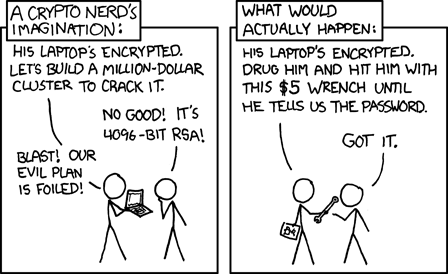
    • Security – As found on the always geeky and insightful xkcd webcomic blog

    image

    Other Personal Observations:

    Having a cool security sticker/label on you systems that lets everyone know your system is encrypted offers no security if the system is a laptop and “lifted” while it is running and not locked down.

    Just because the label says it is encrypted it in no way guarantees that the drive itself has actually been encrypted.  Security auditors still have to log and verify by accessing the system that the encryption solution has been correctly applied to the drive(s). If a technician images the system and forgets to apply the encryption solution (if not automatically deployed via system policies), the sticker provides a false and dangerous sense of security completion and protection for both management and the end-user.

    While a properly encrypted system does protect and guard the data on the hard-drive itself, it

    1. Doesn’t mean that the data can’t be easily lifted by malware/trojan running on the system when the system is live and operating in an “unencrypted” mode,
    2. Doesn’t mean that the system no longer has “theft value” as someone could remove and discard the drive, drop in a replacement and sell the sucker at a pawn shop or eBay,
    3. Doesn’t mean that the data is protected enterprise-wide if the data is accessed/replicated across various desktop/laptop systems in the organization and any one of those systems escapes the disk-encryption process,
    4. Doesn’t help anything if people keep their access password or passphrase taped under their keyboard, to their monitor, or cpu base.

    I’m fully supportive and highly value properly applied whole-disk encryption solutions.  However, it must be seen as just one more hardened layer of protection among many in a properly configured and applied organizational computer security structure.

    --Claus V.

    Utility and Software Lookout

    Whew.  I’m exhausted from those last to PE 2.0 posts.

    Prepare for some rapid-fire light posting.

    These are freeware utilities and stuff that might be worth looking into that I found this week.

    • Process Explorer – version 11.33. One of the ultimate Microsoft Sysinternals tools. “This update fixes a bug where the history graph tooltips could display the wrong data point and reduces the memory footprint of the structures that store graph history.”
    • Autoruns for Windows – version 9.33. The other ultimate Microsoft Sysinternals tool. “This Autoruns update fixes a couple of minor bugs and adds a new Windows 7 location.”
    • WinPatrol v16 Monitors Changes to UAC Settings – If you are a Windows fan and have been anywhere alive over the past week, you probably have hear of some Win7 UAC design “feature” controversy.  Microsoft heard their customers and relented. However, if you use WinPatrol 2008 the upcoming version 16 will provide monitor and notification of changes to UAC settings.  That’s a nice layer to monitor, despite what Microsoft says.
    • AutoRun Eater - (freeware) – We’ve covered AutoRun issues and defenses here before. This neat security utility provides a different take.  It runs in the system tray full-time and monitors execution of autorun files when devices are inserted or executed.  Upon discovery it first performs an analysis. If a suspicious pattern is found, it blocks execution, tosses up a dialog window, and presents the suspicious code.  Then it allows the user to block or ignore execution.  Amazingly clever.  Certainly not a cure-all, but it might very well provide a first and easy to use line of defense for non-technical users as well as experienced system administrators who don’t want to use some of the tougher/lock-down methods against blocking all autorun executions.  Check out the Frequently Asked Questions page for details.  Spotted via Donna’s SecurityFlash blog.
    • Free Task Manager - (freeware) – I know it is kinda sacrilegious to mention any other Windows Task Manager in the same post as Process Explorer (my default manager), but this one might provide some features for less-technical users.  It doesn’t really “replace” the default Task Manager but provides some extended features such as Disk I/O graphing, port monitoring by application, and a locked-file identifier.  I have and use much more focused and specialized tools for all of those tasks, but for someone looking to move up from the standard, but doesn’t need the power-hitting utilities I use for those things, this might be worth looking into.
    • MyLastSearch v1.35 - (freeware) – NirSoft app that “…scans the cache and history files of your Web browser, and locate all search queries that you made with the most popular search engines (Google, Yahoo and MSN). The search queries that you made are displayed in a table.”  This version now lets you filter results by Web browser (in Advanced Options) .
    • IECacheView v1.25 - (freeware) – NirSoft app that “…that reads the cache folder of Internet Explorer, and displays the list of all files currently stored in the cache. For each cache file, the following information is displayed: Filename, Content Type, URL, Last Accessed Time, Last Modified Time, Expiration Time, Number Of Hits, File Size, Folder Name, and full path of the cache filename.”  This version now has an option to filter cache results by displaying only URLs which contain the specified filter strings.  Cool.
    • highlighter - (freeware) – Neat log file viewer and analysis tool spotted via SANS ISC Handler’s Diary post this week and offered by Mandiant.  I downloaded the msi installer and in a moment had it up and running. Besides being another tool to read log files, you can highlight words to focus on, and remove “good word patterns” to narrow down your view.  It also provides a neat GUI view in a dynamic image format to show content and structure of the file, along with a histogram view to show patterns in the file. It sounds like a lot but the utility is light, fast and easy to grasp.  It also comes with a nice help file.  Check it out.  If it’s from Mandiant, it must be good!
    • HolisticInfoSec.org: Mandiant Memoryze is the 2008 Toolsmith Tool of the Year – Deserved recognition for Mandiant.  Post has some neat tips on their Memoryze capture and analysis tool.
    • Threat Detector - Cyber Patrol – Web-based application that will scan a system (Internet Explorer only) and look for usage patterns for dangerous, malicious, or “bad” sites.  Might not help if the history/cache/browsing history has been nuked or if PrivateBrowsing was used.  However, for parents who have systems where the family uses IE exclusively, it might be worth doing a quick scan to see what comes up.  Just a tool, use with a grain of salt.
    • GBridge - (freeware) - “Gbridge is a free software that lets you sync folders, share files, chat and VNC securely and easily. It extends Google's gtalk service to a collaboration VPN (Virtual Private Network) that connects your computers and your close friends' computers directly and securely.”  I’m a big fan of ShowMyPC for free remote desktop support, but setting up a remote-to-my-pc connection is a $ feature and getting one set up and running with the open-source tools can be challenging.  MakeUseOf has a great how To: Extend Google Talk Into A Remote Access Tool With GBridge that shows you how to really make this work.
    • Wireshark: Wireshark 1.0.6 Released – Open Source network sniffing tool had various bug and security concerns fixed in this update.  In both full install and portable versions.

    --Claus V.

    Custom Win PE Boot Disk Building: Step Four – Pulling it all together.

    Hang on. This may be a doozie.

    It will (hopefully) wrap up this project.

    Summary

    The purpose of this ongoing project is to build a Win PE 2.0 based boot-disk, that has a great VistaPE GUI interface (instead of the standard CLI shell) and the PGP WDE drivers injected so we can “liveCD-boot” a PGP WDE system (assuming we have the user’s passphrase).  Oh yes, and it has to handle the Dell GX 7xx series USB keyboard drivers.

    If you are just joining us, please go back and review the following posts to get up to speed:

    Note: I’m serious about this, if you haven’t read and stepped through the previous posts there is a good chance you will be lost.  Also, this post assumes you are familiar with working with Microsoft’s ImageX WIM files; mounting them, committing changes to them, etc.  If not then there is a good chance I will loose you here.

    Mkay?

    Onward!

    When last we left our intrepid hero…

    At the end of the last post, I was poking around in the VistaPE WAIK build WIM file and looking at how it worked.

    I had started with the winpeshl.ini file that loads the VistaPE project’s shell replacement.

    That was handled by the custom executable vpeldr.exe and it’s configuration file vistape.cfg.

    Turns out that the VistaPE project developer, NightMan, has already provided us with all the documentation we need to understand just how that miracle functions:

    It’s a good read and I really encourage everyone to take the time to read and understand it. It really is an amazing piece of work from NightMan and he should be fairly recognized for it.

    When I opened up my particular vistape.cfg file to review, I found it contained almost all the information I needed to trace out, extract, and then inject the “ripped” contents into my already PGP Injected Win PE 2.0 wim.

    Sweet.

    WIM Mounting

    I’m sure if you are still reading this post, you have already configured your system to allow for the mounting of ImageX wim files.  If not, please take a moment to read this earlier post:

    Yes, you can use ImageX to mount your wim files via the CLI, but with all the work we have done and have yet to do, it seems much more efficient for me to work with them from a GUI interface.

    For the longest time I preferred the method of adding this quick-mount feature to the Windows right-click shell context: Mounting WIM Images from Windows Explorer - Robert McLaws: Windows Vista Edition

    However, I would occasionally get lost with my mount/unmount points and wims in progress and would trip myself up.

    Then I graduated up to the ImageX GUI (GImageX) coded by Jonathan Bennett.

    The latest version is v2.0.14 released in October 2008 and it is sharp.  He actually now has a beta version that supports the upgraded version of ImageX found in the Windows 7 Beta WAIK.

    So either way, be prepared.  I’m using the GImageX to do my work here.

    Bonus Tip:  I’m also using the freeware dual-pane/tabbed window explorer alternative FreeCommander not just because I love it but the dual-pane window makes file-copy actions like what we are about to do so much easier than Windows Explorer.  There are a lot of other great alternative file managers as well you might want to look into trying.  Your call…

    Organ Harvesting

    I created an empty folder at the root of C: called “mounted_wim” to use as my mounting point for wim files.  That was a carryover from my foray into using Robert McLaw’s mounting solution.  I’ve kept with it.

    I also created another empty folder at the root of C: called “extracted_items”.  This is where I am going to temporarily place the files/folders I pull out of the VistaPE WAIK project that I need.  You might want to go ahead and make a “system32” folder in there as well while you are at it.

    Using whatever your preferred method of wim mounting is, go ahead and mount up the VistaPE wim you created in our Custom Win PE Boot Disk Building: Step Three – VistaPE 12 RC1 Walkthrough step.

    If you followed those steps, you should find it in the following location:

    C:\VistaPE_WinBuilder_v12RC1\Target\VistaPE-Core\vistape.wim

    OK?

    Browse to the location you mounted it and copy the following items into your “extracted_items” folder.

    Depending on how you roll, you might want to make some notes on a scratch-pad of where stuff came from so you can put it back correctly.

    From the VistaPE.wim file we want to copy:

    • “Program Files” <—the folder and all its sub-contents.  Note I just copy this folder as is into the extracted_items folder.

    Now browse deeper into the windows\system32 folder and locate and copy the following items into your “C:\extracted_items\system32” folder:

    • devcon.exe
    • hw.bat
    • HWPnp.exe
    • HWPnP.htm
    • HWPnPDLL.dll
    • vistape.cfg
    • vpeldr.exe
    • winpe.bmp
    • winpeshl.ini

    Want to explore this particular WIM a moment since we are here?  Fine.  Just don’t take any more relics this time round.

    All done?

    Unmount your vistape.wim file from your system.

    Stage 1: Transplant the Brains

    Now go and this time mount up our previously PGP WDE driver injected Win PE 2.0 WIM file.

    C:\winpe_x86\ISO\sources\boot.wim

    This time, be sure to mount it “Read and Write” so we can actually make changes to it.  (Note: you might want to make a copy of the working original first, just in case you make a mistake!)

    Into the C:\mounted_wim\Program Files folder, let’s copy back the sub-folder contents from our C:\extracted_items\Program Files location.

    Got em all tucked in?  Great!

    Now browse to your C:\extracted_items\system32 and copy all those items into the C:\mounted_wim\Windows\System32 folder.

    You are doing great!

    Tweak the HWPnP module

    Now, in previously looking at the vistape.cfg file, I located that it called to a HWPnP.exe file that uses the hw.bat file to supplement it.  Research on that file indicates it is a Plug-n-Play helper used in BartPE and VistaPE projects.

    The VistaPE WAIK build shows the second line the hw.bat file acts off of is as follows:

    HWPnP.exe +all -storage\volume -USB\ROOT_HUB +USB\ /log /p /u /d+ /a

    Since I knew the Dell USB keyboard hub controller driver was giving me fits, I decided to err on the side of caution and disable this.  This may not actually be needed.  It’s up to you.

    Open up the hw.bat file and add two colons in front of it to REM it out thusly

    ::HWPnP.exe +all -storage\volume -USB\ROOT_HUB +USB\ /log /p /u /d+ /a

    Save the modified file back.

    Dismount that wim and be sure to use the option to “commit changes” so our changes actually get written and applied to the winpe.wim file.  This part might take a while to process as the changes are written and the wim file is updated.

    Stage 2: Transplant the Lungs

    Now, we know from our l33t Win PE 2.0 hacking skillz that any files/folders we add into the C:\winpe_x86\ISO folder will be included on the root of our final boot disk.  Right?

    So lets work on that next.

    Browse back to 

    C:\VistaPE_WinBuilder_v12RC1\Target\VistaPE-Core

    In there, copy the following items:

    • “Programs” <—the folder and all its sub-contents.
    • vistape.cfg

    And paste them into the following folder.

    C:\winpe_x86\ISO

    I always be sure I have a copy of the ImageX.exe file copied in there as well.  That’s up to you.  It makes system imaging and capture so easy.

    You can add in other things as well to that folder (once you figure out how much extra space you have) such as portable system utilities and other stuff. Just don’t add anything that modifies or overwrites the things we have already added in there.  I prefer to make another subfolder called “utilities” and dump all my special stuff in there just to be safe.

    Stage 3-option 1: Sewing it Up (for standard CD disk media)

    Go to the Start menu and under All Programs find the Microsoft Windows AIK folder and launch Windows PE Tools Command Prompt, or open a command prompt and type

    cd c:\program files\Windows AIK\Tools\PETools.

    Then, type

    oscdimg -n -bc:\winpe_x86\etfsboot.com c:\winpe_x86\ISO c:\winpe_x86\winpe_x86.iso

    (all one line)

    An ISO file will be created inside the c:\winpe_86 folder.

    With the ISO image file created, you can now burn the image file to CD.

    Stage 3-option 2: Sewing it Up (for standard DVD disk media)

    I personally stick with the CD sized builds as almost every system we touch (old and new) comes with a CD-ROM drive.  Newer systems have DVD-ROM drives, but if I go to service an older system the DVD disk isn’t going to help me.

    If you try to burn a DVD sized ISO with the normal instructions above it will error out.  You must use the undocumented "-m" argument in your string to force it to build the ISO over the normal CD-sized ISO size.  Use the -m switch to override the creation of ISO images larger than 700 MB

    In that case (because you got all crazy with adding lots of extra custom utilities and stuff into your C:\winpe_x86\ISO folder) type

    oscdimg -n -h -m -bc:\winpe_x86\etfsboot.com c:\winpe_x86\ISO c:\winpe_x86\winpe_x86.iso

    (again, all one line).

    With the image file created, you can now burn it to a DVD disk. (assuming that the combined file-size isn't larger than the DVD's storage capacity.)

    Testing

    I ALWAYS pre-test my built boot ISO files in a Virtual PC 2007 session first before burning.  That way if I did something wrong I will see it before making coasters.

    If all goes well you should see the following (click for a slightly larger view and yes, I know the wallpaper may be a bit different on yours…read on for how to customize that).  Note the PGP drivers are working (even though the virtual drive I am using isn’t actually PGP WDE encrypted…).

    image

    If it looks good and seems to work cleanly, burn your custom “Win PE 2.0 + PGP WDE driver injected + VistaPE WAIK build ripped + Dell Optiplex USB keyboard driver working” Frankenstein’ish ISO (located as C:\winpe_x86\winpe_x86.iso) to a disk and see what happens on your live systems!

    Caveats

    Ripping out the core elements of Vista PE WAIK build as I have documented works.  But it might make NightMan and other hard-core VistaPE/WinBuilder pro’s groan.  I’m also likely leaving some critical bits behind.

    So there are some applications that would work fine in traditional VistaPE build that error out and will not run under this GSD project.  Be aware of that.

    Second, if you go back in and mount the “C:\winpe_x86\ISO\sources\boot.wim” file, make more changes (wallpaper below for example) and re-commit the changes, you will likely notice your boot.wim file size continues to grow.   This is not just because you added stuff, even if you “delete” stuff from your mounted/committed wim, it may still grow.  That’s because with this method of wim management the changes haven’t been optimized to the wim.  You need to actually export your wim file in a different ImageX process to reclaim the space when you have modified it.  See this post (and the Google) for more information on that.  I normally don’t bother as my final ISO size is still under the limits for a CD burn.

    Also, if you compare the vistape.wim used to boot a standard VistaPE WAIK project to the one we did using a (PGP modified) base Win PE 2.0 boot wim you will see close to the following:

    • C:\VistaPE_WinBuilder_v12RC1\Target\VistaPE-Core\vistape.wim  Size = 102.86 MB
    • C:\winpe_x86\ISO\sources\boot.wim Size = 187.11 MB

    NightMan and all have worked hard on the original VistaPE WinBuilder project to remove many files/folders and other items from the standard Win PE 2.0 WAIK wim file that are not necessary or needed to work in his project.  That’s why the size is so much smaller.

    But in doing so, something caused the Dell Optiplex 7xx “USB Keyboard Hub” and related HID drivers from loading.

    This method works around that.

    I haven’t tested it on other systems, just those that I and my team service and support.  It might work just fine on other hardware system configurations with that same issue.  It might not.  I don’t know. 

    If you take the time to do all this and find it does help you load previously unavailable USB keyboard devices on your own particular system, please leave a note in the comments so others (and myself) will learn of your success.

    As always, what works for me and our systems, may not for you.  Your mileage may vary.

    Also, I’ve got at least one more related post in this series planned to address coming developments I have found with future VistaPE/WinBuilder projects as well as Win PE 3.0 in general.

    So stay tuned for that.

    Optional Tweaks and Tips

    As I mentioned before, if you want to kick things up a notch, add in some additional portable applications, and fire them up off via PStart you can add a modified version of this to your startnet.cmd file before you pack up your customized wim: (via RunOnceEx from CD by Alanoll)

    wpeinit

    cmd.exe

    For %%i IN (D E F G H I J K) DO IF EXIST %%i:\cd-specific_filename SET CDROM=%%i:

    %CDROM%\PSTART\PSTART.EXE

    Also, if you want to add a sexy custom desktop wallpaper (please comply with any work-rules if you distribute such builds in your workplace and use something tamer) just find your image (I prefer to use 1024x786 sized), and convert it to a BMP format file and save with the name “winpe.bmp” and place back in your custom wim’s windows\system32 folder overwriting the original one we extracted from the VistaPE WAIK built wim.

    I have also discovered that if you want to plug in a USB storage device to your Win PE booted system it doesn’t always pick up the new drive.

    Open a cmd session and run the command “DiskPart” then do a “list disk”,

    That is usually sufficient for the OS to scan for any drives and mount what it detects.

    Refresh your windows explorer tool (in this build it would be Cubic Explorer) and you should see it now just fine.

    Tomb Raiding using the PGP WDE drivers and pgpwde.exe

    Remember, one of the other reasons I needed to go through all this pain and learning was to be able to boot one of our PGP WDE encrypted systems “off-line” with a VistaPE’ish Win PE boot disk and use the PGP injected drivers to access the “on-the-fly” decrypted contents of the drive rather than taking hours (or more) to do a full off-line drive decryption using the stock PGP WDE recovery boot-disk (and see this PGP link on how to use), before being able to access the contents with a traditional boot-cd.

    Our hard work and dedication has now given us a much more flexible and powerful tool!

    Boot the PGP WDE system with our custom boot disk.

    Of course, you will need to know the user’s PGP WDE passphrase for on-the-fly file/system access and recovery to work….

    Open up a CMD session.

    The basic commands I use are as follows

    • pgpwde –enum
    • pgpwde --disk 0 –status
    • pgpwde --disk 0 --auth -p “xxxx”   (NOTE: put passphrase in “  “ if separated with spaces.)
    • pgpwde -h

    The first one “enumerates” the system disks and volumes.

    The second one shows the status of any pending WDE encryption/decryption activities.  This might tell you if WDE was initialized and is x% completed.

    The third command is the money-shot.  This is what our tomb-raiding has been working towards. It allows you (with the user’s PGP WDE passphase) to decrypt the drives “on-the-fly” from the Win PE 2.0 environment so you can recover the files from a non-bootable system if the OS has crashed (or for other reasons).  The trick to this one is that if the user’s PGP WDE passphrase has spaces in it, you must enclose it all in quotations marks.

    I haven’t tested to see if this will take a PGP WDE recovery token and if so, what impact that might have.  In our cases (so far) the user is present and can provide us with their passphrase.  If they have disappeared and their passphrase is not available, then you would need to try a PGP WDE recovery token instead.  I’ll let you know if I try it and it works.

    There are many, many more powerful PGP commands and arguments for the pgpwde.exe executable. Do the fourth command to list them all.  Then search the Google for some powerful and undocumented ones as well.

    Either on a live PGP booted system or a LiveCD PGP injected system, the pgpwde.exe command line tools are very good to know and be familiar with if you support such systems.

    Final Warning: You must inject and use the PGP WDE drivers/tools specific to the version of PGP WDE deployed on your system(s).  Failure to do so might seriously muck things up!  Mkay?

    Whew!

    Thanks for sticking with me.  I hope this helps someone (or two).

    I also suppose if you had the VistaPE USB system keyboard sensing issue but didn’t need the PGP WDE drivers, you could just skip over that step and not do that.  The rest should work fine.

    Wicked Cool and Sexy, isn’t it?

    Just like I promised….

    Cheers!

    --Claus V.

    Custom Win PE Boot Disk Building: Start me Up!

    With deference to The Stones

    This is the second part of failure related to getting my custom Win PE 2.0 boot disk finally up and running.  It actually provided the material needed to make my Eureka moment.

    Summary

    The purpose of this ongoing project is to build a Win PE 2.0 based boot-disk, that has a great VistaPE GUI interface (instead of the standard CLI shell) and the PGP WDE drivers injected so we can “liveCD-boot” a PGP WDE system (assuming we have the user’s passphrase).  Oh yes, and it has to handle the Dell GX 7xx series USB keyboard drivers.

    If you are just joining us, please go back and review the following posts to get up to speed:

    OK. Now on to the second failure.

    Run it Baby!

    As frequent readers of the GSD blog may have identified.  I have a love of both Windows utilities and portable applications.

    I have long-ago superseded the space a common CD-ROM offers for holding all the portable tools and utilities I have collected and use.  As it currently holds, my home “standalone apps” folder contains 2.5 GB worth of programs that work just fine off a USB drive.  The majority of those work fine off a CD/DVD-ROM disk, and a significant portion will also run without fail in the WinPE/VistaPE LiveCD environment.

    I also build a custom version to hand out to our technicians at work.  It has the LiveCD system boot side of things (PE 2.0) and if you put it in a running Windows system, it kicks off an auto-play feature that launches PStart with links and all kinds of structured goodness to the portable utilities I have placed on it.  The techies love it.

    Some day I will have to take a week off from work and update my Portable SysAdmin Tools post with the current holdings that it represents.

    So since I had been failing miserably at getting my sexy VistaPE boot Cd working (with PGP WDE drivers) and the stupid Dell USB hub drivers/keyboard, I felt I had only one avenue left; to just go back to the stripped down WinPE 2.0 CLI base build, inject PGP WDE drivers as we have seen how to do, and tell the guys and gals to be grateful for it.

    Rationalizations

    However, after a lunch break that day, I took off my analyst hat and put on my techie beanie to think about this from a different perspective.

    The VistaPE interface delivers a wicked-naughty GUI interface for the Win PE 2.0 OS environment, and it delivers a cornucopia of custom tools, utilities, system hax0r helps, and other things that make a sysadmin flush.  I use the majority of these included tools and then many of the portable ones I bundle along on the CD for the ride.

    However it is my observation that our techies generally only use it boot a system “off-line”, recover user data from it to a USB drive, and then move on to reimage the system and restore the user’s data.  The only tool they really interface with is a “windows explorer” clone (A43 or CubicExplorer).  With the exception of CLI work with ImageX and DiskPart, that’s really it.

    So, maybe….just maybe…I could hack out a way to get the PStart launcher on the “Live” side of the disk feature to kick off once the WinPE 2.0 system initializes and then they could just pick the apps they want to work with.

    Yes, it’s like dropping Angelina Jolie as Lara Croft for a pale substitute, but it could be serviceable if done right.

    Now how can I do that?

    The Registry?

    I already knew I could hack the registry of a mounted WIM file, make changes and repack.

    Maybe I could add a key for an auto-start group to kick off the PStart executable?

    Long story short, this technique might work…but there are some barriers.  Aside from the technical ones with the way the Win PE handles startup items (we are getting there), the bigger issue is how do I ensure that the Win PE system is always going to find the correct CD ROM drive letter I’m running on?  I mean, some systems might have multiple drives/partitions and I have no guarantee I’m always going to end up running with the CD/DVD drive as the D:.

    Nope.  This Registry launching pad ended up being a dead-end.

    Off to the Googles

    Now, I have always said up-front to my dear readers that I have not ever had any formal training in Windows systems administration, Microsoft Certifications, or other things that would be deeply useful and beneficial in my job assignment.  Nope.  It all due to years of collegiate honing of my brain, growing up with an ex-army officer dad, and an inordinate curiosity about trying to figure out how things work, and remembering (generally) everything I encounter technically.

    So I did some searching on the Net and l pulled up a very important bit of info that all Win PE students should probably be familiar with.  From that TechNet article:

    Windows PE provides three methods for launching custom scripts: Winpeshl.ini, Startnet.cmd, and Unattend.xml. The Windows PE default interface is a Command Prompt window. However, you can create a customized Winpeshl.ini file to run your own shell application. You can also create your own version of Startnet.cmd to run a specific set of commands, batch files, or scripts. Unattend.xml is a new answer file format for Windows PE 2.0, which replaces Winbom.ini and Winpeoem.sif.

    I’m an Idiot

    You mean all I have to do to kick off something “custom” from a Win PE startup is either modify an .ini file or write a custom batch-script and save it in the right location/name?

    For more than a few hours I felt like this:

    image

    (I’m An Idiot – xkcd.com)

    After a while of fiddling with and boning up on both the Winpeshl.ini and the Startnet.cmd methods, I ended up concentrating on the startnet.cmd vector.

    If you mount a base Win PE 2.0 WAIK wim and take a look in the startnet.cmd file (to be found at the %SYSTEMROOT%\System32 location), you will see it contains a single line:

    wpeinit

    That’s it.  This ensures plug-n-play/networking support. 

    Wpeinit is a command-line tool that initializes Windows PE each time it boots. When Windows PE starts, Winpeshl.exe executes Startnet.cmd, which launches Wpeinit.exe. Wpeinit.exe specifically installs PnP devices, processes Unattend.xml settings, and loads network resources.

    I wanted to custom launch PStart, and needed a way to identify which drive letter I was running from in my batch-process so I could call to the correct location to execute PStart.

    I found this great tip:

    RunOnceEx from CD – by Alanoll at Unattended Windows site

    After much coding, wim mounting, changing files, saving wim changes and Virtual PC session testing of the modified WIM I arrived at a realization.

    This method works, you can get it work, but it is pretty clunky and once you have seen Angelina Jolie as Lara Croft, substitutes just don’t satisfy.  Sorry.

    I searched through various forums and found many great and custom examples of both startnet.cmd and winpeshl.ini files and the more I read, the more I understood.

    Wait for it….

    Maybe I needed to reconsider my choice of focus on startnet.cmd and use an alternative Windows shell loading under the winpeshl.ini instead.

    VistaPE uses BS Explorer. Maybe I could make up my own WInPE 2.0 using that custom one.

    There are a number of others to check out if alternative Windows shell replacements are your thing. Most are freeware/OpenSource/shareware products. Some are commercial ($).  I am familiar with many of them, but have not tested any of them for compatibility and support in the Win PE environment.

    As I was working this avenue out I decided to load up the resulting VistaPE WAIK build WIM file to take a look at what was going on there.  Maybe I could get some more pointers.

    So I mounted the vistape.wim file I had previously created and took a look starting with the critical files I had learned were valid Win PE 2.0 launching points.

    By this time I was fairly comfortable looking for and interpreting the structure of these particular files, and I surmised that VistaPE must be using something similar.

    It was.

    [LaunchApps]
    vpeldr.exe
    "x:\Program Files\BSExplorer\Explorer.exe"
    cmd.exe, /k

    This seemed too simple.  I then investigated the vpeldr.exe (VistaPELoadeR perhaps). Next to it was a vistape.cfg (configuration) file.  I opened that up to take a look and…

    Eureka!

    Instead of re-inventing the wheel, what would happen if I extracted the core elements I needed out of a compiled VistaPE project and “injected” it in the Win PE 2.0 build WIM that was already meeting three of my four critical custom Win PE 2.0 needs?

    1. Win PE base to boot a Windows system off line. (check)
    2. Injected PGP WDE driver compatibility. (check)
    3. Loads Dell Optiplex 7xx USB keyboard drivers natively. (check)
    4. Sexy VistaPE shell GUI. (still missing)

    The solution to #4?

    Next post.

    --Claus V.

    Custom Win PE Boot Disk Building: Driver Dead Ends

    Finally, back to looking at the VistaPE/WinPE building dead-ends I mentioned my post Custom Win PE Boot Disk Building: Dead Ends Ahead!

    Summary

    The purpose of this ongoing project is to build a Win PE 2.0 based boot-disk, that has a great VistaPE GUI interface (instead of the standard CLI shell) and the PGP WDE drivers injected so we can “liveCD-boot” a PGP WDE system (assuming we have the user’s passphrase).  Oh yes, and it has to handle the Dell GX 7xx series USB keyboard drivers.

    If you are just joining us, please go back and review the following posts to get up to speed:

    OK. Now on to the failure.

    Breaking down the Breakdowns

    I knew that a Win PE 2.0 boot disk worked fine with loading the Dell Optiplex 7xx series USB keyboard driver.  Typing with the keyboard worked great.

    But building a stock VistaPE version with the WAIK failed to load the USB keyboard properly (at all).

    Building a stock VistaPE version with a Vista setup disk succeeded in loading the USB keyboard.

    So it seemed the solution was to either use a WinPE 2.0 disk (blah) or the VistaPE Vista setup disk and skip the WAIK version.

    That would have been fine, but, since I had added in a new factor (PGP WDE driver injection) I had a new issue

    The PGP WDE injected WinPE 2.0 still worked great (blah).

    The PGP WDE injected VistaPE based on the WAIK worked perfectly…except for the fact the USB keyboard did not.

    The PGP WDE injected VistaPE based on the Vista setup DVD BSOD’ed.

    I didn’t want to use the WinPE 2.0 version only because I’m stubborn, have spoiled our team with the sexy VistaPE GUI versions I have previously released, and very few are comfortable in CLI mode.

    The following things seemed clear to me:

    1. The drivers I needed were present and working in WinPE 2.0 as the keyboard worked fine there.
    2. The drivers I needed were either removed or not loading in the VistaPE WAIK build, and
    3. The drivers I needed were included or loaded in the VistaPE Vista setup DVD build as it included advanced hardware sensing the WAIK build version lacks, but then the additional drivers conflicted fatally with the PGP WDE drivers.

    Research Time

    I figured if I could compare the drivers loaded in the working WinPE 2.0 version against those loaded in the VistaPE WAIK version, I might be able to find what was missing.

    So, I had to get the data on what was loading.

    How to do that on a bootCD?

    Easy.

    I downloaded and unpacked DriverView which is a free utility from Nir Sofer and placed it on a USB stick.  DriverView enumerates and provides details on all the drivers loaded by a Windows system.

    I then booted the system under both WinPE 2.0 and VistaPE WAIK, captured the loaded driver data, then exported the findings as a file back to the USB stick.

    Since the mouse device at least worked, I was in pretty good shape.

    I then used my primary system to print out the reports and then compared them side by side.

    When done I located a number of drivers that did not load in the VistaPE WAIK build that were present in the WinPE 2.0.

    Curiously, most seemed to relate to USB and HID (human interface device) drivers.  Specifically a Dell USB Keyboard Hub driver.

    That jived with what I saw under the Device Manager as well.

    (not working below)

    image

    (working below)

    image

    That made sense. The keyboard didn’t work because the system wasn’t loading the USB hub device it was first, then the keyboard controller tied to that USB hub. 

    I thought about it and figured if I could get the Dell Intel chipset drivers and unpack them, then inject them, that might be best.

    I found the proper Intel Chipset drivers for the Dell system.  (Dell link source here.) Turns out they have a self-checking feature to ensure they unpack only on a Vista system.  Since my systems were XP OS only, it was a problem for a minute, until I tossed a VirtualPC install on a Dell system, then tossed a virtual Vista system on that, and then finally ran the package.  It unpacked nicely.  Clever that way I am.

    The D-Man knew I had been banging my head on the desk on this issue for a few days and  mercifully suggested a great free utility called Double Driver.  I found it easy to use and USB portable so I used it on the working WinPE 2.0 boot disk to snag the loaded (and USB Keyboard Hub) drivers as well, neat and clean.  I could have used Driver Backup! as well to snag ‘em.  Both do a great job of pulling all the required driver files and packing them neat and tidy in their own sub-folders. I saved (backed up) the files back to the USB stick I was running Double Driver from.

    Now, how to get them added into the VistaPE build?

    (Note: I know all about injecting drivers into wim files, but since I wasn’t focusing on the WinPE 2.0 build but the VistaPE build, I wanted a process specific to that tool if possible.)

    Adding Extra Drivers to VistaPE builds

    In most all cases, VistaPE with both WAIK and Vista setup source builds should work just fine.  However from time to time one needs special drivers to make things work perfectly.

    I found a solution from “MudCrab” that was easy and perfect.

    You will need the great VistaPE script: Mustang's VistaPE AddDrivers Script

    Follow MudCrab’s wonderful guide and you should be going great.  Just pay very close attention and DON’T PUT ANY SPACES IN THE FOLDER NAMES OR FILES OR PATHS!  That’s kinda important.

    Now in my case, I had narrowed down about eighteen (18) drivers from my research that I wanted to add into the VistaPE building process.

    Mustang’s script only handled up to five.

    So on a hunch I just took his original “AddDrivers.script” file, copied it three more times times, and then renamed each one with an extra number: “AddDrivers2.script”, “AddDrivers3.script”, and “AddDrivers4.script”. I hit the VistaPE refresh button and there they all were!

    Now I could add up to twenty drivers. Keep going as your needs are.

    I selected all the drivers I needed from my extractions, added them in, then re-ran the VistaPE WinBuilder project to build the VistaPE WAIK version.  The scripts worked perfectly and I saw all the my additional drivers getting added in.

    Success?

    Nope.

    Sigh.

    When I went to try the disk, it still did not load the right drivers for the Dell USB Keyboard Hub.

    I was able to mount the new .wim file that the build used, and confirmed that the new drivers had all been added successfully.

    Unfortunately, something about the way things were modified in VistaPE changed the way the WinPE 2.0 system loaded the drivers, and it was just not installing the one I wanted, even though it was now embedded there and accessible for use.

    Dead End #1 Achieved

    However, even though this didn’t solve my problem, the poking around in the resulting .wim file used by WinPE/VistaPE did bring me a bit closer to my eventual working solution.

    And I worked out a way to add as many additional drivers as I might need in the future to VistaPE constructions.

    So even though I was disappointed, I learned a clever way to snag drivers from a working system and how to port them into VistaPE Winbuilder projects.

    I also learned about Mustang’s great DriverAdd script and how to multiply it.

    Finally, I decided that I needed to move on from VistaPE and see if I could then somehow modify the WinPE 2.0 disk to contain some GUI enhancements that would make it useful for both the PGP WDE drivers that worked, the Dell Keyboard USB HUB driver handling that worked, and get away from the CLI underpinnings that turned off that turned off our technicians from using the pure WinPE 2.0 disk format.

    That adventure led to Dead End #2….but provided me enough information to have my Eureka breakthrough.

    Hang on!  It’s getting exciting!

    --Claus V.

    Windows micro Linkfest

    One more post to clean out the hopper.

    Cheers!

    --Claus V.

    Internet Explorer 8 RC released: What to expect and a whole lot more…

    Yep.  Almost (but not quite) left forgotten by the celebration of Microsoft’s Windows 7 Beta release has been the announcement that Internet Explorer 8 Release Candidate is now available.

    What’s New

    The team will post more about all changes between Beta 2 and RC. In brief:

    • Platform Complete. The technical community should expect the final IE8 release to behave as the Release Candidate does. The IE8 product is effectively complete and done. We’ll post separately about the thousands of additional test cases we’re contributing to the W3C. We've listened very carefully to feedback from the betas. With the Release Candidate, we’re listening carefully for critical issues.
    • Reliability, Performance, and Compatibility improvements. We’ve studied the telemetry feedback about the browser's underlying quality and addressed many issues.
    • Security. We’ve worked closely with people in the security community to enable consumer-ready clickjacking protection. Sites can now protect themselves and their users from clickjacking attacks “out of the box,” without impacting compatibility or requiring browser add-ons.  We also made some changes to InPrivate based on feedback from customers and partners.

    We also made some changes to the user experience based on feedback. For example, based on data about how people use actually it, we made fitting more items on the Favorites bar easier. (Note that the IE8 Release Candidate is for Windows Vista, XP, and Server only; Windows 7 users will get an updated IE8 with the next update of Windows 7. Also, the Release Candidate of the Internet Explorer Administration Kit is available for download now.)

    I’ve been using the Beta release for a while in a virtual system and it has performed well.  Next I will need to bump it up to the RC version.

    Preliminaries

    It doesn’t appear to be as big a deal but you better still read the fine print before embarking.

    This post has a bunch of goodies for the intrepid installers.

    Let’s rip out the critical bits from that post.

    • If you are on Vista and already have an IE8 Beta version, then this will upgrade in place. No uninstall of the previous version will be needed.
    • There is a new pre-requisite for IE8 RC1 (KB957388). Be on the lookout for it.
    • Windows 7 Beta users already are running a special build of IE8 already. Don’t try to install it on that platform.
    • Release notes for RC1 outline a few scenarios you should watch out for when installing IE8 RC1.
    • Technet Edge interview [the post author] did covers many install topics

    XP users (most)

    Download the installer file. (Unless you already have a IE8 pre-RC version installed in which case you might be offered it via Automatic Updates or Windows Update.)

    Be prepared that the IE8 RC installer will first uninstall (if previously installed) IE8 pre-RC versions from your system.  Then it will reboot, complete the IE8 RC install, then reboot again.

    Check the version by going to Help –> About Internet Explorer dialog to see the version number 8.0.6001.18372.

    Go and hit your Windows Updates to find the particular update required when running IE8 RC1 on multi-core XP-SP2 x86 computers: KB932823 or KB946501

    XP SP3 users (a chosen few): Red pill or Blue pill?

    If you happened to first install IE8 pre-RC versions before upgrading to XP-SP3 you’ve got some hard choices to make.  If your option to uninstall the IE8 pre-RC version is “grayed” out, then you can continue to install IE8 RC (and future release versions including the final version) but you will no longer be able to uninstall either IE8 or XP SP3 from here on out.  You will get a nice warning dialog before you proceed. Do so and both your IE8 and XP SP3 tattoos stick permanently.

    If this concerns you, then you need to uninstall the XP SP3 service pack, then uninstall your IE8 Beta version, reinstall XP SP3, then go forward to installing IE8 RC.

    It’s up to you. Choose wisely.

    Vista Users have it Easiest

    IE designers, based on user feedback, built IE8 installer to automatically replace IE8 pre-RC builds as part of the RC installation process.  This makes things very simple.

    Run the installer (or via the Windows Update process if a previous IE8 Beta version is present), let it do its thing, reboot, done.  You do need to first get KB937287 and KB957388.

    After IE8 RC1 installation is wrapped up the final screen of the Install Wizard should tell you that IE8 finished cleanly.

    To verify, launch IE, open Help –> About Internet Explorer and find the version number 8.0.6001.18372.

    Dwight Silverman has a illustrated guide to the process for Vista at TechBlog: Installing Internet Explorer 8 RC1: A visual tour

    Other IE8 Bits

    Here is some more IE8 reading on features

    IEBlog : IE8 Security Part VII: ClickJacking Defenses – It’s a bit dense with web-code architecture and how it relates to browser design but this seems to be the point IE designers want us to know:

    As we designed Internet Explorer 8, we had to be very careful not to increase the browser’s attack surface for CSRF attacks. IE8’s new XDomainRequest object, for instance, allows cross-domain communication upon explicit permission of the server, but contains specific restrictions to ensure that new types of CSRF attacks are not made possible. End-users can mitigate the impact of CSRF attacks by logging out of sensitive websites when not in use, and by browsing in independent InPrivate Browsing sessions. (InPrivate sessions start with an empty cookie jar, so cached cookies cannot be replayed in CSRF attacks.)

    Security’s Crux: Real Problems vs Point Solutions – Digital Soapbox blog Rafal Los provides a  very interesting counterpoint to this approach.  He steps back and takes a wider view and analysis of the clickjacking threat.

    I keep reading Giorgio's posts on the Internet Explorer 8 BETA1 release and "ClickJacking" protections offered therein (here and here), yes he's the guy who does NoScript, and it's all of the sudden become clear to me. Once again, Microsoft has solved an industry-wide problem by perpetuating their own proprietary technologies and then marketing them as ground-breaking. NoScript addresses the UI Redress attack (more commonly known as ClickJacking), but since IE is so proprietary and closed... they have to re-invent the wheel to self-serve. This perpetuates the need for Microsoft to "save the masses"... since most people that don't know better are hooked on Microsoft's IE technology like crack.

    I quickly got lost on Giorgio’s own blog site following those links.  Again, unless you are a security wonk or web-design guru you might get lost, but I still found them very fascinating to read. Especially as they touch on an important topic for browser security.

    My advice for all this? Just run the latest version of Firefox and install the awesomely protective NoScript add-on.  What’s that you say?  NoScript protects agains JavaScript threat’s and stuff like that, it doesn’t protect against clickjacking that is code-based?  Let NoScript’s developer clear things up:

    Talking about rectifications, Security Watch’s apology of Microsoft’s take on Clickjacking protection, while defending X-FRAME-OPTIONS against the general skepticism from security experts, emphatically warned twice that “NoScript won’t protect you”. Larry Seltzer’s premise, “JavaScript is not required for the attack” was obviously correct, but unfortunately for him (and fortunately for Firefox users), NoScript doesn’t rely on script blocking to defeat the attack. He had apparently never heard about ClearClick, the specific anti-Clickjacking protection provided by NoScript, which is extremely effective even if JavaScript is enabled (or the attack is scriptless). Ironically, ClearClick is also the only available implementation of Michal Zalevski’s “favorite solution”, which his article even tries to explain.

    User Experience Changes since Beta 2 - IEBog

    • Search box can display images for instant “visual search results”
    • Smart Address Bar now displays feed results optionally, autocomplete suggestion does not show entire sections, and more results are displayed in the list.
    • The Favorites Bar now allows you to customize the width of item titles so you can cram more on there without having to manually rename (or remove them). This is nice.
    • InPrivate Browsing and InPrivate Blocking have been tweaked so that they may be used separately.

    Overview of Platform Improvements in IE8 RC1 – IEBlog – Light post that highlights some page design and standards handling improvements with IE8 along with performance and aspects for developers.

    Enjoy.

    --Claus V. 

    Windows 7 News Roundup #6

    New round of posts related to Windows 7.

    Overall, things have been fairly quiet. Either most folks are still deep in their bat-caves working out the Beta version or have become bored with the fact that it seems to just work well, and moved on.

    Either way, it looks like a good thing for Microsoft.

    Among the other changes under the hood in Windows 7 are the following:

    • Defragmentation in Windows 7 is more comprehensive – many files that could not be re-located in Windows Vista or earlier versions can now be optimally re-placed. In particular, a lot of work was done to make various NTFS metadata files movable. This ability to relocate NTFS metadata files also benefits volume shrink, since it enables the system to pack all files and file system metadata more closely and free up space “at the end” which can be reclaimed if required.
    • If solid-state media is detected, Windows disables defragmentation on that disk. The physical nature of solid-state media is such that defragmentation is not needed and in fact, could decrease overall media lifetime in certain cases.
    • By default, defragmentation is disabled on Windows Server 2008 R2 (the Windows 7 server release). Given the variability of server workloads, defragmentation should be enabled and scheduled only by an administrator who understands those workloads.

    Best practices for using defragmentation in Windows 7 are simple – you do not need to do anything! Defragmentation is scheduled to automatically run periodically and in the background with minimal impact to foreground activity.

    One of the reasons Windows 7 runs faster (faster start up, resume, shut down, less churn during user sessions) is due to the re-engineering of how Windows maintains and activates services running in the background. Microsoft's Channel 9 has an interesting video with a Windows kernel developer whose team designed a new trigger-based service controller that enables service developers to mark services as needing to run only when certain conditions are met. This means Windows 7 can more intelligently manage when to make resources avaiable for services that employ this trigger pattern for starting and stopping. Less code that runs at any given time means Windows 7 has more resources available for foreground processes that impact users interacting with the OS. The net effect of this for users is a snappier OS.

    • Showcasing Windows 7 Platform with Applets - Engineering Windows 7 blog – Look into how several mini-applications and features have been redesigned and integrated in W7.  To me the interesting stuff was buried at the very end: Restart and Recovery.  Besides giving good feedback and trouble-logging for administrators, I wonder what value it might contain for forensics folks as well.

    The Windows Error Reporting (WER) infrastructure is a set of feedback technologies that is built into Windows 7 and other earlier versions of Windows client and server. WER allows applications to register for application failures and capture this data for end-users who agree to report it. This data can be accessed and analyzed and can be used to monitor error trends and download debug information to help developers and ISVs determine the root cause for application failures.

    Related to failure recovery, Applications can also register with WER for restart on application of a Windows patch that terminates the application and on application of an update that reboots the computer, as well as failure caused due to an application crash or hang or not responding state. Applications can optionally register for recovery of lost data, can develop their own mechanism for recovery.

    Several Windows applications adopt the WER infrastructure to collect and analyze data. Calculator, Paint and Wordpad register for restart and additionally recover the current data in the sessions of the application that were running. Sticky Notes also registers for restart and recovery, and returns the user to the set of notes open on the desktop. Using WER, end-users would allow Windows to capture and collect problem data and then would be returned to the applications in the same state that they were in earlier.

    • Our Next Engineering Milestone - Engineering Windows 7 blog. The engineering team is doing some major (and deserved) chest thumping here.  They run down the progress and stability they have achieved in the Beta version of W7. It is pretty remarkable that it is able to use most all drivers and software that is already Vista supported, and more drivers are being developed. They also recognize the contributions of Beta testers both with automatic and manual feedback. Then they move on to the release schedule discussion thusly:

    So to summarize briefly:

    • Pre-Beta – This release at the PDC introduced the developer community to Windows 7 and represents the platform complete release and disclosure of the features.
    • Beta – This release provided a couple of million folks the opportunity to use feature complete Windows 7 while also providing the telemetry and feedback necessary for us to validate the quality, reliability, compatibility, and experience of Windows 7. As we said, we are working with our partners across the ecosystem to make sure that testing and validation and development of Windows 7-based products begins to enter final phases as we move through the Beta.
    • Release Candidate (RC) – This release will be Windows 7 as we intend to ship it. We will continue to listen to feedback and telemetry with the focus on addressing only the most critical issues that arise. We will be very clear in communicating any changes that have a visible impact on the product. This release allows the whole ecosystem to reach a known state together and make sure that we are all ready together for the Release to Manufacturing. Once we get to RC, the whole ecosystem is in “dress rehearsal” mode for the next steps.
    • Release to Manufacturing (RTM) – This release is the final Windows 7 as we intend to make available to PC makers and for retail and volume license products.
    • General Availability (GA) – This is a business milestone and represents when you can buy Windows 7 pre-installed on PCs or as full packaged product.

    The obvious question is that we know the Pre-Beta was October 28, 2008, and the Beta was January 7th, so when is the Release Candidate and RTM? The answer is forthcoming.

    • Quickpost: Vigenère Is Beta-Only - Didier Stevens. Turns out Microsoft is only using this technique for an additional warning for folks not to mess around without expecting consequences.  Kinda of like saying, stay out, but if you do muck around here, we warned you.  They will be returning to the ROT-13 scheme in final versions of W7.

    • Windows 7: Why Microsoft Should Give Windows 7 Away – Gizmodo thinks that Windows users have been burned enough.  Especially after that Vista release mess.  In an effort to show good will to all men (and women), the argument goes that maybe Microsoft should offer it at bargain-basement rates to encourage Vista adopters to move on to a better implementation.  It would be the Right Thing to do. (Don’t hold your breath for this one.)

    • Windows 7 to be “thoroughly” tested by antitrust regulators – ComputerWorld – Right. With that whole economic downturn thing giving states the blues, and reduced revenue intake, and the EU leading the windmill tilting efforts against Microsoft, why not see if you can squeeze some more anti-trust blood from Microsoft out of a new OS release?  I mean it’s so hard to find another alterative OS that is consumer oriented now days.  We are just poor victims of Redmond’s continued dominance and bullying. Right?

    • Windows 7 Beta: Virtual Roundtable with Mark Russinovich – Ask the Performance Team blog. Mark down your calendars for Feb 12th then Mark Russinovich leads a roundtable discussion on some new highpoints for Windows 7.  Considering all the discussions and Beta testing, it should be a lively and informative presentation. Topics scheduled are so noted:
    • Learn about the evolution of features such as:

      • Group Policy
      • BitLocker to Go
      • DirectAccess
      • BranchCache
      • Software Restriction.

      In addition to a discussion of the new features there will also be information and tips on Windows 7 Troubleshooting, Application Compatibility and Deployment.

    • Windows 7 Tip: How to Burn ISOs in Windows 7 – Lifehacker. Burning stuff in XP is such a pain. I haven’t tried it in Vista as I got used to having so many alternative freeware burning applications I wouldn’t think of using something embedded in the OS.  However, it looks like W7 might be too simple not to use.  Considering how ubiquitous ISO files are now, and the confusion consumers and noobies still show when offered and instructed to burn an ISO to disk, having an easy-to-use solution for everyone makes sense.

    The W7 UAC “Firestorm”

    Not sure anyone was expecting this melee to break out.

    So what’s the big deal? Well, W7’s UAC got tweaked to allow a finer degree of control. It ranges from “death-row lockdown” to “asleep at the wheel” depending on your comfort level. What Long and Rafael found out is that (under an administrator-level account) a script (or malware or whatever) can run and turn UAC down or off.  Kinda a dangerous thing.  And they called Microsoft out for it.  To which Microsoft said basically, um, yeah, we implemented it that way on purpose.

    To their credit, I have to imagine long nights were spend by teams of security, user-operability, and engineering teams screaming and yelling and taking contract hits out on each other.  In the end the user-operability team seemed to have watched The Godfather movies the best and walked away the winners.

    Frequent TechBlog commenter Master Guru pointed out the following observation: the ability to modify UAC settings (via script or program) appears to only work while operating under an administrator-level security account.  If you are working under a normal “user-level” account, the “feature” doesn’t work and requires elevation by an administrative level user. Makes sense and is fair enough. Only the default account setup by Windows 7 is an administrative level one.  And many (most) Windows users who set up accounts do so and run under administrative accounts. This is arguably either due to lack of knowledge of the security benefits that come from running under a limited account or because they do know better but just don’t want to fuss with the headaches that some software causes when used under that limited account. Those who don’t probably are restricted by corporate/enterprise policy restrictions by folks who know better or savvy and disciplined users who appreciate the benefits his arrangement provides.

    Me? I just want everyone to feel the love.  Microsoft should do more to guide users who set up accounts under W7 to opt for the more limited (but still functional) standard-user account level.  They should also heed Long Zheng’s plea to at least “…force a UAC prompt in Secure Desktop mode whenever UAC is changed, regardless of its current state.”

    --Claus Valca