Monday, February 20, 2012

Getting the Tardis Working for the Geeklet

2738391972_02a0e22435_b

cc photo credit Tardis by AntToeKnee Lacey on flickr

I guess I’m doing something right as a dad.

Alvis has been hard-at-work babysitting and pinching her pennies.

So the other day when we are at the local GoodPurchase box store collecting some electronica-accessories, she disappeared momentarily, reappearing with DVD and Blu-Ray season six box sets of BBC Dr. Who. “Which one?”  (Alvis is an unabashed Dr. Who (Matt Smith incarnation only thank you very much) Super Fan™).

We settled on the Blu-ray, but only after I gave my acknowledgment that when Alvis strikes out on her own in life, they are going with her. This was going to be super-awesome considering we had been watching the series on regular-def BBC America. Oh the details we would now see!

When we got home she first emptied the DVR of all the still-saved local versions from the BBC run quite a while ago. Then she popped a disk in.

The intros ran splendidly, then we got to the first episode. The Blu-ray quality was extraordinary; super-crisp and detailed. Only when the camera angle would pan, the play-back stuttered horribly.

Retried the disk…same thing. Different episode…same result.

Oh bother.

Feeling a bit of panic as I had advised her of the superior Blu-Ray benefit and running in my head the success/failure possibilities for a Blu-ray return at GoodPurchase box store, I tried to digest the best plan of attack.

We tried another disk from the set. Nope. Same problem.rro5eblj.ao1

I next tried waving my Alvis-provided Sonic Screwdriver at the Blu-ray player. That always seems to work for the Doctor.

Alas. Didn’t help this time.

Probably needs to be recharged.

First things second.

Based on previous experiences with our BDP-S360 Blu-ray™ Disc Player from Sony, it seemed the best place to start out was a check on the firmware level for the player.  I strung out our 50’ Cat-6 patch cord down the hall from the router and connected it to the player and checked on-line for firmware updates using the embedded system feature. Sure enough, there was Blu-ray Disc™ Player Firmware Upgrade (version 011).

The update applied successfully. Rebooted the player and re-launched the Blu-ray.

Nope. Same issues. Drat.

I hit the Googles and checked out the customer reviews on the Amazon.com product page for the set. Indeed there were a number of complaints that some users were experiencing playback stuttering with their disks. Maybe it was indeed a bad-press.

Alvis was getting quite dejected now. Not only was her hard-earned investment looking less enjoyable, so was the planned Dr. Who marathon session planned.

Poking around the Amazon page some more led me to a discussion thread. Amazon.com: Customer Discussions: HELP! Framerate problems!

Hmm. That sounded like exactly what we were experiencing. The choppy playback quality is like when you were trying to watch an on-line video and you have streaming/buffering problems. I couldn’t imagine the player didn’t have the hardware capability to process the BBC Blu-ray disk…we haven’t had any quality playback issues with other disks in our collection.

The tips offered mentioned things like deinterlace and motion interpolation issues with British programing transfers for US playback; both apparently related to frame rate processing. Apparently different Blu-ray systems have different feature names for this.

I pulled down the Sony BDP-S360 user’s manual from the website and checked the PDF closely. Nothing seemed to fit exactly what I was looking for.

In the end we decided to try changing the following setting:

  • “HDMI Resolution/Component Resolution” got changed from “Auto” to 1080i.

Retried again.

Voilla!

Perfectly smooth and natural video playback from the BBC Blu-ray disk set.

So if you run into this problem as well, you may want to check some of your player settings first. That whole deinterlace/motion-interpolation/framerate thing with BBC disks has some truth in it.

Normally our player is set to “Auto” and runs at the 1080p mode-rate. Dropping it down to the 1080i was all we needed to get the playback running normally again.

Your player settings may vary so dig out your manual and start experimenting.

You may be glad you did!

Cheers!

--Claus V.

Saturday, February 18, 2012

New and/or Updated Freeware Software Finds

Surely, somewhere in all this linkage you can find something useful.

For additional malware-bustin’ tips and tools check out these related GSD posts:

Cheers!

--Claus V.

Linkfest for SysAdmins - Readings and New Material

Just a GSD linkdump -- mostly with content by and for Sysadmins.

Network stuff

Tips from Redmond

All Outlook

From the 4SysOps Blog

I really thought the software highlighted in the last link, NTFS Permissions Reporter was super-cool. It reminded me of another recent NFTS permission checking/changing tips post for the not-so-much-a-sysadmin crowd, Take Ownership Of Files & Folder And Change Permissions In Windows 8 - AddictiveTips blog.

Tips and Tricks

Cheers,

--Claus V.

Fixing of Obscure Adobe Plug-in Things

Coming out of my work and browser poking during the previous Firefox post, I discovered some annoying things under the Firefox hood that I had no idea existed until I found them, then decided they MUST BE FIXED™ at all costs (despite causing no apparently direct negative impact to the browser from my end-user perspective).

As we saw in the previous GSD post, one of the processes that occurs after a Firefox update is automatic checking of Add-on compatibility with the new browser version. I generally don’t have any issues, but for whatever reason I paid it a bit more attention during the 10.0.1 update and noticed that I had two Add-ons that were not updated or compatible; “Search Helper Extension” and “HP Smart Web Printing”.

Both were automatically disabled, and this time, after brief consideration, I decided I didn’t need them. However when I went to remove them, I didn’t seem to have the ability to do so.

Oh noes!

Take two aspirin…

While I could “Disable” the Search Helper Extension, the “Uninstall” button was grayed out. That was an easy fix after reading this How-To Geek blog post: Remove the Search Helper Extension from Firefox. I also read the comments and found like a commenter, I had to delete the “firefoxextension” folder files in two locations on my Windows 7 x64 system after ensuring Firefox was not running:

  • C:\Program Files (x86)\Microsoft\Search Enhancement Pack\Search Helper\firefoxextension
  • C:\ProgramData\Microsoft\Search Enhancement Pack\Search Helper\firefoxextension

Once I dumped those out, it no longer appeared in my Add-on list.

The HP Smart Web Printing Add on required a similar approach once closing out of Firefox. Delete the following folder:

  • C:\Program Files\HP\Digital Imaging\smart web printing\MozillaAddOn3

These were easy fixes. The next issue was a major headache to track down.

Browser Plug In Updates, Updates, Updates!

First, in case you haven’t noticed, Adobe and Java both have been on a tear releasing security patch updates for their browser plugin software:

There are lots of ways and means to updating your browser plug-ins. I typically just hop over to FileHippo and get the latest installers there to download and install on our systems. I just find it easier to grab them from here than mucking around on the Adobe/Java sites to get them. I guess it is a one-stop-shopping thing.

Once downloaded, I just run and they get installed/updated and now my system (and Firefox browser) is now using the latest patched version. Simple. Right?

Well…not quite so fast there.

Plug In Update Migraine Time

Last night I read this post Flash Update — Check Your Plugins over at the Firefox Extension Guru's Blog. That shouldn’t have been a big deal as I had already updated all my plug-in versions.

Only the Guru reminded me (major senior moment) that Mozilla actually provides a link for you to confirm all your plug-ins are actually up to date. Two ways to get to the same place.

  1. In Firefox go to Tools > Add-ons and then click the super-tiny link at the top of the plug-in list “Check to see if your plugins are up to date”, or you can simply click the link below right now if you are reading this in Firefox.
  2. Firefox Web Browser — Plugin Check & Updates - Mozilla

I’ve since added a bookmark to that link on my main quick-link bookmark bar in Firefox so I won’t forget to check periodically. However, if you are the forgetful type, you could also add it as a second “home page” tab to automatically open when you launch Firefox each time.

Anyway, when I hit the link, a curiously “out of date” item appeared at the top of my list

Firefox-Web-Browser--Plugin-Check--U[1]

This was curious as when I checked my Windows installed programs list, I had Adobe Acrobat Reader X installed, and yep, it was also listed there right below showing current and updated. Hmm.

So I launched my installed version of Adobe Reader X directly and manually checked for updates; nothing. It was fully patched and current.

So I uninstalled/reinstalled a fresh version of it. Rechecked the plug-in status in Firefox. Version 9.5.0 still there. Hmmm.

Time to break out the Naproxen

As I’ve already said, I run a semi-custom “portable” version of Firefox, so next I went over and checked in my \FirefoxPortable\Data\plugins directory and checked. Nope. Empty. This is the location where you can dump copies of plugin files (like for Flash/Shockwave/etc.). On my system Firefox was automatically calling them from their installed location on my system, so my directory there was empty although the plug-ins still worked. Back to this later but in my first troubleshooting process, I copied the most recent patched plug-in files for Adobe Flash, Reader, and Shockwave into that location. No fix. For now, you can reference these PortableApps links if you are curious about including “local to the portable Firefox” plug-in options:

So if I only had Adobe Reader X installed, why was Mozilla insisting I was still using Adobe Acrobat plugin for Firefox version 9.5.0?

More research led me to these MozillaZine links:

Neither of these had a direct-fix but in combination with careful reading it put me on the right track for discovering the issue and fixing it.

  1. First I opened up about:plugins in a new Firefox tab. This provided a technical listing of all my Firefox plug-ins.
  2. I found that both Adobe Acrobat Reader 9.5.0 and Adobe Acrobat Reader 10.1.2 plug-ins were listed.
  3. I knew from the first MozillaZine link that the actual Adobe Acrobat Reader plug-in file I was dealing with is named “nppdf32.dll”.
  4. Unfortunately, the default about:plugins view didn’t contain quite enough detail.
  5. Using a tip in the second MozillaZine link, I opened up about:config and found the plugin.expose_full_path preference and toggled it to “True”.
  6. I then reloaded the about:plugins tab and re-examined the two Adobe Reader plugin entries. Voilla!
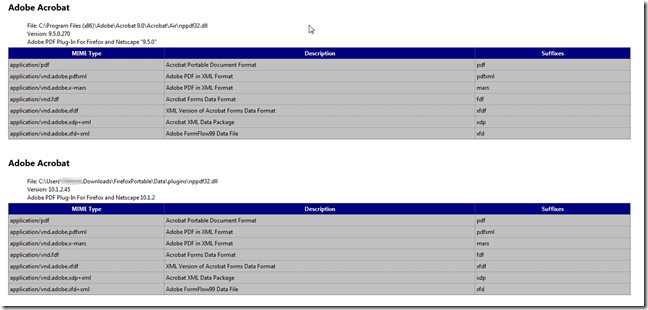
nepyxuaf.11d

If you look carefully at the info in that image, you will find that my portable Firefox build was actually loading both the current Adobe Reader 10.1.2 plugin file from the portable “plugins” folder where I had dropped it. However, it had also found and registered (?) the same Adobe Reader file (but outdated version 9.5.0.270) from an obscure folder location when I had installed a hand-me-down-from-my-brother Adobe Acrobat Pro 9 installation. A really seriously obscure folder location. Gads!

My “fix” was to simply shut down Firefox and wait for all related Firefox processes to terminate. Then I copied the 10.1.2 version of nppdf32.dll over into the same folder that had that old version and overwrite it.

For good measure I also followed the first part of the “method 2” tip on the MozillaZine page for Disabling the browser plugin. This was to Close your Mozilla application, delete the file "pluginreg.dat" from the profile folder location and recheck about:plugins.

Now only the version 10.1.2 Adobe Acrobat Reader plug-in was listed, and as found in my portable “plugins” directory. For the final confirmation I popped over to Firefox Web Browser — Plugin Check & Updates to let it rescan and report.

qiwbj0et.21o_thumb1

Success!

All the critical plug-ins were now showing Up to Date.

But that wasn’t the end of the story. Claus was on an Adobe product updating search-n-destroy tear now.

There’s More to the Story Here!

Since I knew the names of a few of these critical Windows plug-ins, I did some system-wide scans looking for those files:

  • Flash plug-in (for Firefox): NPSWF32.dll
  • Shockwave plug-in: np32dsw.dll
  • Adobe Reader plug-in: nppdf32.dll

For the Flash plug-in, I discovered 13 instances of the file on my own system in a total of 6 different versions!
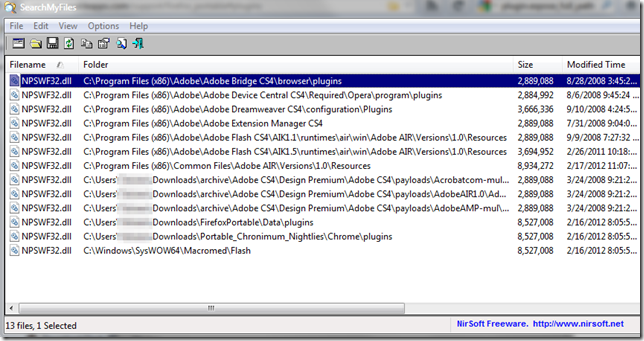
y4v4cs1m.bnv_thumb1

So if you normally run the Adobe Flash update installer (for non-IE versions) and expect it to simply and automatically update your Adobe Flash file system-wide, you may be woefully surprised (as I was) that isn’t necessarily going to be true. I guess I need to now copy the “latest” version myself into all those locations to overwrite the present version…assuming the new version is fully compatible with the applications calling it from those locations. That may not be the case!

The Adobe Flash update for IE versions is much simpler to manage. A check in the IE add-ons manager reveals the IE version of Flash is named “Flash11f.ocx”. I found it installed on my system in only one location…where it should be…and it was current.

More details on Adobe Flash plugins/tips/techncials here: Installation problems - Windows Flash Player @ Adobe

Of curious note, that original version for the Chrome plugin folder was also seriously outdated. One of the benefits of using Google Chrome is that it is supposed to automatically keep its own version of Flash updated; Adobe Flash Player plug-in - Google Chrome Help. The Chrome included version is named “gcswf32.dll” but since “NPSWF32.dll” was showing up for some reason rather than the Google Chrome version, I had to copy/paste the newest “NPSWF32.dll” into the folder to overwrite the outdated version with the current patched version.

One more thing to keep an eye on in my 2nd-favorite browser now. Sheesh.

There is lots of good info on that Google Chrome Flash Player link, so I highly recommend you read it, and then follow the following steps to familiarize yourself with the Chrome Plug ins in use as well:

    1. Type chrome:plugins in the address bar to open the Plug-ins page.
    2. On the Plug-ins page that appears, find the "Flash" listing.
    3. To view additional details on the actual plug ins used and their file-path locations, click Details in the upper-right corner of the page to display more technical file/plug in information on the page.

The Shockwave file “np32dsw.dll” fared better. It was found in just two places on my system, the main install location as well as a copy of that original I had placed in my portable Firefox plugins folder

What about the Adobe Reader plugin file “nppdf32.dll”? Better? Mostly.

It was found a total of eight times system-wide in three different versions. The two older versions were in installation “$PatchCache$” folder locations so those didn’t appear likely to be accessed “live”. All the others were at the current patched version so I guess things are better there. IE and Chrome also use that same file (assuming you use Adobe Reader as your plugin and not a different/alternative PDF reader/plugin solution). You can go through the same processes mentioned earlier in both IE and Chrome to confirm that plug-in file/version if you wish.

Possibly related:

Flash for Firefox - Sandbox Beta Edition

And if all this (just the mainstream/public versions of Adobe Flash and keeping it updated/secure) isn’t enough, Adobe now has a “special sauce” version for Firefox that introduces a “sandboxing” feature for added security!

Flash Player Protected Mode Features

The current Incubator release provides access to Flash Player Protected Mode for Mozilla Firefox on Windows 7 and Windows Vista systems.

Flash Player Protected Mode is a new security enhancement designed to limit the impact of attacks launched from malicious SWF files against Flash Player when running in Firefox on Windows Vista and higher. We are working aggressively to make Flash Player more secure, and Protected Mode is a critical component in our strategy. The current beta targets Windows desktop operating systems. We are working to extend similar protections to other browsers in the future.

Note: The extensive low-level changes made in this beta release may introduce unexpected problems in existing Flash content.

Keeping an Eye on the Updates - Third Party Style

There are a number of third-party tools/sites to also check your system patching for these to various degrees of depth:

I highly recommend you regularly use all of these to do some first-line software patch checking of your Windows system. For a basic starting place, make a note to check all of these locations at least every "Microsoft Black Tuesday” when you are checking for and applying your Windows updates, Mm-kay?

You are checking for and applying your Windows updates right?

Oh bother…

Cheers!

--Claus V.

Firefox Notes

It has been quite a while since I have dedicated some sweet bloggin’ lovin’ to that Foxy browser.

Fortunately the Mozilla factory has been running overtime hours coupled with its plugin suppliers so there is a lot of material.

Looks like time for a blogpost on Firefox!

If you weren’t paying attention, you might have missed that the main Firefox public release got two rapid-fire updates.

Meanwhile additional work continues on future features

Make Use Of blog has some good pointers on How To Make The Most of Firefox’s Session Manager

Speaking of updating the Firefox browser, looks like that process is getting a much needed update of its own:

Quite some time ago, I was regularly running “Minefield” versions of a Mozilla Firefox x64 build. It was fine until I hit a rocky patch of code updates that made my bookmarking support go wiggy. So I jumped back to the main public build on x32 for stability-reasons and haven’t given much thought to going back to some x64 builds.

So I read with interest recent development work on Waterfox and a few other special projects for x64 versions of developmental Firefox builds.

Need some perspective on the builds and differences? Check these out.

One night last week I downloaded the Waterfox build, and then with just a little effort made a portable version of it based on my portable x32 Firefox build (same plug-ins, cookies, Add-ons, etc.). I didn’t experience any issues and all my Add-ons worked fine. No crashes. After a few hours of surfing I was really unable to tell much of a user-level performance difference between it and my x32 public build. So experiment over, I canned it and went back to my x32 build.

That may seem like a harsh thing, but really, in my mind it proves the successful development work these builders are doing in the x64 bit world of Mozilla. According to the NetworkWorld article linked above, there are very slight performance differences between them, but unless you are just a “bleeding edge” user, there just isn’t any compelling reason (IMHO) to make the jump to x64 versions of Firefox…just yet. Give things another year or less, however, and I bet these will all be mature releases and I will be telling you there isn’t any compelling reason NOT to make the jump to x64 Firefox if your OS supports it.

More here related to the browser “speed wars” race. That 2nd IE link is really fascinating!

Now to fixing some Firefox headaches I uncovered…and that will be so big it requires a spin-off GSD post!

Cheers!

--Claus V.

Saturday, January 28, 2012

Solving the DSL<-->WiFi<-->Nook<-->In-Laws Equation

The Valca home is and has been an Amazon Kindle only zone for some time now; thank you very much.

So last year Lavie decided that the E Ink keyboard one (of two) that we had was a bit uncomfortable for her (and not back-lit). She decided to move over to a B&N NOOK Color model. This was in the pre Kindle Fire days so I guess we could tolerate its presence.

The Nook Color served her well enough but when the Kindle Fire came out she had to swing back. It finally arrived last week as a back-ordered Christmas present.

Fortunately, she hadn’t purchased very many books for the Nook so we didn’t deal with trying to see if there were any options for porting her books over to the Kindle. It was an opportunity for a fresh start.

So, she passed her Nook on to her parents a few weeks ago and they loved lot. A lot.

They are on a DSL broadband service, and have a wired XP desktop system. One cable to rule all Internet service. No WiFi except when we stop in for an extended visit and I bring my D-Link DAP-1350 Wireless N pocket router and take over their single network connection for the weekend. Nice but not a permanent WiFi solution.

I suppose we could have just taught them to connect the Nook Color to their desktop via USB and manage it directly but it seemed time to add a WiFi router to their humble network and just do it right.

So that was this Saturday’s “honey-do” and this post is the process we had to go through to upgrade their DSL network and get the hand-me-down Nook color fully transferred over and set up for them.

First Part of the Equation: DSL<-->WiFi

First I picked up a WiFi router. I went with what has become my perennial favorite: DIR-655 Xtreme N Gigabit Router from D-Link 

I’ve had this unit personally for a number of years and is rock solid, has both the “N” and older wireless standards, has a rockin-long range, and is super-easy for configuration. The power was important in this case as the location of their DSL modem is on a second floor above-garage room pretty far away from their usual living areas. The signal will carry all the way downstairs and up. Check. And since it is the model I also own and maintain, I know and am comfortable mucking around in the settings. Makes providing extended support much simpler when a problem arises.

Typically I’ve been able to get away with just unbox, connect, run-wizard from CD config, then go and make some manual setting tweaks afterwards. However, this 2-wire DSL modem was a real headache. I could set up the internal network and WiFi perfectly. Just couldn’t get to the Internet through the DSL modem. Plugged the DSL modem Ethernet back to the PC and it was working, reconnect to the DIR-655 and it wouldn’t'.

Long story short, I eventually figured out that for their particular hardware and provider, I had to do a few more custom tricks.

I had to set the Internet Connection Type to PPPoE and enter their DSL username/password. (I got that from their email client settings.)  D-Link has a nice Emulator for this router to play around with: D-Link DIR-655 RevB Emulator

Then I had to go into the Network Settings and change the router IP Address to use 192.168.1.1 from the default IP address of 192.168.0.1   Turns out that the default IP address was conflicting with the internal Ethernet-facing IP address provided by the DSL router. This was the real trick.

Once I got the network stabilized, I tested the configuration survivability by powering off both the DSL modem and the D-Link (to simulate a power-failure), then powered them back and and made sure the PC could get to the Internet. Check.

This one was actually a DIR-655 RevB model so I then saved my configuration file, downloaded the latest firmware and ran an upgrade. Success. Naturally it lost all of my settings, so I had to upload my saved config file and it was back to normal. Yea me!

More helpful notes I had to find to work out that issue:

So now I had taken care of the DSL<-->WiFi router part of the equation. Next the Nook.

Second Part of the Equation: Nook<-->In-Laws

This actually was almost harder than getting the router added.

Because the Nook was a hand-me-down, Lavie had it configured with our WiFi settings, her name, and the account information. She said she didn’t mind if her parents just kept it that way and we just change the billing information on the account. However, she had followed bad password security and used the same information she has used on several other of her on-line accounts. I needed to break that clean.

The rub was that Lavie had already purchased some books for her dad under her Nook account and I didn’t want to loose them. What I wanted to do was to figure out if/how I could transfer the B&N account she had set up over to them and remove Lavie’s information and add-in theirs.

Here’s what I had to figure out doing to keep the original Nook account (and purchased items) but swing it fully over to the in-laws “clean”. Note this was a serious trial-n-error process that took almost two-hours longer than it should have (by my reasoning). This is the “clean” version and from what I later read on the web, seems to be the only way currently I know of to “transfer” a nook from one email/owner to another one while preserving the purchased items.

Note: Lavie didn’t have any files or items on her Nook that were not already associated in her Nook account (like manually installed music/videos/pictures/stuff) so I didn’t have to deal with the loss of those in this process. If you have those on your nook and want to preserve them, you probably want to off-load/copy them to your PC first before beginning this process. Again, this assumes everything you want to keep is safe and and associated in the B&N account you will be restoring from. YMMV. So you were cautioned, so you were warned.

  1. Take your Nook (the one you want to change the owner name/email account info on) and go into the settings and find the option to Unregister/Erase your Nook. Do this first. Really. BEFORE you do ANYTHING ELSE. It sounds serious and I guess it is, but that’s how the Nook rolls.
  2. Once your Nook is reset, log into your B&N account from the BN.com page. If you can find the login link on the page. Seriously. I was using Chrome and it took me ten minutes to realize that tiny gray bar (which perfectly matches the address bar gradient and bookmark text in Chrome at the very top of the page) with the tiny text is the login location. Sheesh. Hey B&N. Can you make it a bit more obvious please?
    vhpdjerp.ve1
  3. Now change your name in the account. I changed it over from Lavie’s name to the in-law’s.
  4. Change to your new email address in the account. Changed from Lavie’s to the in-law’s.
  5. Change the password if you desire…I did so desire and changed to a complex full 15-character (most allowed by B&N) password.
  6. Change the Shipping/Billing addresses as needed. Now set to the in-law’s.
  7. Change your secret challenge question if needed. Selected and changed as picked by the in-law.
  8. Update the associated credit card information. Definitely the in-law’s here!
  9. Etc.
  10. Once all the account information is updated to the way you want it and saved, make sure you can successfully log-in/out of the account. Good? Great.
  11. Next fire up the now reset Nook and go through the setup process from scratch.
  12. Accept the Terms of Service.
  13. Set the Time Zone.
  14. Connect to a WiFi network. It found the WiFi network I had earlier got working, I fed it the secure passphrase and it connected perfectly and strongly.
  15. Register the Nook. (I passed it the updated email address from above and the new password.)
  16. It Registered and identified perfectly as the in-law’s nook now.
  17. Yea me!
  18. We went to the Library and told it to refresh and all the books previously associated with the account flowed back down and “installed” without any issue.
  19. I then went to the applications and downloaded the waiting previously purchased/associated apps. Perfect!
  20. The Nook was now fully theirs.

Equation Solved: DSL<-->WiFi<-->Nook<-->In-Laws

We spent another hour or so going though the list of free NOOK Books at Barnes & Noble. We found a good selection of mystery and history classics to keep them both occupied for the next couple of months. Pop also found a good old-west history book to purchase as well. It was good training process and confirmed the purchase/credit-card association with the account worked.

Mission accomplished, five hours (and one super-awesome BBQ baked-potato for lunch) later, the equation was solutioned.

Additional Notes:

  • Daughter hovering over your shoulder on the back of the couch while you have your laptop and the Nook balanced on your lap troubleshooting. Like a vulture lurking. Not helpful.
  • Daughter making organic microwave popcorn and snuggling up munching away while you have your laptop and the Nook balanced on your lap troubleshooting. Also not helpful.
  • Daughter not asking once to borrow your laptop to check out the WiFi and Facebook while you are troubleshooting. Very helpful and appreciated.
  • Sense of patience and humor from all participants; self, daughter, in-laws. Very helpful.
  • Extended road-trip to in-laws up and back with daughter on beautifully clear and cool day through the east-Texas pines lined country roads. Priceless.

Final thoughts.

Lavie had successfully set up her Kindle Fire just fine by herself (thank-you-very-much) so I didn’t get to participate in that except for applying a smokin-hot DecalGirl skin she had picked out for her Kindle (my hands are super-steady for such things). She had also picked up screen protector but turns out that it is a full edge-to-edge cover which would cause issues with the DecalGirl skin on the front (which frames the blacked-out display edge portion). I suggested trimming it down so it fits inside the DecalGirl border but she passed on that for now…so it remains uninstalled at the moment.

Alvis and I both have the WiFi-only version of the E Ink Kindle model and we love them. Light, super-durable, and the charge lasts a long time.

Last night Lavie did ask me to copy some songs from her iTunes playlist to the Kindle Color. You can do it a few ways, apparently most popular is to upload music from your PC/Laptop to the Amazon Cloud Player service. What I ended up doing was to connect Lavie’s Kindle Fire directly to my PC (which holds our iTunes library) via USB, then opened iTunes, opened her play-list, sorted it by album, then I selected a song, hit the three key-combo “Ctrl-Shift-R” which opened up the location of the file itself on the library, selected any additional songs in her playlist from that album, copied, then pasted them in the Music folder on her Fire. Repeat as needed.  It was a bit slower but got the job done. All of them appeared to be in the compatible .m4a format and I didn’t find any .m4p that would not have been supported.

She was jammin…though I left her to work out creating a new playlist from those songs directly from within the Kindle itself.

Adding photos/videos would be the same process, locate on your PC, drag/drop into the correct folder on the Kindle when it is attached via USB and shows as an external storage device. Piece-o-cake.

Based on the (admittedly still limited) time I spent on both the Nook Color and the Kindle Fire, I found the Kindle Fire was more to my liking. I could navigate around the Nook Color and it was pretty intuitive (never did get around to reading any manuals on either one) but I did like the “hand-feel” of the Kindle Fire better. And the navigation just subjectively felt better to me on the Kindle Fire than the Nook.

Since I am (for now) a hard-core Kindle E Ink format lover, the extra bells-n-whistles of the Kindle Fire haven’t captured my eye yet, so I cannot comment on app-support and performance of videos/games/applications between the Nook Color and Kindle Fire.

The other think I noticed while helping set up the in-law’s Nook was the apparent lack of easily found free E Books directly within the B&N Nook store. Searching for E-books at B&N was a super-pain as well. In the end I had to do a Google Search to find this “all-in-one-place” location for Free NOOK Books.

When I first got my Kindle, right on the Amazon Kindle pages I found this Amazon.com: Free Book Collections: Kindle Store link. In no time flat I had downloaded almost twenty amazingly awesome classics from literature, philosophy, religion, and reference. All free. I’ve since moved on and expanded my collection to include many additional eBooks I’ve found scattered on the net including some great ones in PDF formats and I have made a number of eBook purchases for the Kindle as well. That smooth and awesome experience jumping into the Kindle right-out-of-the-box probably helped solidify my personal leanings towards the Kindle platform. I’m sure there are lots of additional Nook-compatible ebook formats and ways you can get them to your Nook, but for the in-laws, having in-store access to locate and select-to-download-direct to their Nook has a lot of appeal.

I’ve got a lot of great Kindle resource links saved and building for a GSD Kindle post…along with some cool technical and for/sec bits related to the device I have found as well. Hopefully that will come soon.

Anyway, hope this helps someone else trying to get their DSL <-->WiFi<-->Nook<-->In-Laws equation to balance out and solution properly.  Now I remember why I found Calculus so challenging. It was a real love/hate relationship and this turned out to be very much the same.

Cheers!

--Claus V.

Sunday, January 22, 2012

The GSD Curmudgeon says “Get off my Yard you Dang Kids!”

Sigh. I’m getting old.

I recently read a post at ReadWriteWeb by Scott Fulton, III Mozilla's Plan for Keeping Firefox Relevant in a Post-Browser Web.

That day I became dangerously close to becoming the old technologist guy equivalent of the “You kids get off my lawn!” guy we all probably know.

What is Mozilla doing to my beloved Firefox of the near and dear “future”?

  • HTML5 runtime functionally support (for driving in-browser, non system proprietary, web-apps).
  • Extending cloud-based services.
  • An on-line identity management system called “BrowserID”. (How it works)
  • and more stuff imagined and planned.

That left me grumbly then John Paul Titlow at ReadWriteWeb posted this Mozilla: We're About to Grab More Data About You, But Here's How We'll Keep It Safe.

Mozilla has some big plans up its sleeve in 2012. The non-profit open source foundation is planning some features for its Firefox Web browser and beyond that will require greater access to user data. In a blog post, the organization explains exactly how it intends to use and handle that data. In short, very carefully.

The blog post John Paul references is up at Mozilla Privacy Blog: Mozilla to Offer New User-Centric Services in 2012.

While I recognize and appreciate the very challenging work that browser developers have (not just at Mozilla), I think I’m grumbly for two primary reasons here with Mozilla.

First, I was a very early adopter of Firefox. It was quicker than IE. It was slimmer (memory and feature bloat) than IE. It was more secure than IE. And I could plug all kinds of things into it (Add-Ons/Extensions) to customize it with only those features and capabilities that helped make my experience on the Web better. If I didn’t need it, I didn’t' install it and thus kept the Firefox browser lean and mean.

I really do “get it” with the coming exciting wave of “web-based apps” and running them in your browser and the security it will now bring (think JavaScript/Flash). It’s the next “big” evolutionary shift for the Internet. Really. Who of us really still think of the Internet as being just a super-large reference library and world-wide town-square/market anymore? It’s now a world-wide commercial mall and entertainment center. Really. Oh sure, you can still go down that wing none of the hip kids hang out at and find the pubs where the old-timers hang out, a few plain coffee-bars where the wanna-be journalist “bloggers” hang out and trade stories of yore, and maybe go into that virtual bookstore of arcane knowledge and technical minutia that some of us still love. But really. None of the cool companies and consumers come down this way. They demand different things. Better things. A new paradigm of interaction and operation.

Sigh.

So the browser needs to change to keep up. Bigger, more embedded features. Probably faster. Probably louder too with base-boost and kickers. Hopefully the security alarm on it will be better too.

Secondly, my bones ache every time a new ID management system comes out that gets closer to being a cloud-based requirement. I know, it’s for my own good their doing it. Really. I’m so much safer having more and more of my user data off-loaded to the Webs and Clouds. Clearly the higher and higher it goes away from me the safer and safer and harder and harder it must be for the underground dwellers to grab it. Right? What? Oh, I have to just “trust” everyone “out-there” with my user data and All-In-One credentials and stuff. I’m sure everyone will be honorable and diligent in keeping my account and passwords and user data safe and secure. Nobody ever gets their customer’s account/password information lost to hackers, or on a laptop, or on a USB stick anymore, or via a network traffic hack. Right? That was just in the “old-days”. These new solutions are really, really safer.

I get it. I do. And I appreciate everyone working so hard to keep Firefox and my web experience so much more safe, more secure, and more powerful than ever before. I appreciate modern AC over running a fan past a block of ice to cool my house. Really. And who doesn’t like the convenience of a cellular smart-phone over a plain-old copper analog line service wired into your house?

My browser is growing up, and the world it is living is changing as fast as it is.

Sigh.

I still use (and probably will) Firefox as my personal “production” web-browser of choice. It works for me and my way of being productive.  That said, when I’m surfing the web, give me Chrome. I guess I have to still drive the daily commuter into work and back, but yeah, on the weekends I like to pull out the latest sports car for tooling around the highways and byways and back roads.

You know, I was a very early adopter of Chrome. It was quicker than Firefox. It was slimmer (memory and feature bloat) than Firefox. It was more secure than Firefox. And I could plug all kinds of things into it (Add-Ons/Extensions) to customize it with only those features and capabilities that helped make my experience on the Web better. If I didn’t need it, I didn’t' install it and thus kept the Chrome browser lean and mean. In fact, I hear from the Google Chrome Blog that Chrome is about to get more Speed and Security with pre-rendering of pages and enhanced URL and file-download checking. What’s not to like about that!

I gotta admit, high-school senior (these kids again!) Danny Stieben’s timely post at MakeUseOf blog probably sums it up right: Why It Eventually Won’t Matter What Browser You Use [Opinion].

It won’t. Honestly. It just won’t. Time to face the music and admit I’ve got to adopt the new (browser/web) core “technology” design model and landscape or I’ll become irrelevant and end up spending the rest of my days in that dilapidated and decaying wing of the New Web Mall hanging out with the other curmudgeons and making fun of those really dorky guys and gals still using AOL web-mails, web portal home-pages with their IE 5/6 and Firefox 3 web-browsers. Seriously? Who uses those anymore?!! Get a clue.

Here. Spin a wheel and take a pick. Take one. Use one. Just don’t become friends or companions. Someone’s bound to change and the relationship will sour, and there will be a new favorite.

The GSD Curmudgeon ends with these moving and inspiring words of wisdom and perspective on the whole thing.

Great Motivational Speech - It Just Doesn't Matter - YouTube

Ok…soap box away. We will now return to regular GSD programming.

--Claus V.